polski
 español

 Monika Borowiec
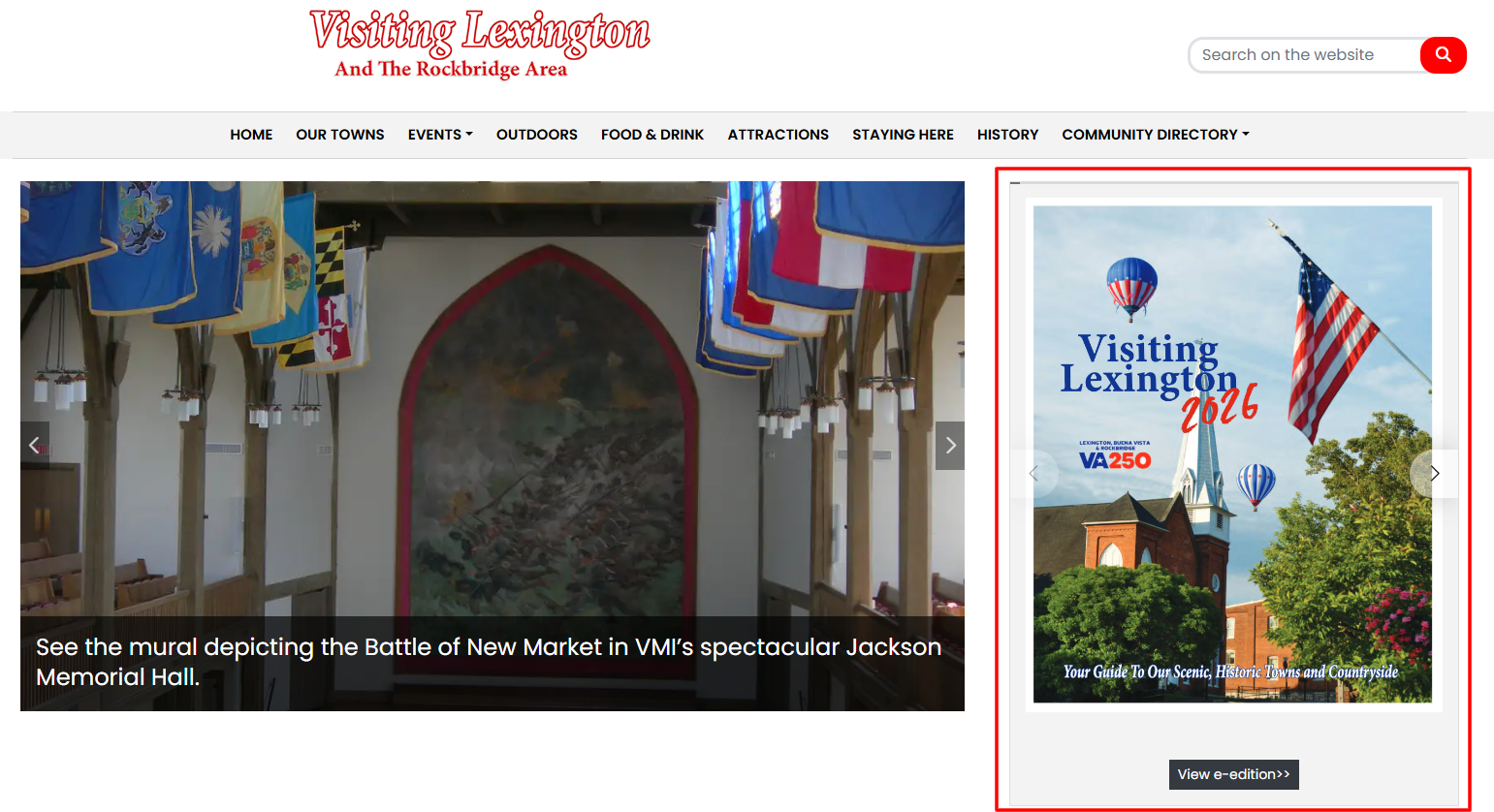
The e-edition widget in the CMS 4media allows you to display previously uploaded PDF files in the e-edition module - digital versions of newspapers, magazines, or periodicals. Users can browse the entire document's content directly within the widget and customize how it's displayed to suit their preferences.
You can add the e-edition widget to any page template available in the CMS 4media. To enable the widget to display your publication, you must first add it using the e-edition module.
One widget can display only one file, meaning one issue of a newspaper. You can add multiple identical widgets to one page template if you want to display, for example, three issues.
Adding the [E-edition] Widget to a Page Template
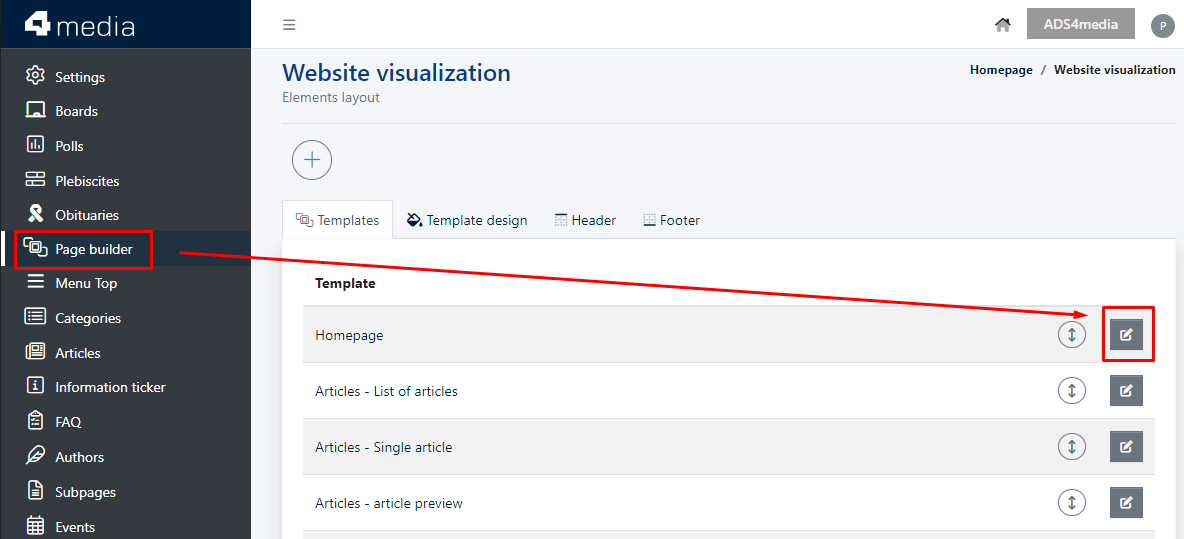
To add the widget to a page template, log in to your administrator account in CMS 4media. Then, from the menu, go to [Page Builder] and select the template where you want to add the widget. Now, all that's left is to click on the [+ Add Element] button where you want the widget to appear (you can also change its position later).
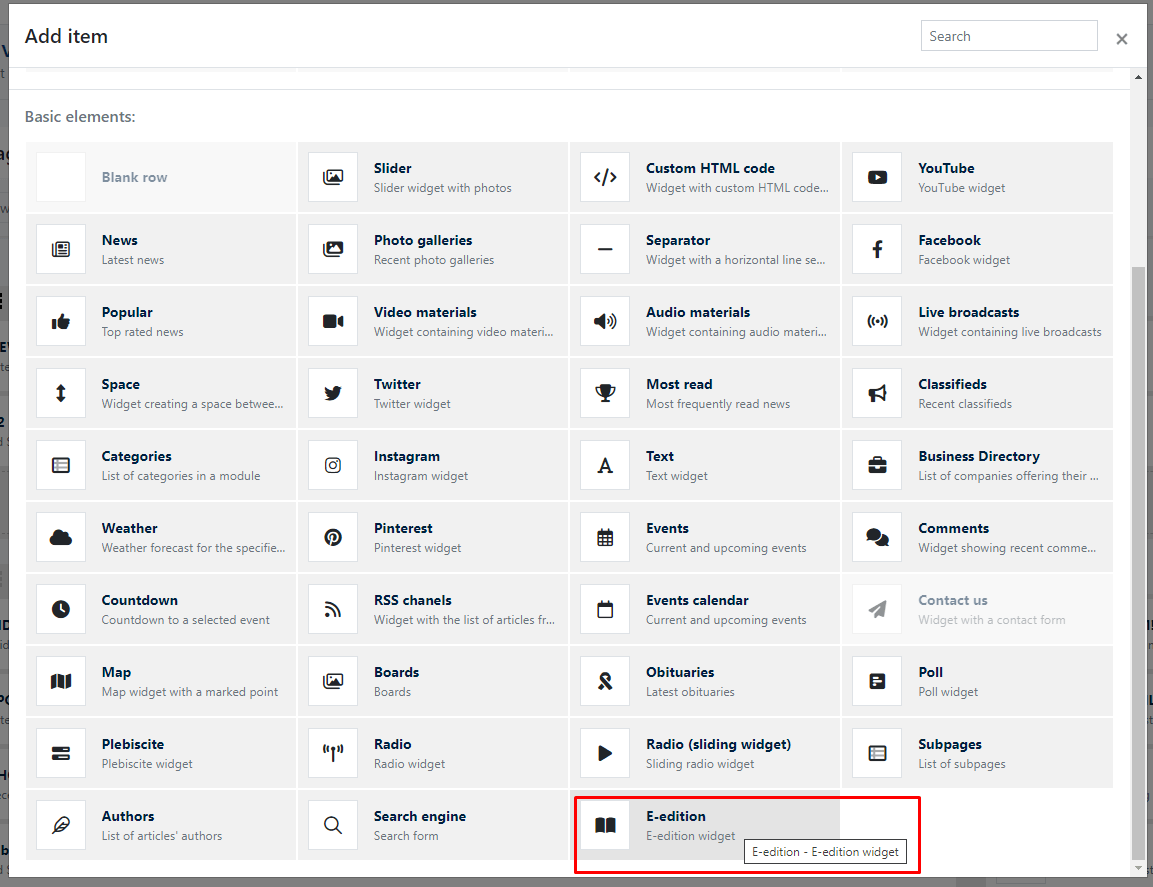
From the widget library, select the [E-edition]. This will open a new pop-up with its configuration settings.
How to add a widget in CMS 4media? Check out this article:
[E-edition] Widget Settings
The [E-edition] widget settings are divided into the header and content settings.
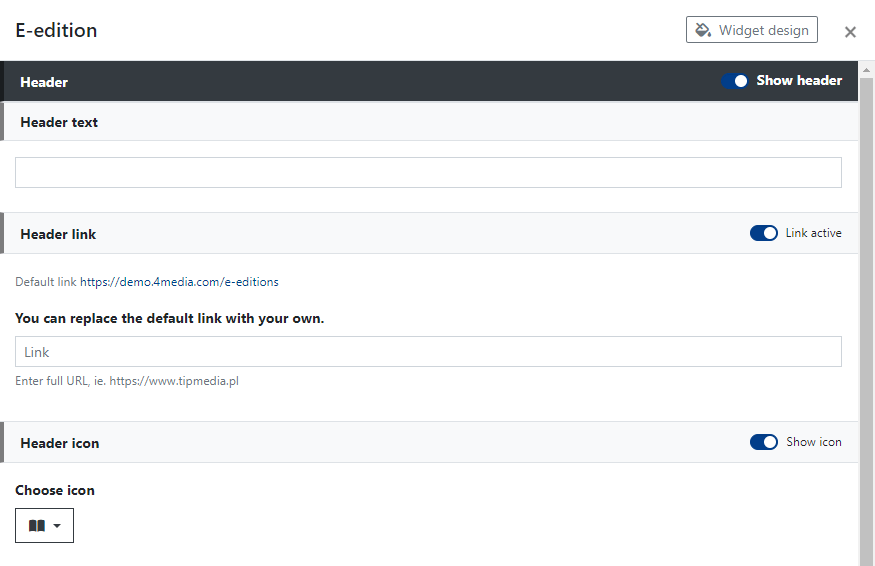
In the Header section, you can set:
Header text - this will be the content displayed in the top bar of the widget. It can also function as a link (if you set the Header Link). You can also choose to disable header display.
Header Link - if you leave this field empty and active, the Header Text will link to the default widget subpage, i.e., /e-editions (e.g., https://www.4media.com/e-editions). You can also paste a different URL or disable the link.
Icon in the header - if this box is checked as active, an icon will be displayed before the header text. You can change it by selecting another icon from the icon library integrated into the CMS 4media system.
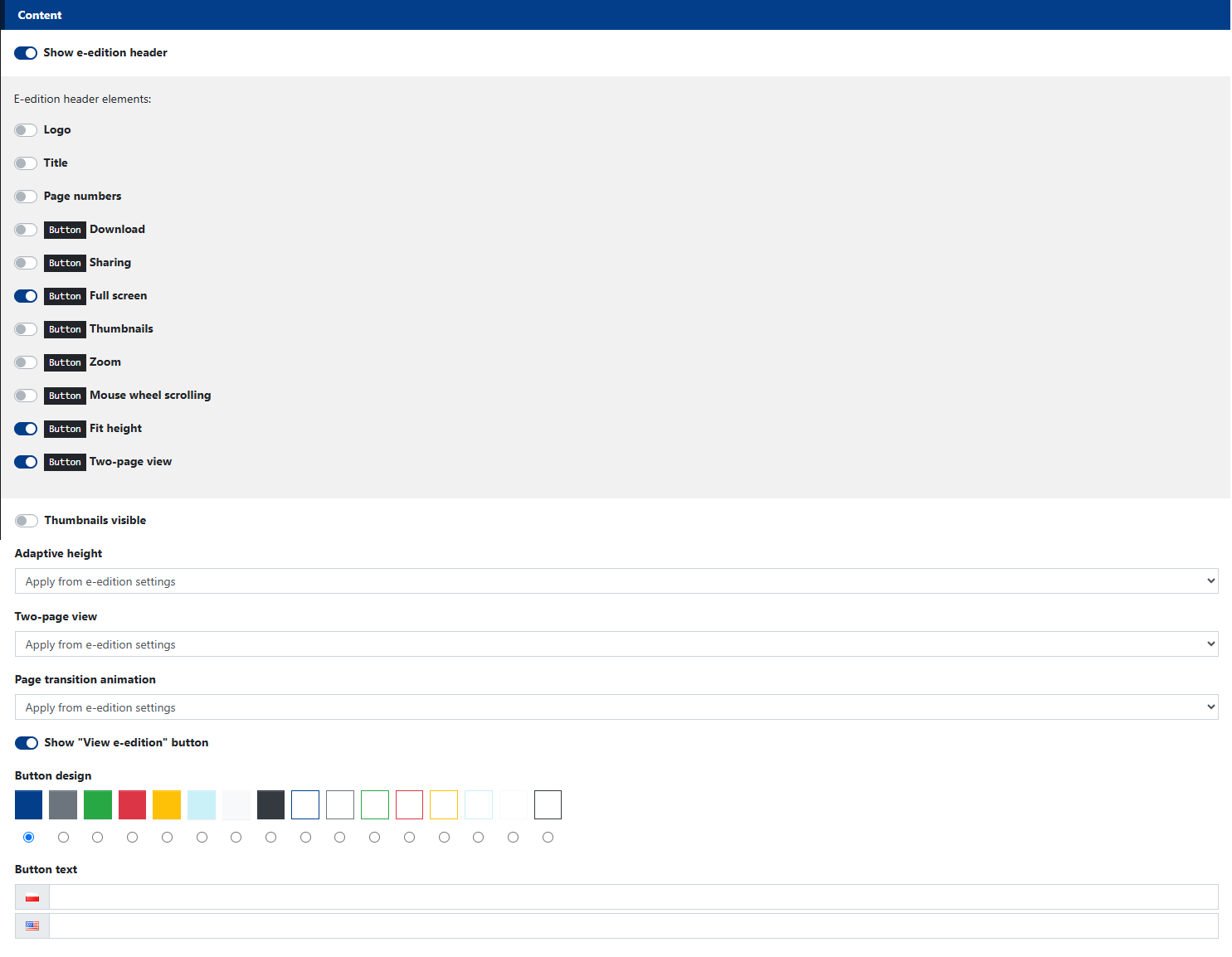
Below the header settings, in the upper part of the widget, you'll find the content settings where you can decide which editions to display in the widget alongside with customizing available tools at the same time.
In the [Content] section, you can set:
Show E-edition header - if you leave this option checked, you can decide which menu elements on the top bar of the widget will be displayed. Among these elements, you can select or deselect displaying:
- Logo,
- Title,
- Page numbers,
- Download button,
- Sharing button,
- Full screen button,
- Thumbnails button,
- Zoom button,
- Mouse wheel scrolling button
- Fit height button
- Two-page view button
Thumbnails visible - if you check this option, the widget will also display thumbnails of subsequent pages on the right side next to the displayed page. You can click on them to view the pages.
Adaptive height - Activating this feature makes the height of the e-edition being viewed automatically adjust to the height of the reader’s device screen by default.
Important: This feature applies when fullscreen mode, available in the e-edition header, is activated.
Two-page view - Once activated, all e-edition pages (except the cover) are displayed in pairs, side by side.
Page transition animation - There are two animations to choose from: Swiping or Intermingling.
Show [View E-edition] button - if you activate the switch, a button will appear at the bottom of the widget that, when clicked, will redirect the user to the subpage displaying the edition shown in the widget. Among the available options, you can choose the button's color and enter the text to be displayed on it.
At the bottom, you'll also find a list of available e-editions previously added in the E-edition module. Here, you can indicate which one should be displayed in the widget. To do this, simply click on the edition's title, and a blue dot confirming your selection will appear in the left column.
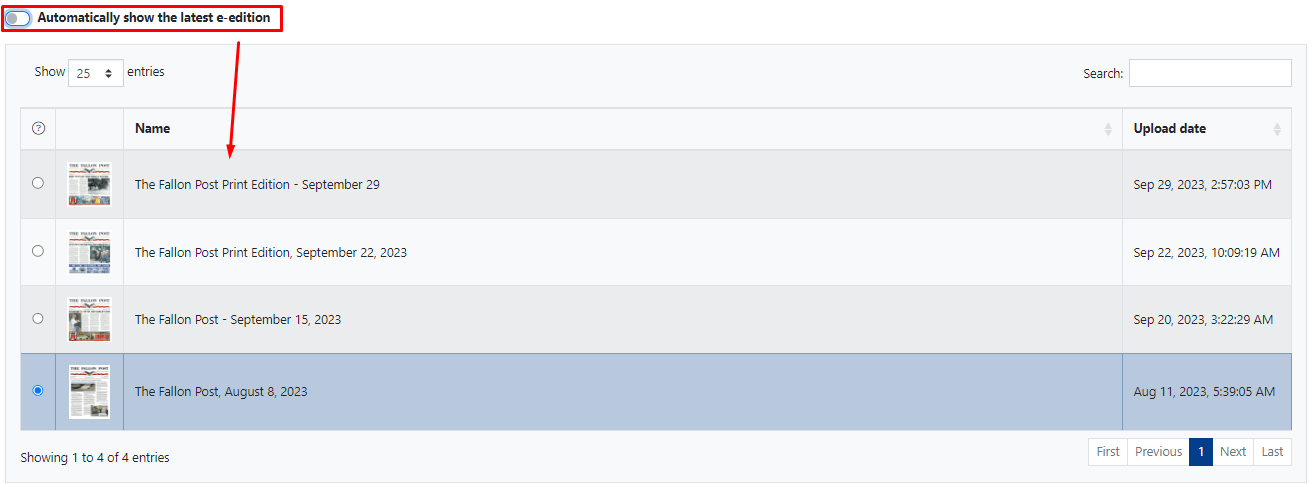
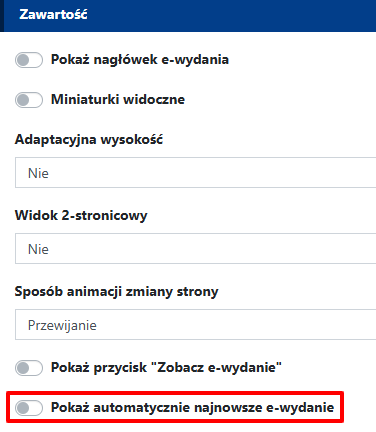
If you want the widget to automatically display a new edition, check the [Automatically show the latest e-Edition] switch in the Content section. This way, you won't have to edit the widget every time you add a new issue of a magazine or periodical.
Looking for best CMS for newspapers?
Check what else we have for you: