polski
 español

 Rafał Kozłowicz
Tags are used to precisely and descriptively summarize the content of an article using short words. They relate to the context of the content or event that took place. They are displayed beneath the article, and users can click on them, serving a navigational role by directing them to a tag-specific subpage where they can see other articles with the same tag.
Tags are an integral part of any news website. They help users better understand and access related articles. When well-planned, they can positively impact the website's SEO by expanding the number of connections between articles through internal linking.
Managing Tags on the Tag List
When you select the Tags module from the main menu in CMS 4media, you'll see a list view with added tags.
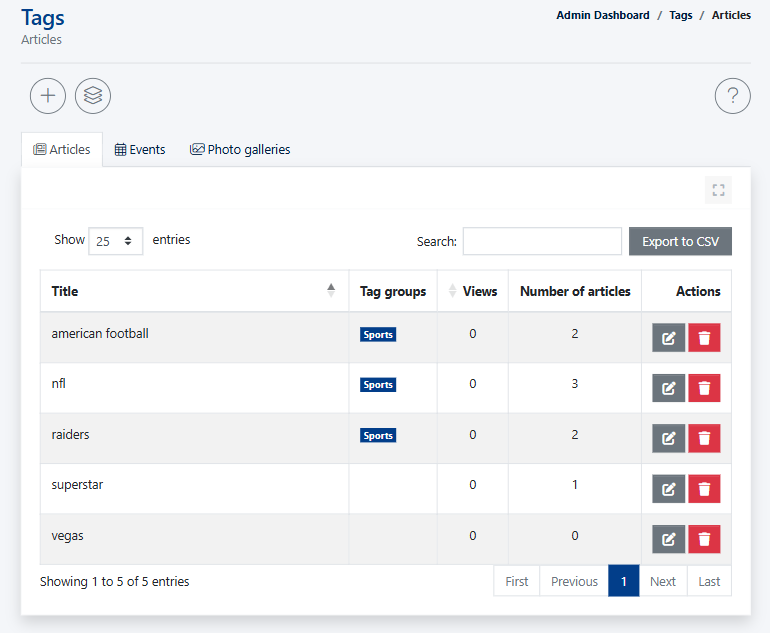
At the top of the list, you will find the “Articles,” “Events,” and “Photo galleries” tabs, which allow you to switch between the tag lists available for each type of content.
In addition to the tag name, the list contains the following columns:
- Tag groups – shows whether the tag is assigned to a tag group.
- Views – shows which tags are the most popular among users of your news portal.
- Number of articles – shows the number of articles assigned to the tag.
- Actions – contains buttons for editing the tag page and deleting the tag.
Adding Tags
Naturally, your journalists and editors will add tags while creating or editing articles and events. Each tag created in this way will appear in the tags module, where you can edit or delete it.
Please note the tags inputed this way will be added to the dedicated module only after either publishing article or saving it as a draft. It prevents creating unwanted tags by mistake.
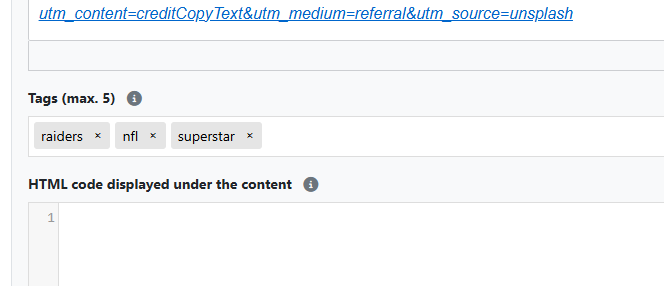
You can also create new tags directly in the [Tags] module, making them available for selection in the Tags field during article or event editing.
To add a new tag in the [Tags] module, click on the plus button in a circle 
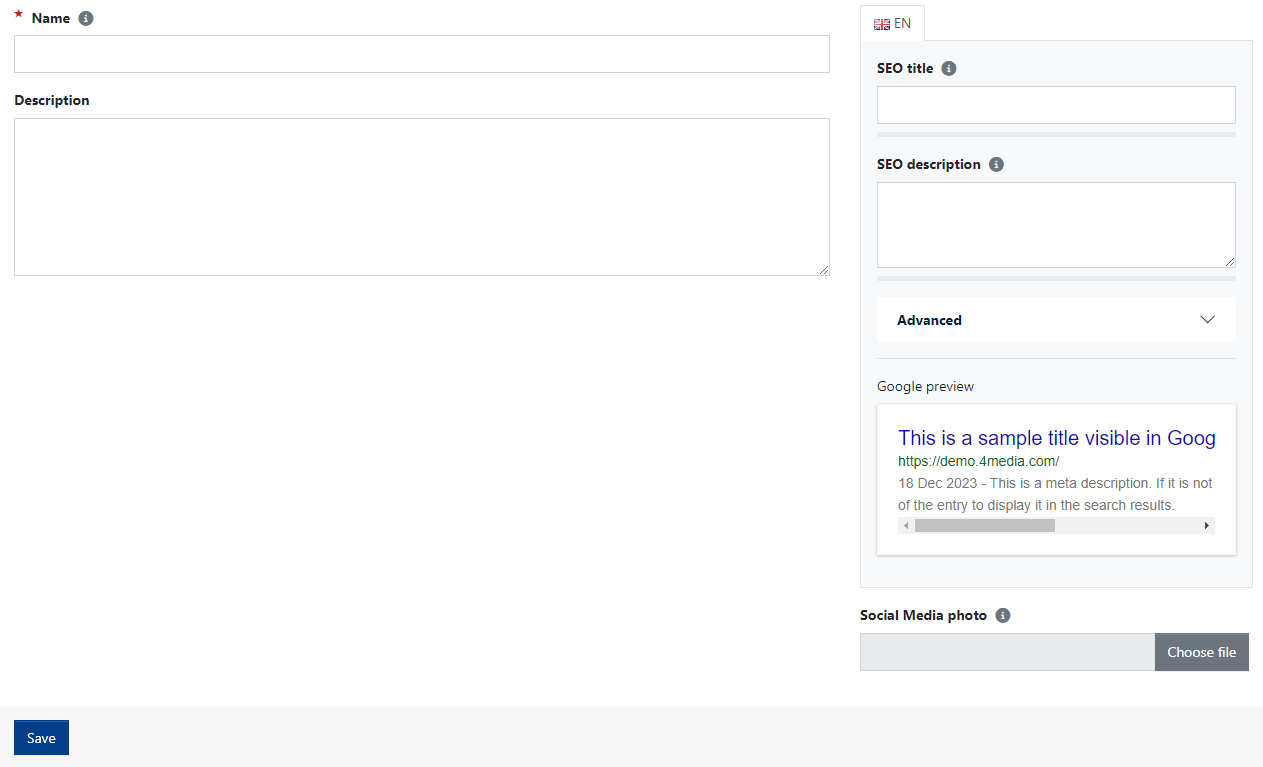
Name - enter the tag name that will appear on the website.
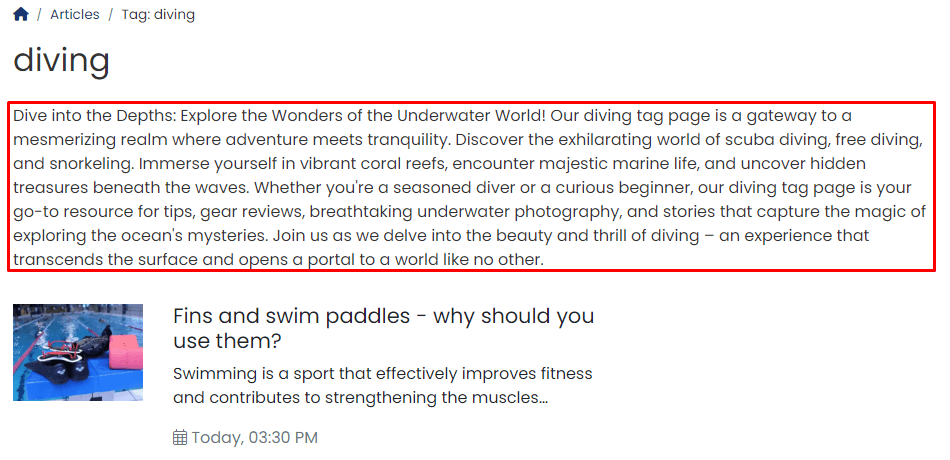
Description - you can write a few sentences explaining what the tag is about. If the tag page is indexed (or if a user clicks on the tag and goes to its page), the description will be displayed above the list of articles. If you've enabled tag indexing, filling out this field will strengthen the SEO of the tag page.
On the right side (on desktop devices), you'll find SEO Fields, allowing you to influence the appearance of the tag page in search results and the appearance of the thumbnail in social media (the image that loads in the link preview). More on this topic is covered in guides:
Global Tag Settings
Global tag settings allow website administrators to maintain order in tag management. These settings prevent frequent occurrences of adding dozens of tags to a single article or event.
Global tag settings are available in the [Settings] → [Tags] module.
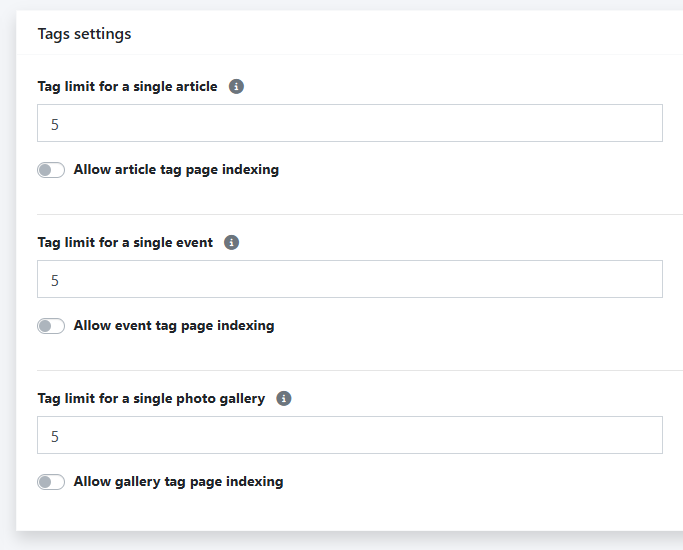
You can specify two fundamental matters here:
- Indexing the tag page in search engines - you can decide separately for tags added in articles and event tags whether tag pages should be indexed, e.g., in Google search. If you permit indexing, CMS 4media tag pages will be automatically indexed if the tag is assigned to at least 5 articles (this setting benefits SEO, as indexing robots see more valuable content on the tag page).
- Tag limit - separately for a single article and event. Here, you can specify the maximum number of tags that can be added to an article/event/photo gallery during its publication or editing.
Tag Groups
This feature allows you to create thematic groups and assign tags that already exist in the system to them, as well as add new tags.
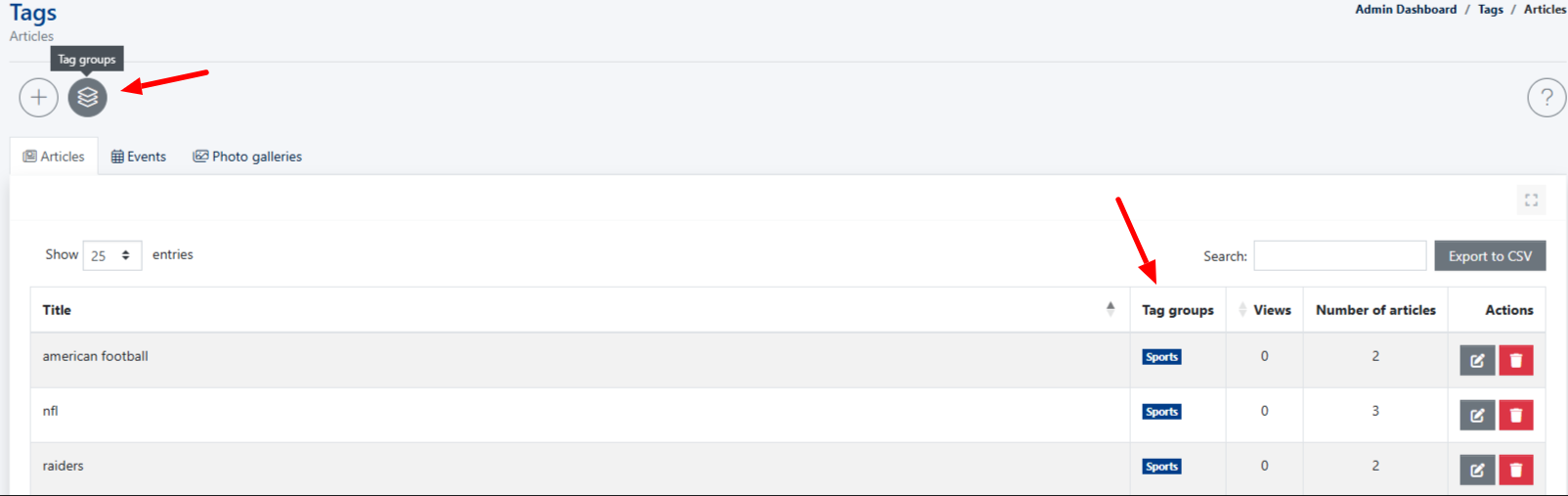
How to Create a New Tag Group
Click the round [Tag Groups] button. The list will display the message No data.
Then, in the upper-left corner, click the round (+) Add new group button.

The system will display an empty form where you can enter the group name (e.g., Sports) and select the tags you want to add to the group.
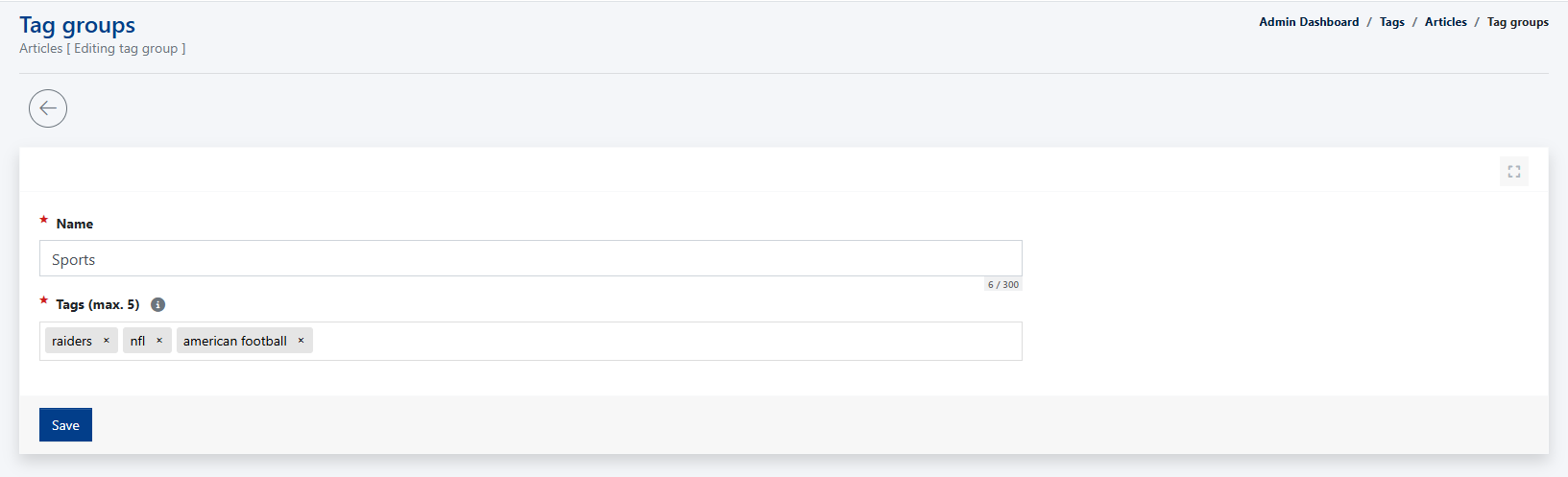
After saving the changes and creating a new tag group, the group membership will be displayed on the default tag list under the Tag groups column. The same tag can belong to multiple groups at the same time.

A button has been added to the article, events and photo gallery forms, allowing you to add an entire tag group to the published entry.

After clicking the Tag Groups button, a pop-up window will appear with a list of available groups. Select the tag group you want to use.
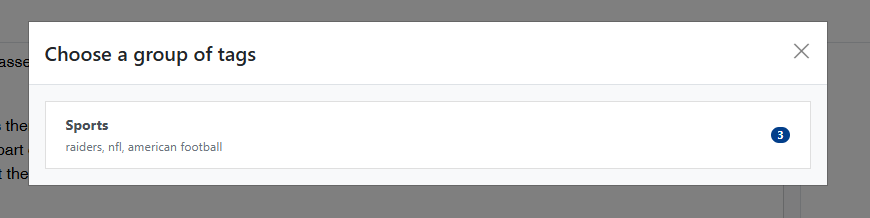
The system will then automatically populate the Tags field with the tags assigned to the selected group.
Please note that the CMS has a setting that limits the number of tags that can be added to a single entry. The default setting is 5 tags per article.
Therefore, if the selected tag group contains more tags than the configured limit, the system will add only the first 5 tags from the group to the article.

Using the tag grouping feature does not prevent you from manually entering individual tags at the same time. Enter the tag and confirm it by pressing Enter or typing a comma.

How to Use Tags? Best Practices
How should tags be used? Careful consideration is crucial, as the biggest danger is generating many low-quality tag pages on the website. Therefore, read our tips below to devise the best strategy for assigning tags to articles and events.
Example of Proper Tag Assignment in an Article
Suppose you run a local news website. There's an active soccer club in your city making significant progress and has a chance to enter the first league. The club's star player is John Doe, an excellent striker drawing interest from MLS coaches. You write a summary of the latest match in which the striker scored 3 goals. You publish the article in the "Sports" category.
Tags you can assign to the article: John Doe, the soccer club's name, USL, soccer, hattrick.
Tags that don't fit because they don't directly appear in the text or are unrelated: turf, field, goal, cleats.
Best Practices
- Never duplicate tag names with category names - avoid using the tag "Sports" if you have a category named "Sports." The category is superior and more important, while tags specify what has been written in the article.
- Don't name a tag the same (or similar) if the site already has an article, subpage, or other page with the same keyword - typically, the article page has much more business/educational value than the tag page.
- Plan a strategy for assigning tags to articles - avoid journalists' cheerful and frivolous creativity. Consider creating an Excel sheet listing tags, give access to all journalists, and have them check which tags within which categories they can use when adding an article.
- Create short, concise tags, consisting of a maximum of 2 words, preferably in the singular nominative case.
- 5-6 tags per article - it depends individually on each article, but don't exaggerate with the quantity. 5-6 tags are more than enough.
- Stick to one grammatical form - avoid situations where tags contain variations of the same word (e.g., sport, sporty, sports etc.). Similarly, for names and surnames: tag John Doe, not Doe John, or just the surname. Otherwise, you'll immediately lead to content duplication and unnecessary generation of low-quality SEO tag pages.
- Tags should use phrases and words directly related to the content and meaning of the article, i.e., phrases that actually appear in the text.
- Ensure a minimum number of articles assigned to one tag - CMS 4media has ready-made settings that allow you to enable tag page indexing automatically if the tag page has more than 5 assigned articles.
What if I have over 22,000 saved tags? Should I delete them and create a new list?
No. First, check which tag pages generate traffic from Google. Keep valuable, then redirect or exclude others from indexing.
How to do it?
- Group tags - check which tags are grammatical variations, tags with errors (typos, spelling mistakes, added commas, or spaces). Then, for such a group (grammatical variations), select a tag in the singular nominative case, and set 301 redirects for the remaining tags, choosing the singular nominative case as the target redirect page. Then move articles assigned to incorrect tags to the parent tag.
- There's an exception to the above rule - if SEO tools show that the grammatical variation tag generates more traffic than the singular nominative case, this tag form should be set as the parent, and 301 redirects should be set to it.
- Keep tag pages that generate promising traffic - observe this traffic, whether it's growing or decreasing, and then make a decision (you can monitor traffic through the tag page address in Google Analytics reports).
- Keep tags that have, for example, 2-3 assigned articles and are promising (because you know that more articles will be assigned to this tag in the future) - when the tag reaches at least 5 articles, enable indexing and monitor traffic.