polski
 español

 Jakub Krawczak
Adding collective advertising codes
This feature allows you to add the same advertising code to multiple websites at once. Instead of adding the code separately to each website, you can apply it to all websites assigned to the currently selected business profile in Ads4Media.
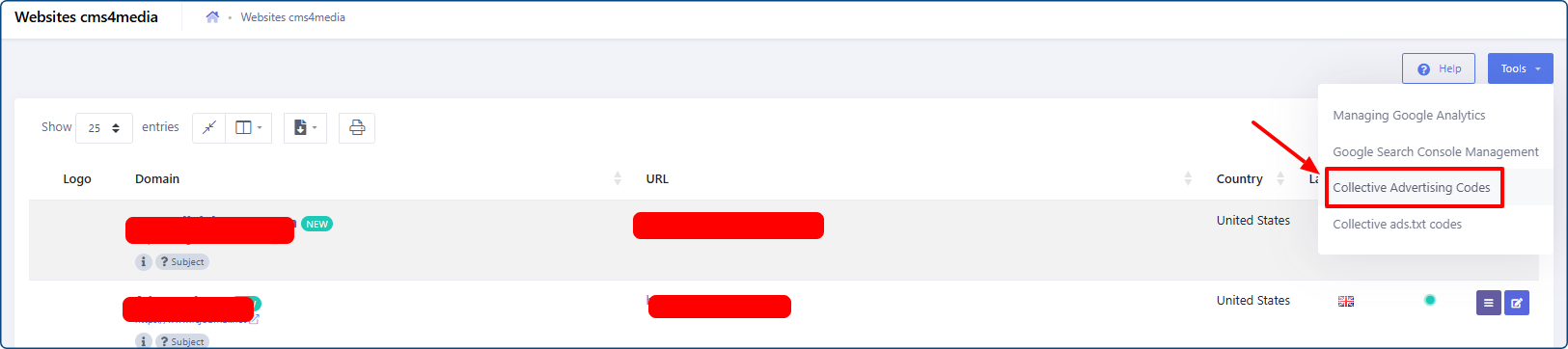
Log in to Ads4Media and navigate to the [cms4media portals] module. Click [Tools] to open the dropdown menu, then select [Collective advertising codes].
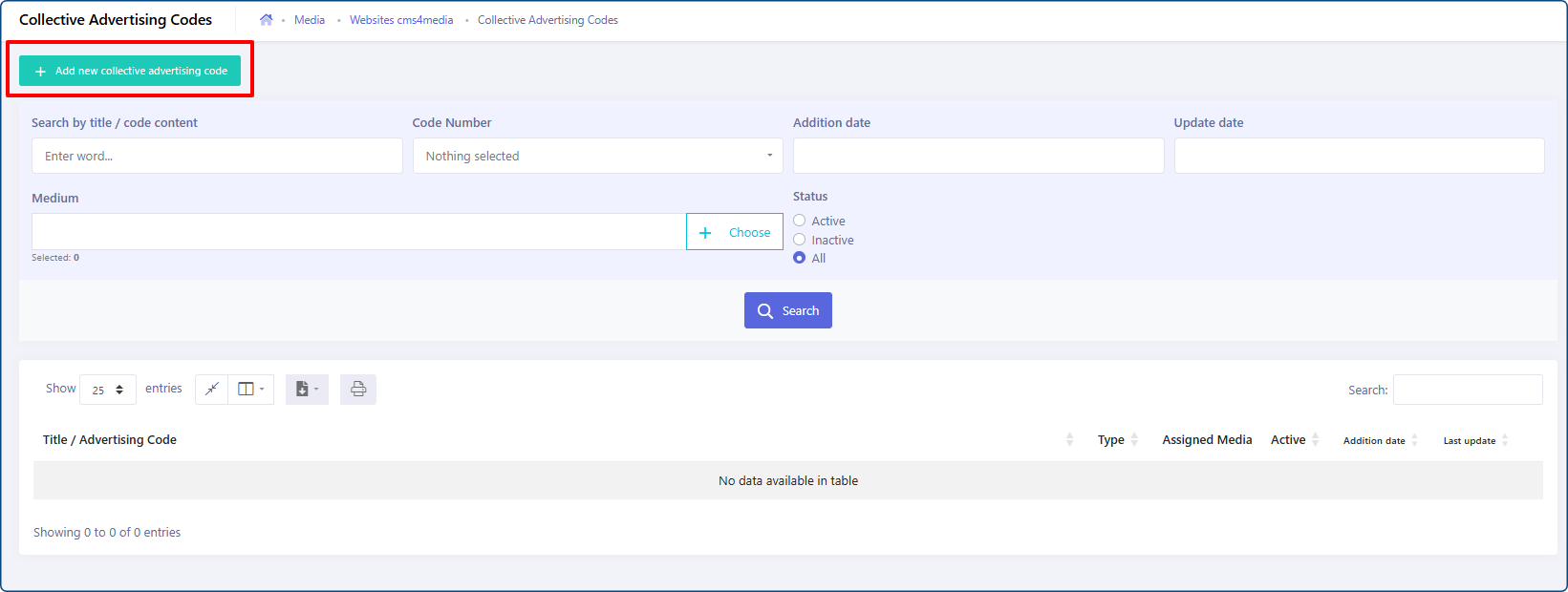
You’ll be taken to a screen displaying all collective advertising codes added so far. If you haven’t added any codes yet, the list will be empty.
To add a new code, click the green [+ Add new collective advertising code] button in the top-left corner.
A new form will open with the following options:
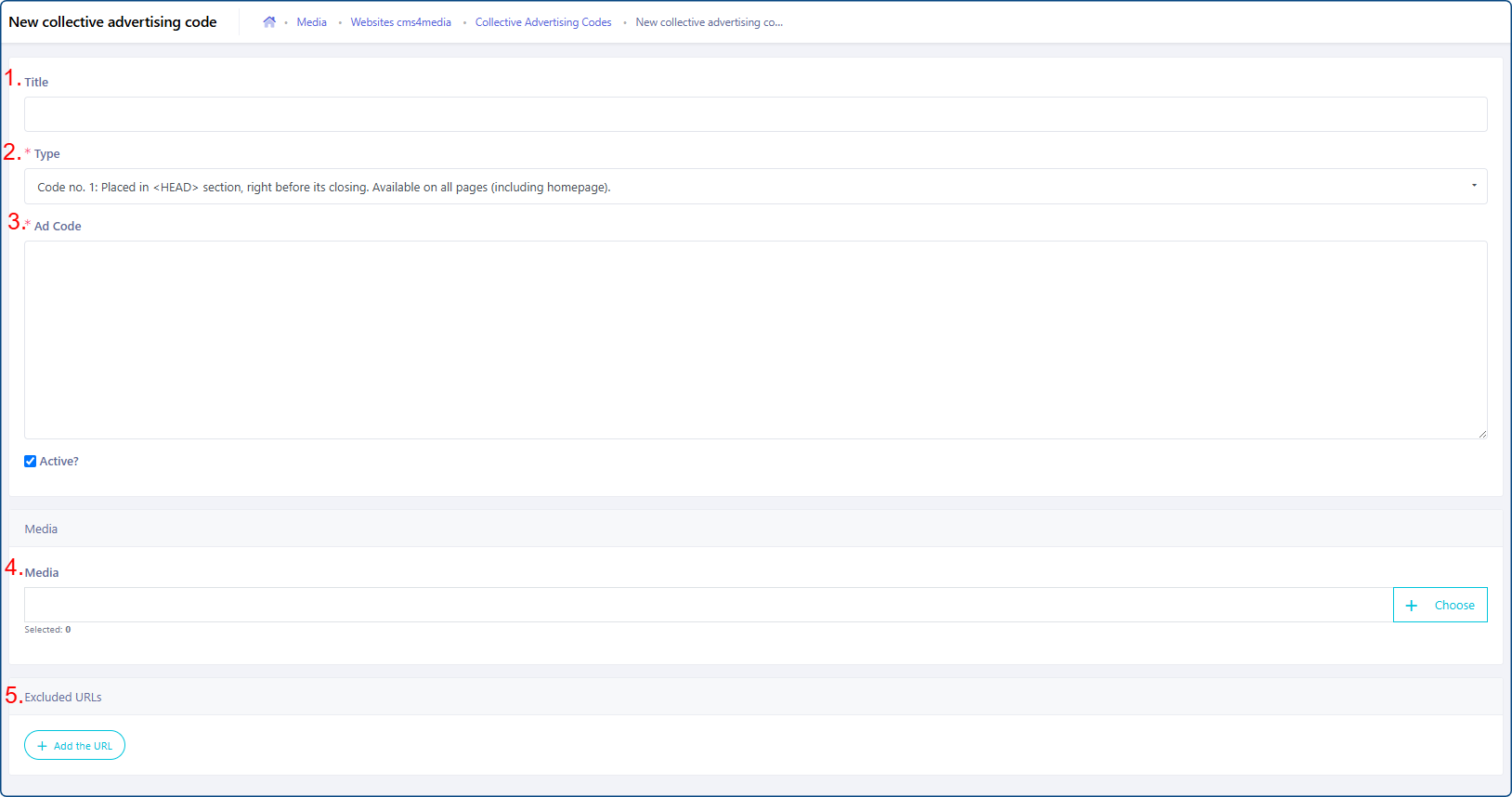
- Title – An internal name used to help you identify the code in the list. For example, “Sellwild widget - header code”.
- Type – Select one of the available options from the dropdown list. Each option includes a description explaining where the code will be placed and when it will be loaded.
- Ad Code - Here you paste your advertising code.
Media – Click [+ Choose] to open a pop-up window where you can select the websites to which the code should be added. Click the media you wish to choose - such entries will be marked with green frame. You can additionally use filtering options which can be helpful while looking for a particular medium.
Confirm selection by clicking the [Done, close window] button at the bottom.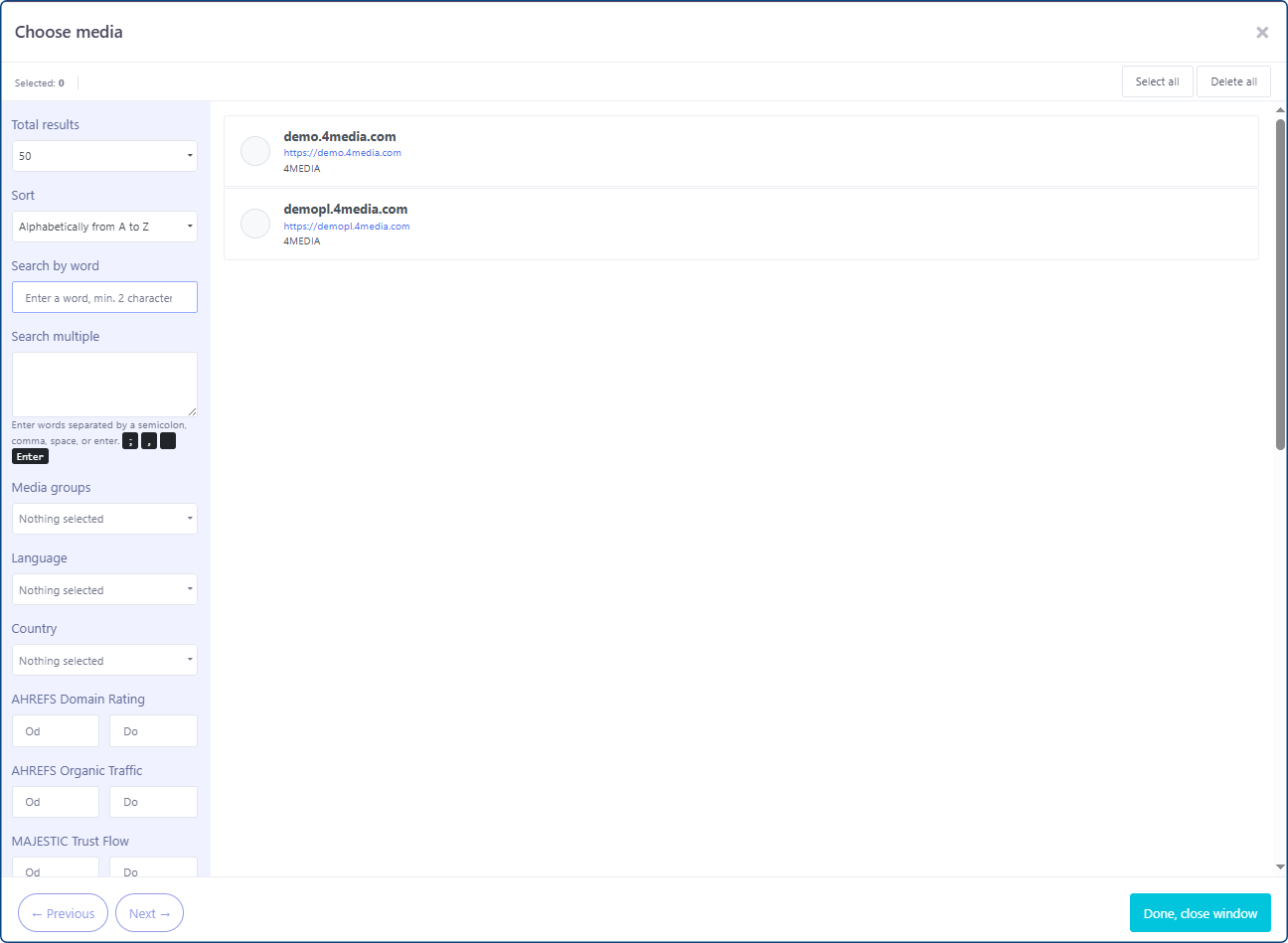
Important: You can only select media assigned to your currently active business profile. If you are a member of multiple business profiles, switch to the appropriate one before adding codes to websites assigned to another company.
- Excluded URLs – Specify any URLs where the code should not be injected. Click [+ Add the URL] to create a new field for each URL you want to exclude.
Once you’ve completed the form, click [Save] to add the collective advertising code.
Adding collective ads.txt codes
This feature works similarly to collective advertising codes, but allows you to add ads.txt files to multiple websites at once.
Log in to Ads4Media and navigate to the [cms4media portals] module. Click [Tools] to open the dropdown menu, then select [Collective ads.txt codes].
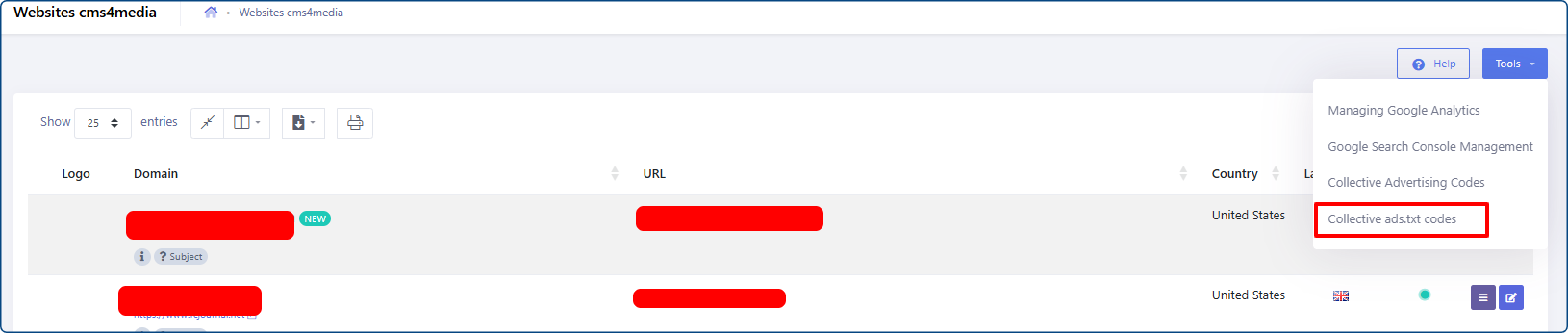
You’ll see a list of all collective ads.txt codes added so far. If none have been added yet, the list will be empty.
To add a new code, click the + Add new collective ads.txt code button in the top-left corner.
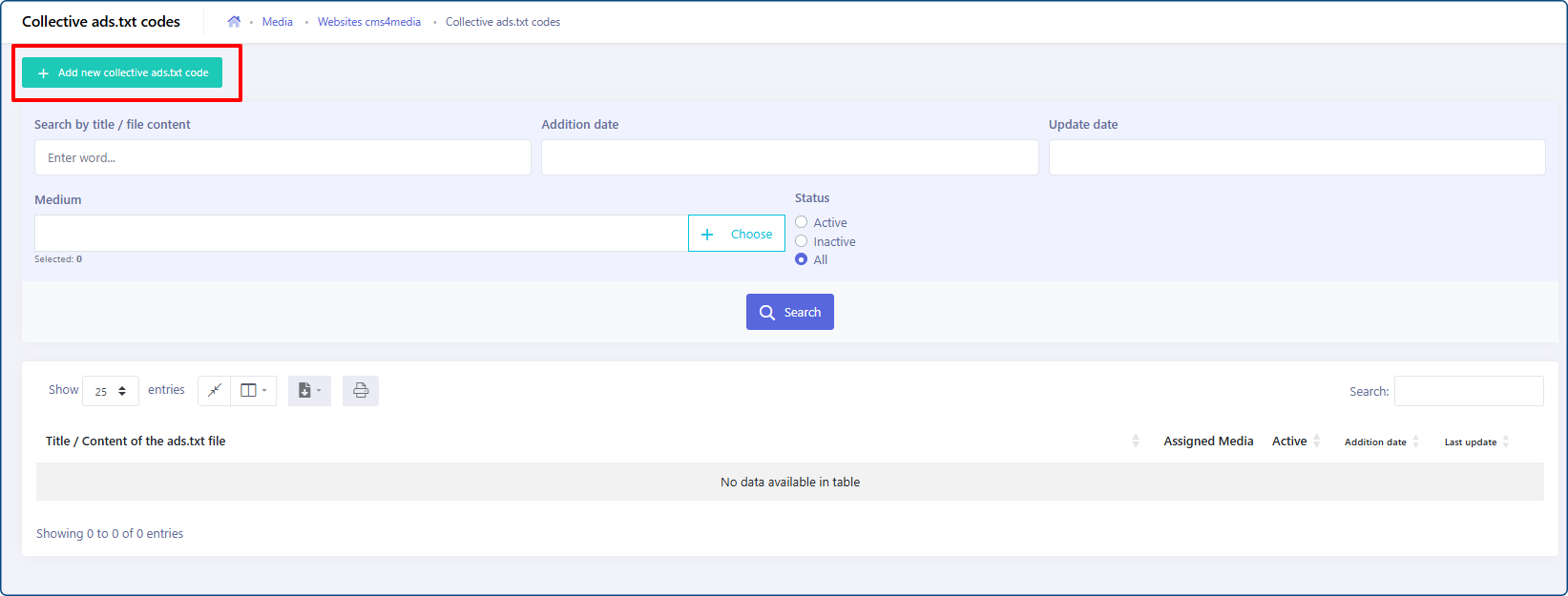
A new form will open with the following options:
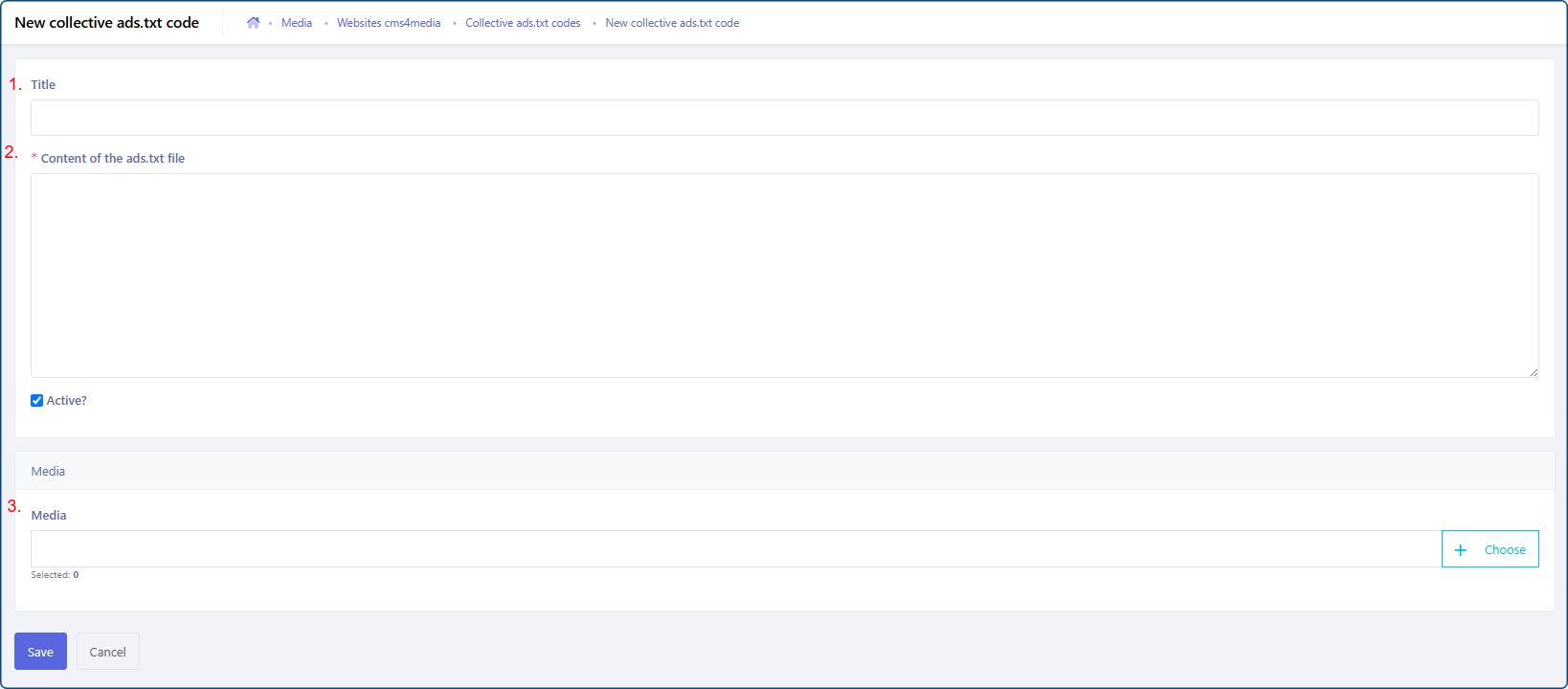
- Title – An internal name used to help you identify the purpose of the code in Ads4Media.
- Content of the ads.txt file – Paste the contents of your ads.txt file into this field.
- Media – Select the websites to which the ads.txt content should be added.
Important: Only media assigned to your currently active business profile will be available for selection.
Once you’ve completed the form, click [Save] to add the collective ads.txt code.