polski
 español

 Rafał Kozłowicz
When publishing a sponsored article on your website, you can now decide whether you agree to:
- Exact Match links,
- linked graphics in the article content,
- keeping the article live for at least 5 years,
- backdated publication,
- publication in an existing thematic category on your website.
This is good news for publishers for several reasons. An offer that includes these options meets the expectations advertisers have recently shared with us. They no longer need to ask about terms separately or keep looking elsewhere.
The extra parameters are also an opportunity to price your offers better. You can edit existing offers or add new ones with selected options and set different prices for them, e.g., price a backdated publication slightly higher than a standard one.
Setting up the new options takes just a few minutes. Below, we show you step by step where to find them and how to turn them on. Exact Match offers the most benefit, since it's what advertisers ask about most often, so it's a good place to start.
Table of Contents
- How to edit an offer
- 1. Permitted link types – new Exact Match option
- 2. Linking graphics in the article content
- 3. Article availability period – new "At least 5 years" option
- 4. Backdated publication
- 5. Publication in a thematic category
- Summary – what to do next
How to edit an offer
- Log in to the ADS4media panel.
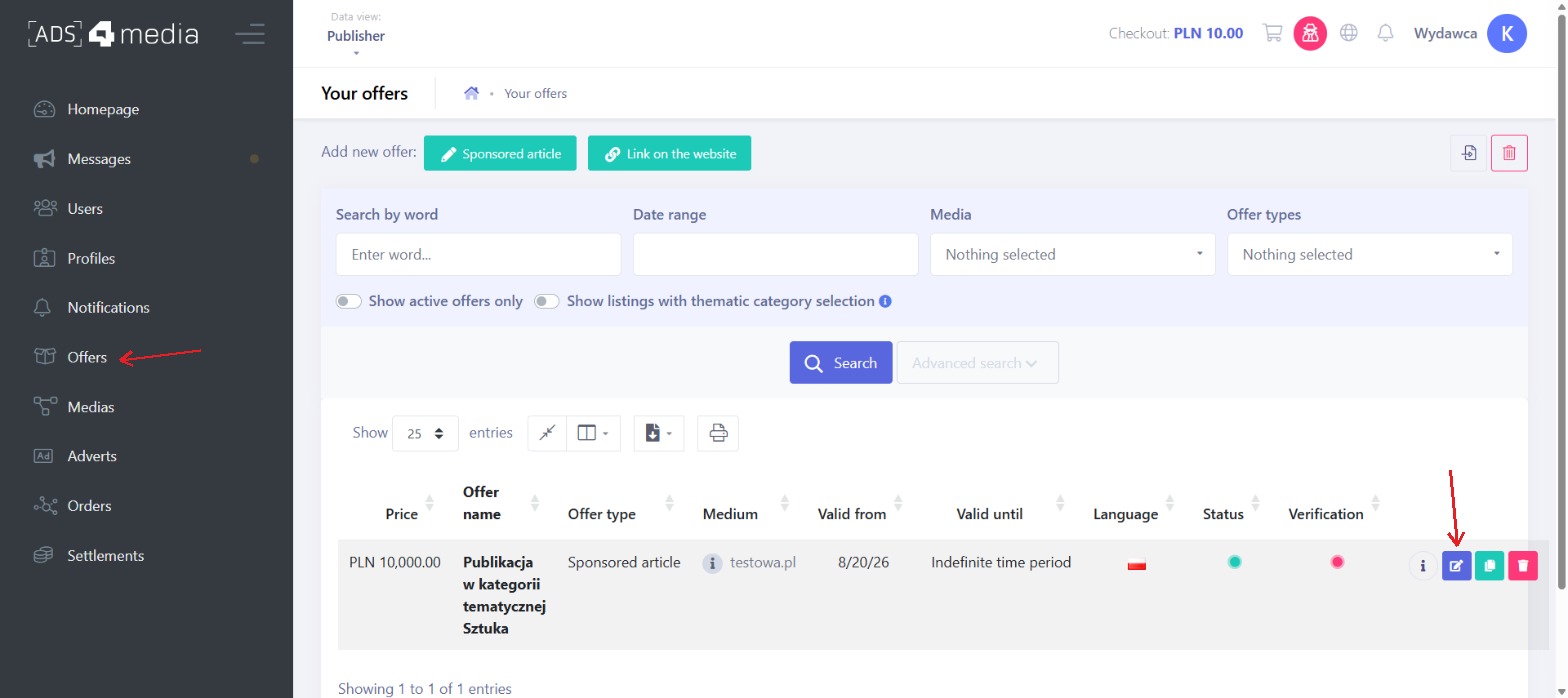
- In the main menu on the left, click Offers.
- In the Your offers list, find the offer you want to change and click the blue Edit icon on the right side of the row.
- To add a new offer, use the Sponsored article button above the list.
The Offer editing form will open. You'll find the options described below further down the form.
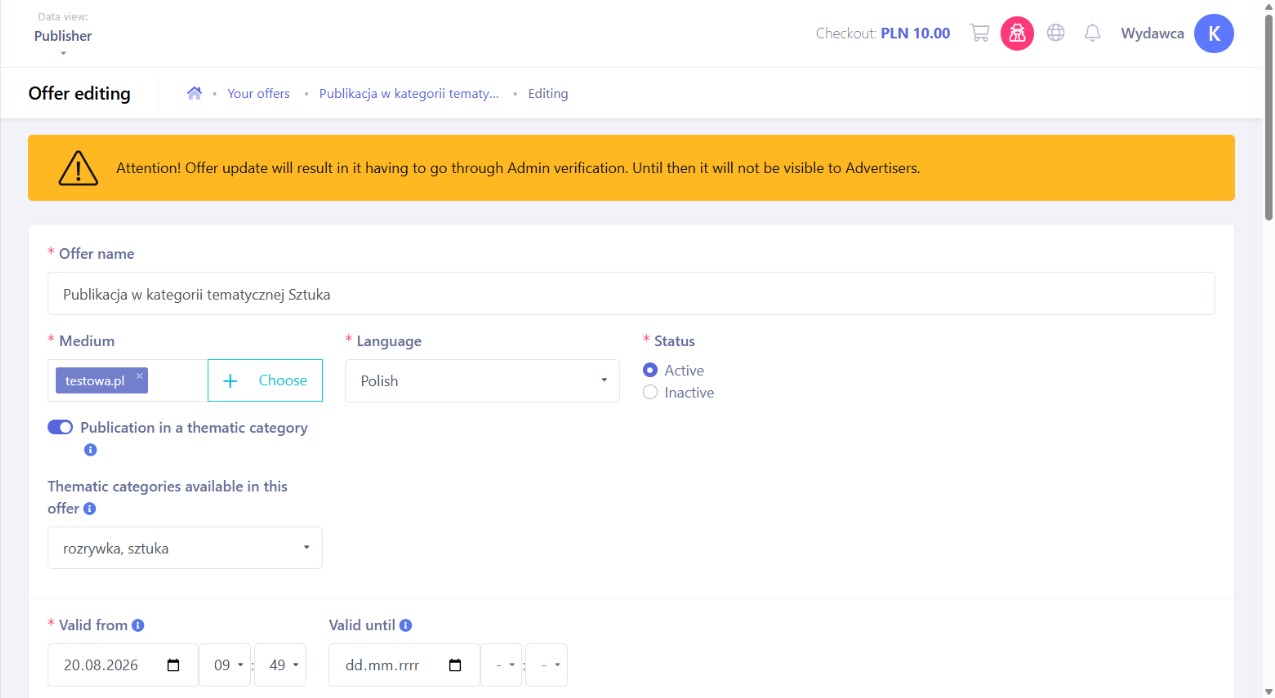
Note: After you save your changes, the offer must go through Admin verification. Until then, it won't be visible to Advertisers. The panel displays this warning at the top of the form.
1. Permitted link types – new Exact Match option
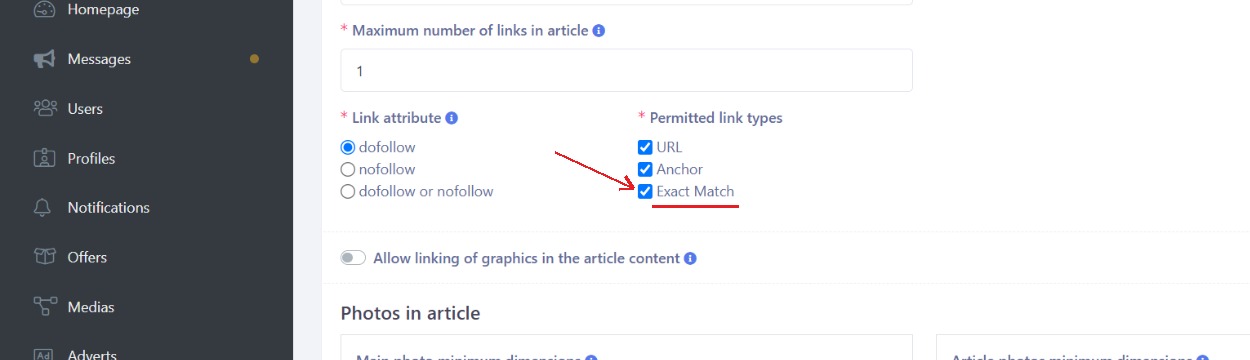
Previously, you could only choose URL and Anchor. Now Exact Match is available too.
- In the offer form, find the Permitted link types field.
- Check the link types you allow in your offer:
- URL
- Anchor
- Exact Match (new)
- Save the offer (the Save button at the bottom of the form).
2. Linking graphics in the article content
You can let advertisers turn one or more graphics in the article into links.
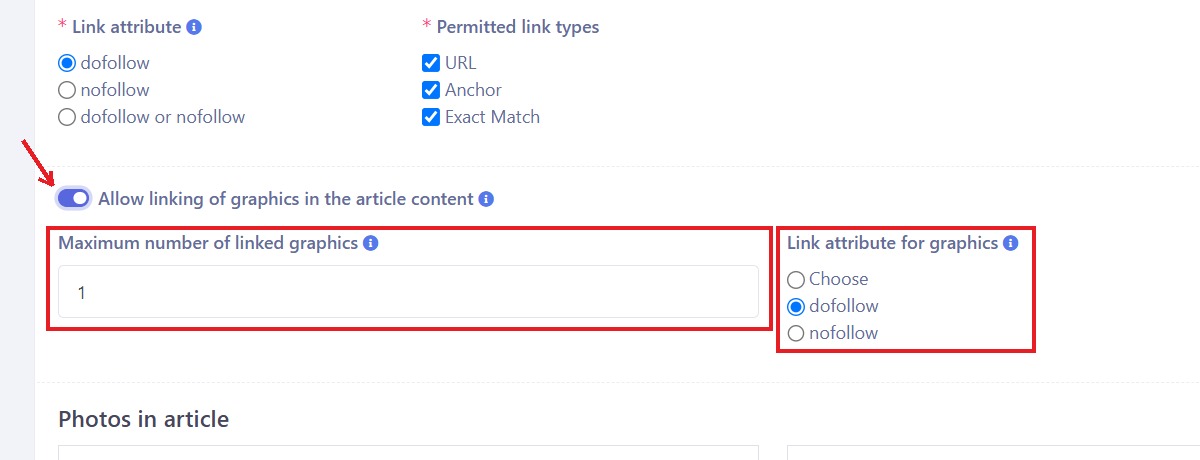
- In the offer form, turn on the Allow linking of graphics in the article content toggle.
- Additional fields will appear. Fill them in:
- Maximum number of linked graphics – how many graphics in the article can be links.
- Link attribute for graphics – dofollow or nofollow.
- Save the offer.
How the limit works: linked graphics count toward the Maximum number of links in article.
Example: the maximum number of links in the article is 3, linking of graphics is allowed, and the maximum number of linked graphics is 1. The advertiser still has 3 links available in the article, and one of them can be a linked graphic.
3. Article availability period – new "At least 5 years" option
You can now choose a middle ground between short-term and lifetime publication.
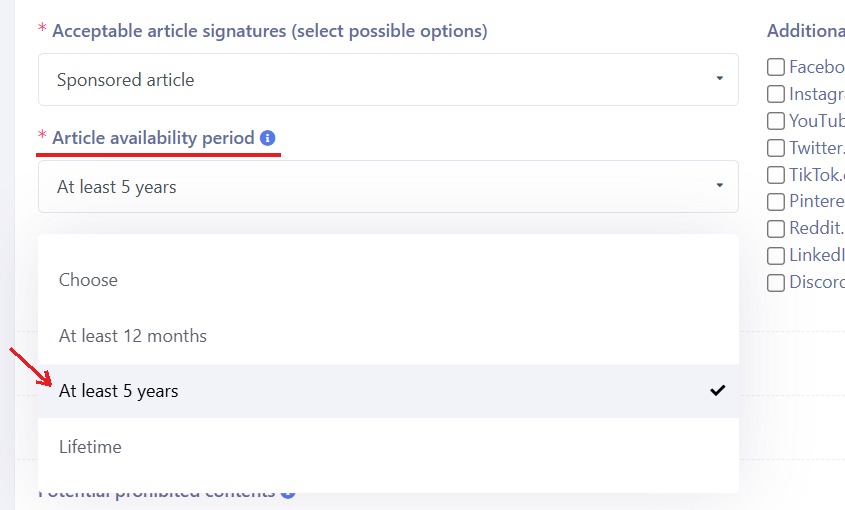
- In the offer form, find the Article availability period field.
- Choose one of the options:
- At least 12 months
- At least 5 years (new)
- Lifetime
- Save the offer.
4. Backdated publication
If your website can publish articles with a past date, turn this option on in your offer.
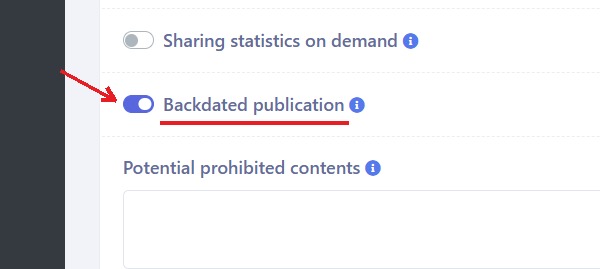
- In the offer form, turn on the Backdated publication toggle.
- Click Save at the bottom of the form.
How it works for the advertiser: in your website's offer details, they'll see that backdated publication is available. When placing an order, they'll pick a specific date from the calendar, even several months back. The article will be published on your website with that date.
5. Publication in a thematic category
This option lets advertisers order a sponsored article in a specific, existing thematic category on your website. Setup takes two steps: first you add categories to your medium, then you make them available in your offer.
The process depends on the system your website runs on:
- your website runs on CMS4media → go to Step 5.3,
- any other website → follow Steps 5.1 and 5.2.
Step 5.1 – Add categories to your medium
- Log in to the panel (data view: Publisher).
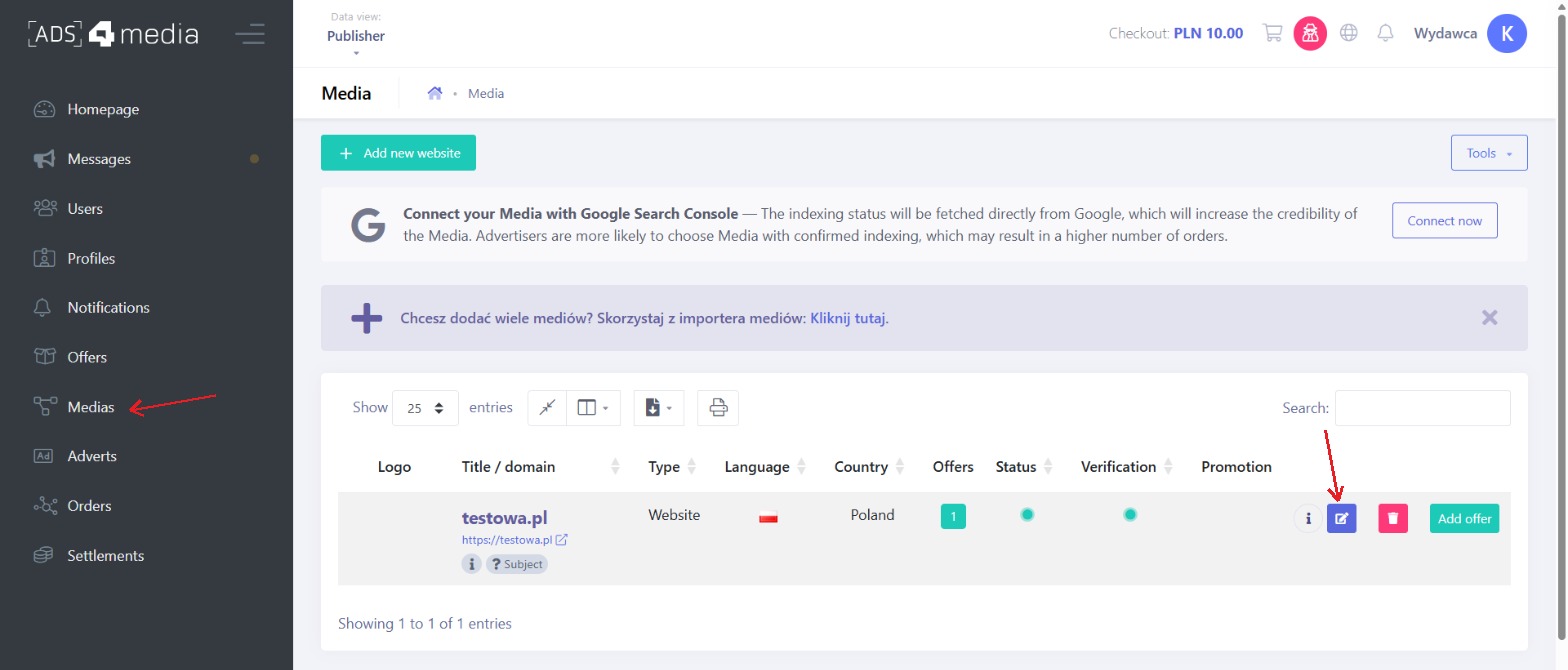
In the left menu, click Medias and select the website you want to edit.
- In the Website editing form, scroll down to section 3. Thematic categories.
Click Add category. Two fields will appear:
- Category name, e.g., entertainment.
- Full category URL – the address of the page that lists all articles published in that category. It's best to copy it from your website and paste it in.
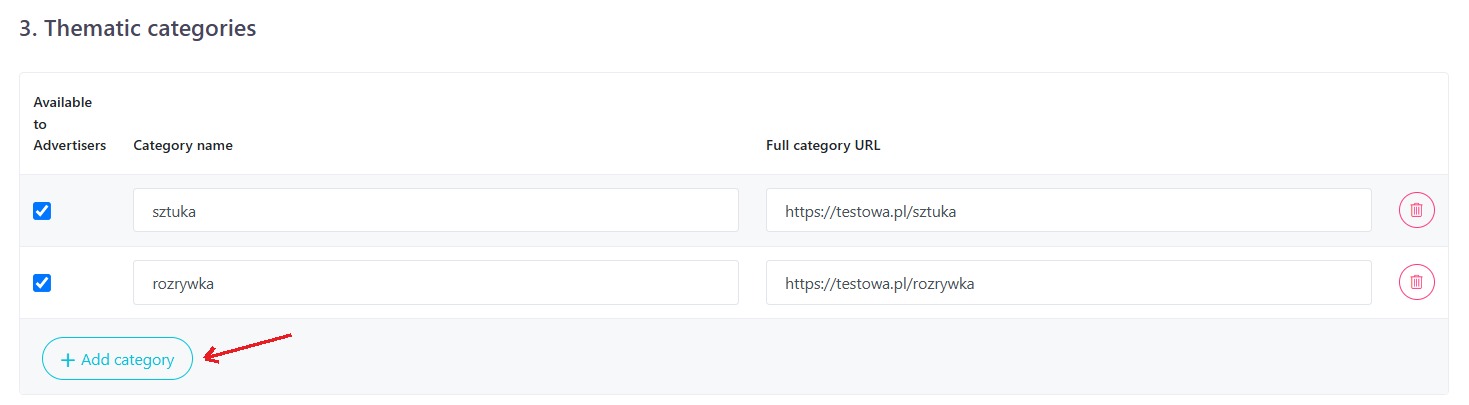
Check the box in the Available to Advertisers column for that category. This is the most important part of this step: a category that isn't checked won't be visible to advertisers.
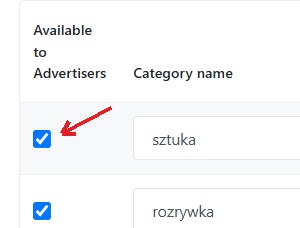
- You can add multiple categories. Repeat steps 4–5 for each one.
- Click Save at the bottom of the form.
After saving, the panel will display a message confirming that your changes have been saved and a verification request has been sent to the Admin.
Note: Until the Admin (a member of the ADS4media team) approves the changes, the medium is temporarily unavailable to advertisers. Changes are usually approved quickly. Once they are, refresh the page – everything will be in order and you can move on to Step 5.2.
Step 5.2 – Make categories available in your offer
- In the main menu, click Offers.
- Select the offer assigned to the medium you just edited (the one with the added categories) and click Edit.
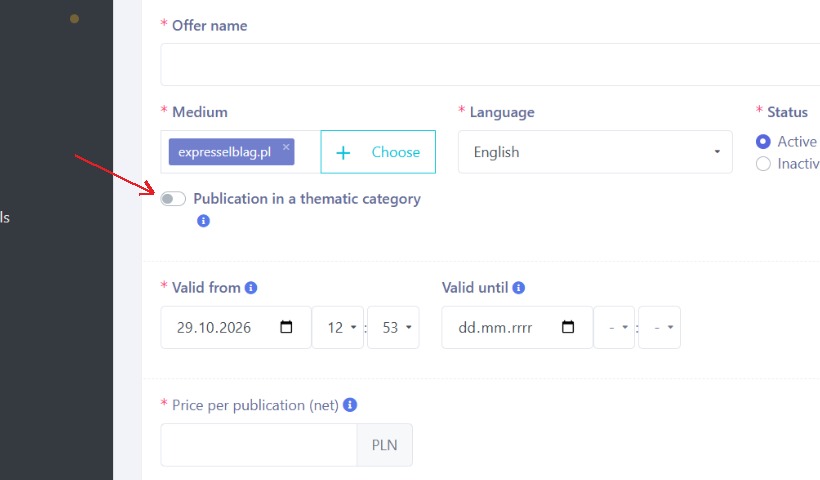
Below the Medium field, turn on the Publication in a thematic category toggle. This lets the advertiser choose the thematic category the article will be published in.
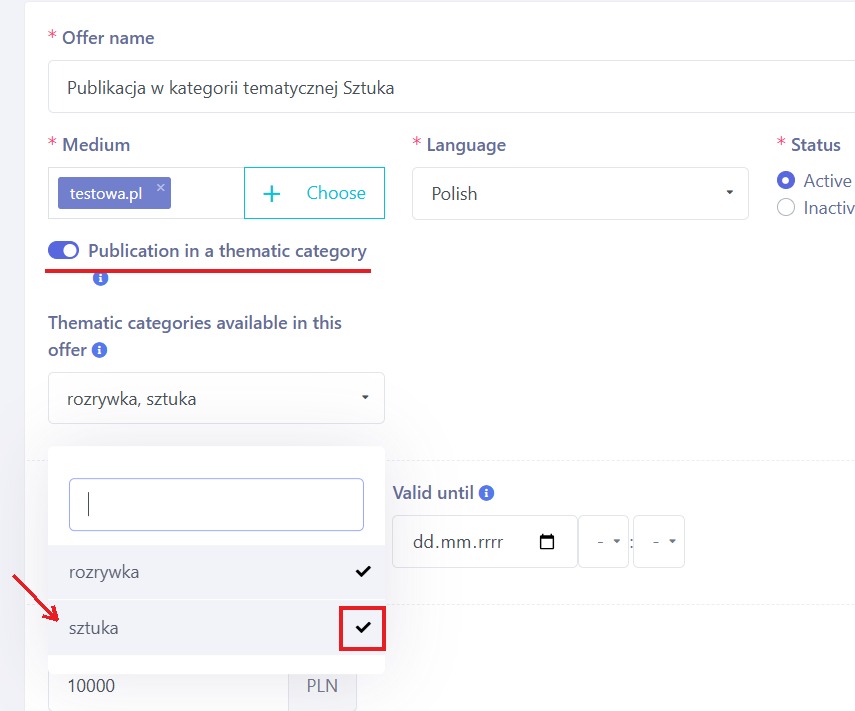
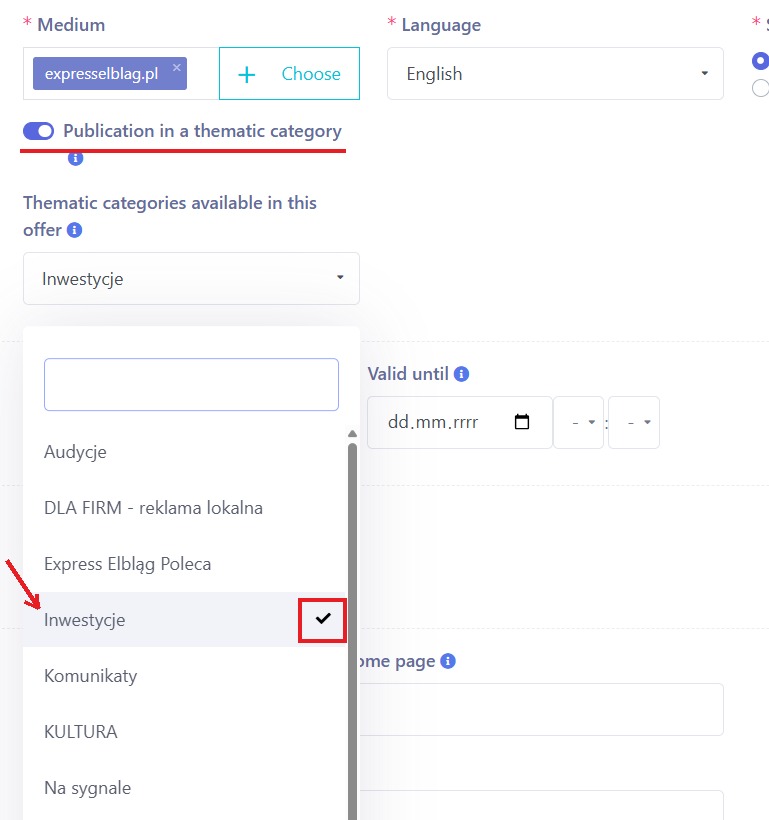
- A Thematic categories available in this offer drop-down list will appear. It contains the categories you added to your medium.
- Click the categories you want to make available to advertisers in this offer. A check mark will appear next to each selected category.
- Scroll to the bottom and click Save.
The offer is then sent to the Admin for verification, which takes up to 24 hours. Once approved, the offer is active and visible to advertisers.
Step 5.3 – Websites running on CMS4media
If your website runs on CMS4media, you don't add categories manually in the Medias section. The system pulls them from your CMS automatically – all you do is select the ones where you allow sponsored articles.
Part A – Select categories for your website
- In the main menu (data view: Publisher), click cms4media portals – not Medias. The list shows only websites running on CMS4media.
Click the edit icon next to your website to open Website editing cms4media.
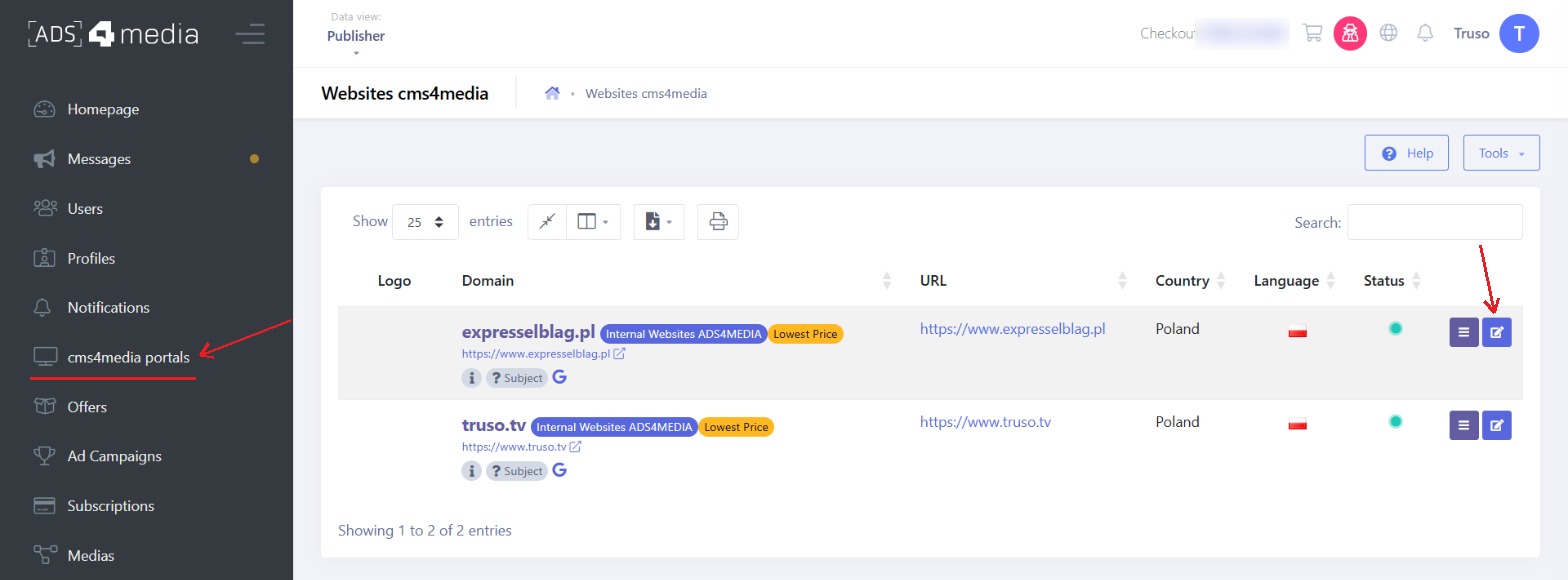
On the General tab, you'll find the Categories available to Advertisers field. The system automatically pulls in all categories created in your CMS. None are selected by default.
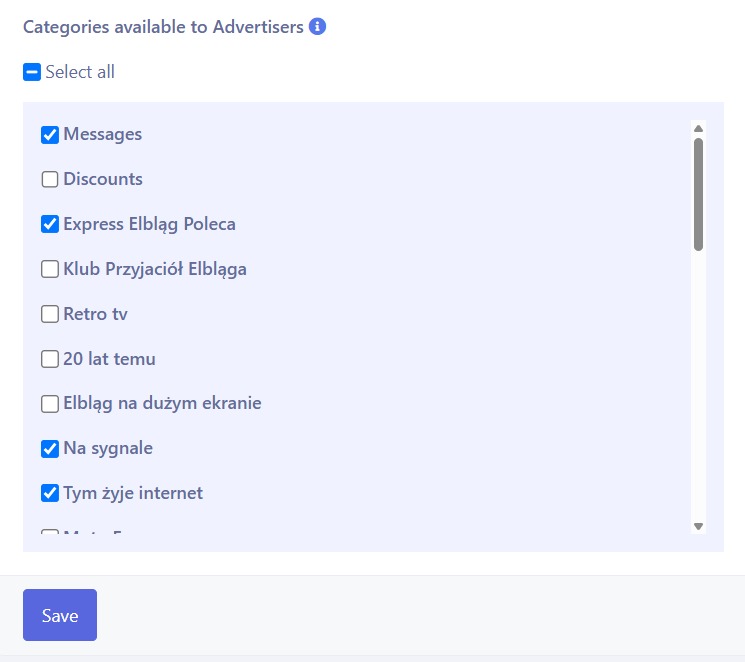
- Select the categories where you allow sponsored articles, e.g., Politics, Sports, or Investing. You can select multiple categories, and you can use Select all for quick selection.
- Click Save. The panel will confirm that your changes have been saved.
Note: Selecting a category for your website doesn't automatically add it to your offer. Categories selected for your website will appear in the offer's list only after you turn on the Publication in a thematic category toggle – and you must select them in the offer yourself.
Part B – Enable the category in your offer
- In the main menu, click Offers and add a new offer or edit an existing one. Make sure the Medium field is set to the website where you selected the categories.
Turn on the Publication in a thematic category toggle. A Thematic categories available in this offer drop-down list will appear.
Select the categories you want to make available in this offer (e.g., Investing). Each selected category is marked with ✔️.
- At the bottom of the form, click Add and send for verification (when editing an existing offer, save your changes). The offer will be sent to the Admin for verification.
Once the Admin approves the offer, it's updated and the selected category becomes available to advertisers.
Summary – what to do next
- Check Exact Match under permitted link types (most important).
- Decide whether to allow linking of graphics, and set the limit and the link attribute.
- Consider the At least 5 years option for the article availability period.
- Turn on backdated publication if your website supports it.
- Add thematic categories to your medium (with Available to Advertisers checked), then turn on Publication in a thematic category in your offer.
- If your website runs on CMS4media, select categories under cms4media portals → edit website, then select them in your offer.
- Remember: after you save, changes to your medium and offer go back to the Admin for verification.