polski
 español

 Jakub Krawczak
Where to find the sorting settings
To customize the default sorting of lists, go to the [Settings] module, which is located in the main menu of the admin panel.
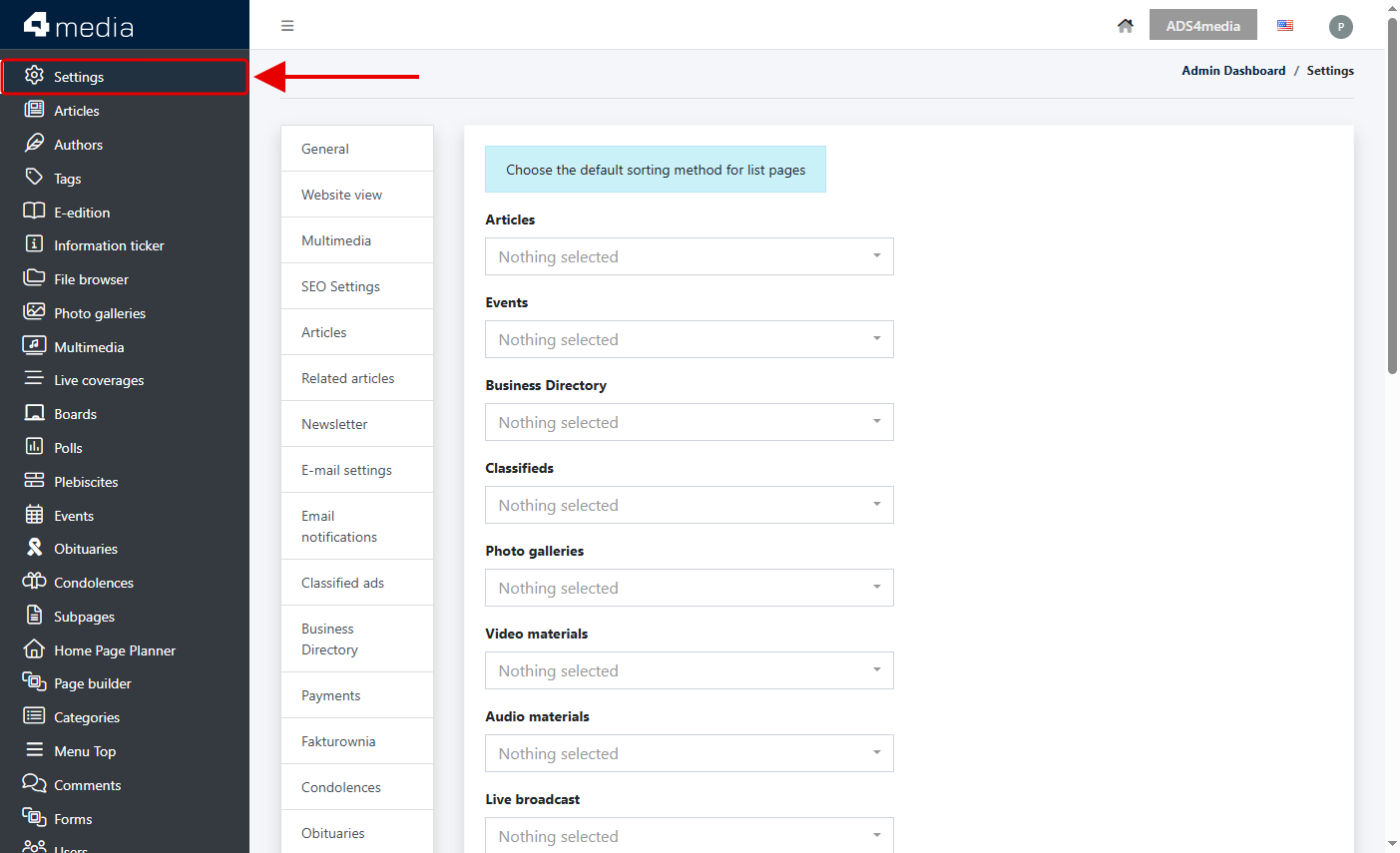
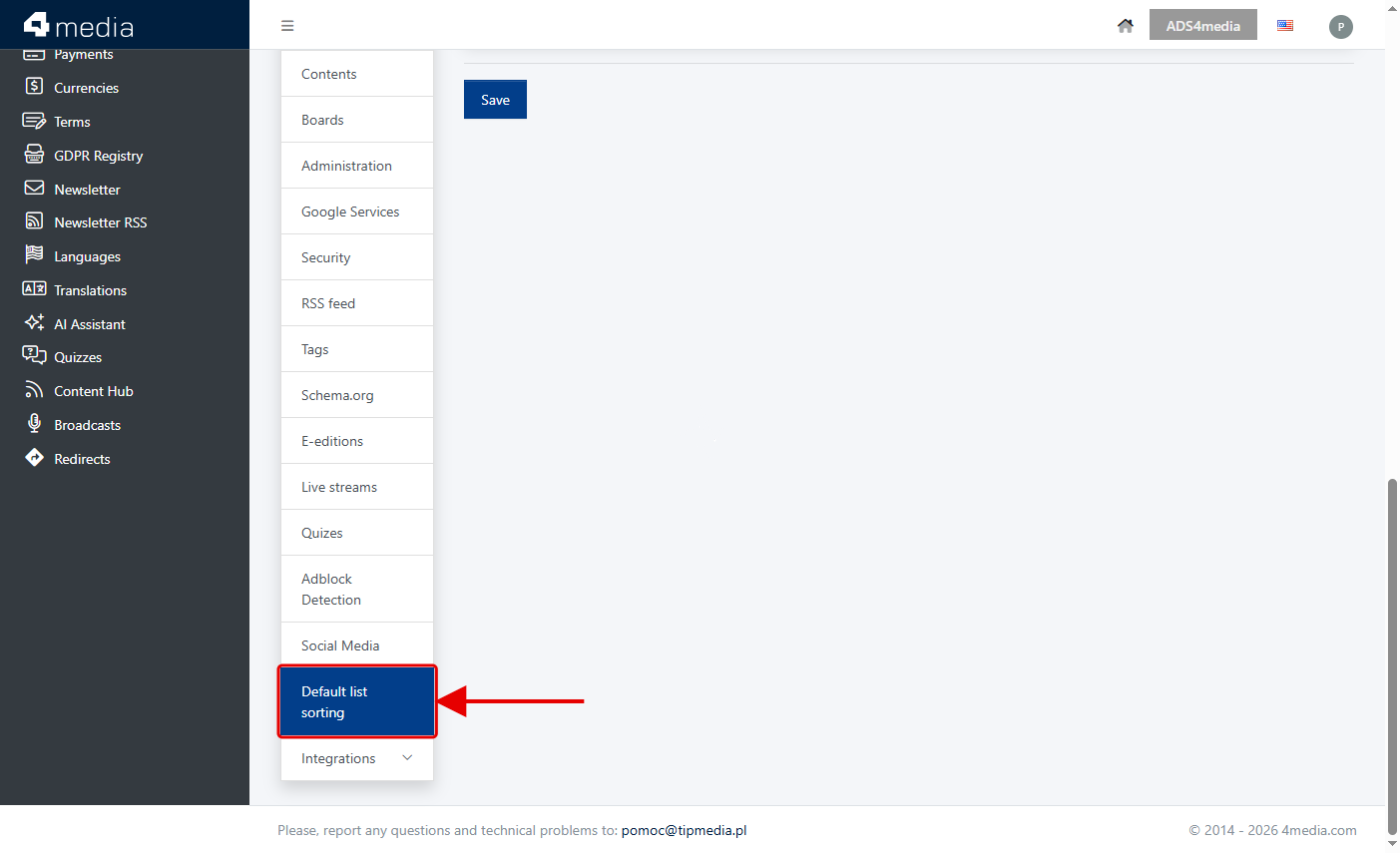
On the left side there is the settings menu, divided into sections. We scroll it all the way down and select the [Default list sorting] item.
Choosing the default sorting for a module
The settings page contains a list of modules that have subpages with lists of entries. Next to each module there is a selection field in which we indicate the default sorting method. By default, no value is selected, which means the list is displayed as it was before.
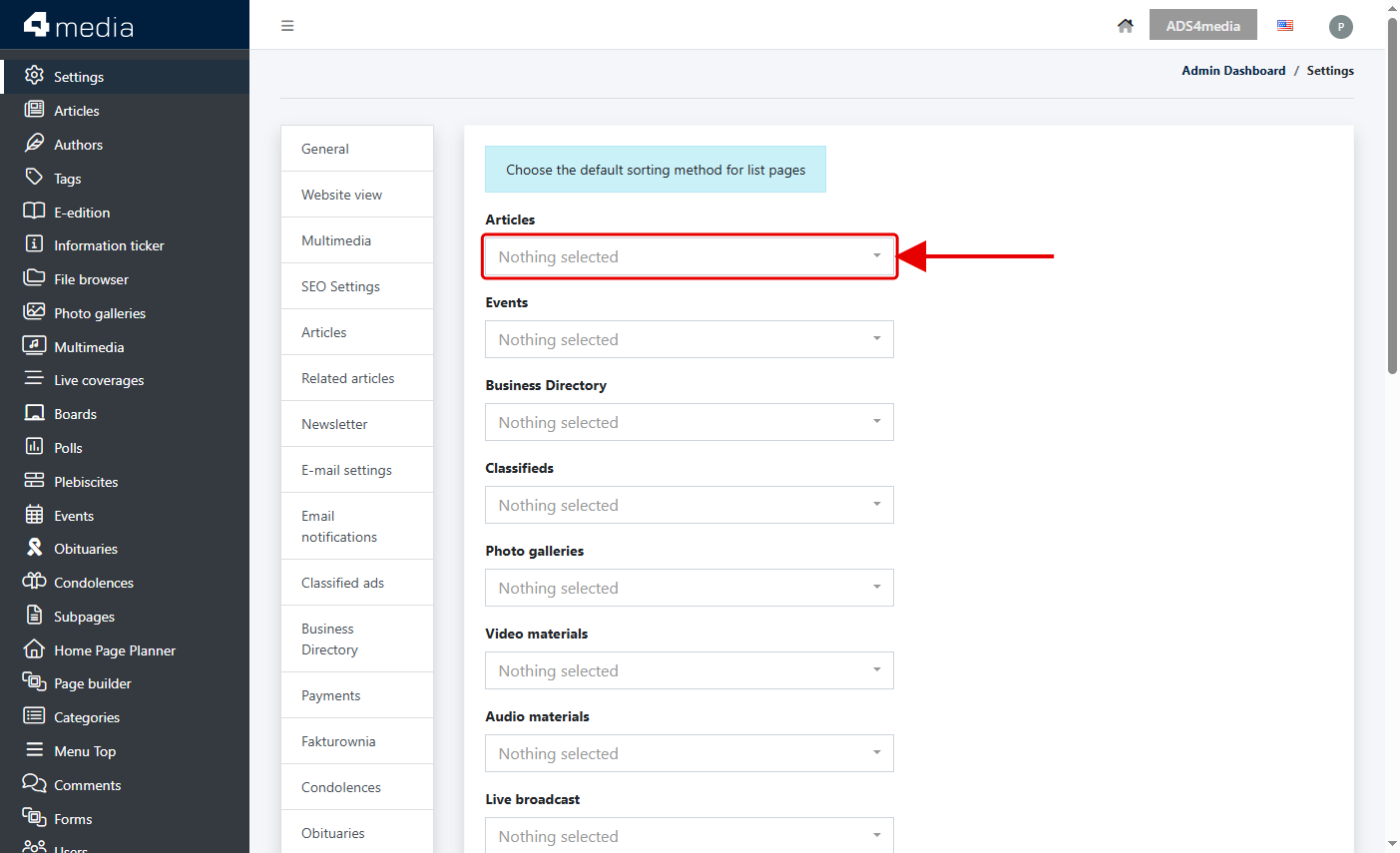
To change the sorting, we click the selection field next to the chosen module, e.g. [Articles].
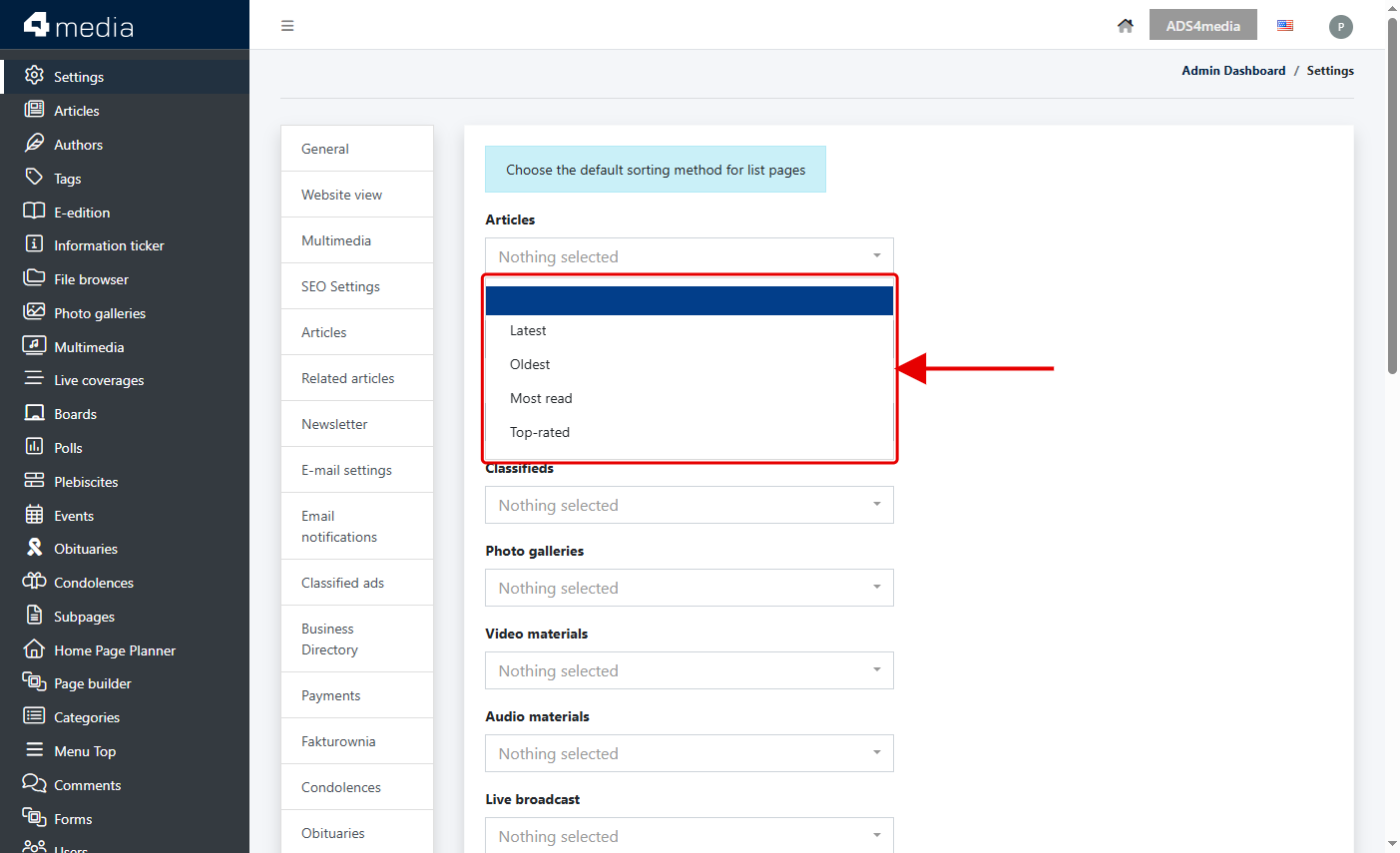
A list of available options will expand. The set of options is adjusted to the type of content – articles offer different options than, for example, events, where we can sort by start or end date.
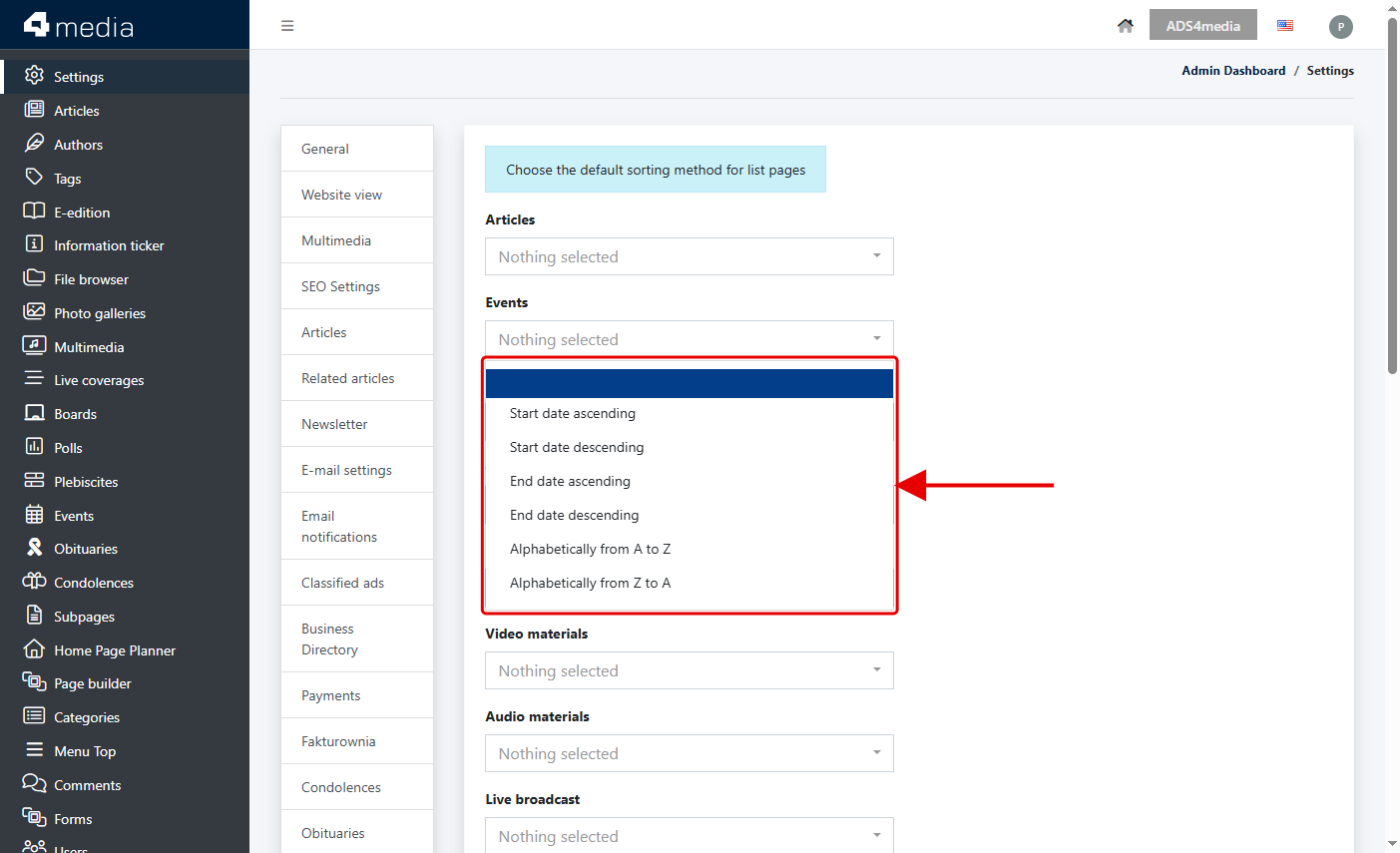
Available sorting options in each module:
- Articles – Latest, Oldest, Most read, Top-rated
- Events – Start date ascending, Start date descending, End date ascending, End date descending, Alphabetically from A to Z, Alphabetically from Z to A
- Business Directory – Latest, Oldest, Alphabetically from A to Z, Alphabetically from Z to A
- Classifieds – Latest, Oldest, Lowest price, Highest price, Alphabetically from A to Z, Alphabetically from Z to A
- Photo galleries – Latest, Oldest
- Video materials – Latest, Oldest
- Audio materials – Latest, Oldest
- Live broadcast – Latest, Oldest
- Quizzes – Latest, Oldest, Most popular
- Obituaries – Latest, Oldest, Most viewed
- E-editions – Latest, Oldest
Each module is configured independently, so we can, for example, set articles to be sorted from the latest, and classifieds from the lowest price. If we do not want to change the behavior of a given list, we leave the [Nothing selected] value in the field.
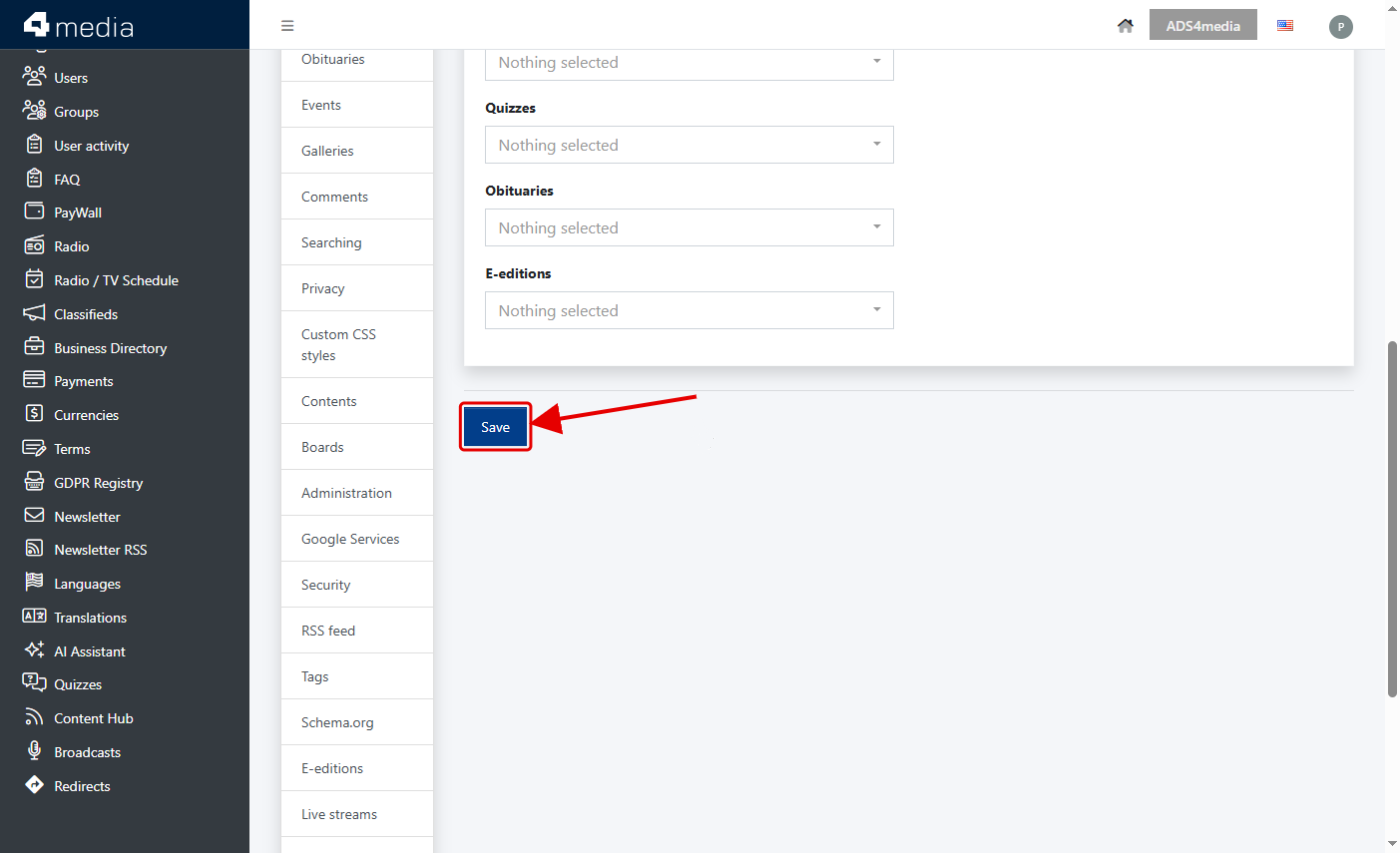
After selecting the appropriate options, we scroll the page down and click the navy blue [Save] button. From that moment on, subpages with lists of entries in the selected modules will display content in the order we have set.