polski
 español

 Jakub Krawczak
How do I add a widget?
- Open a template in the [Page builder] module.
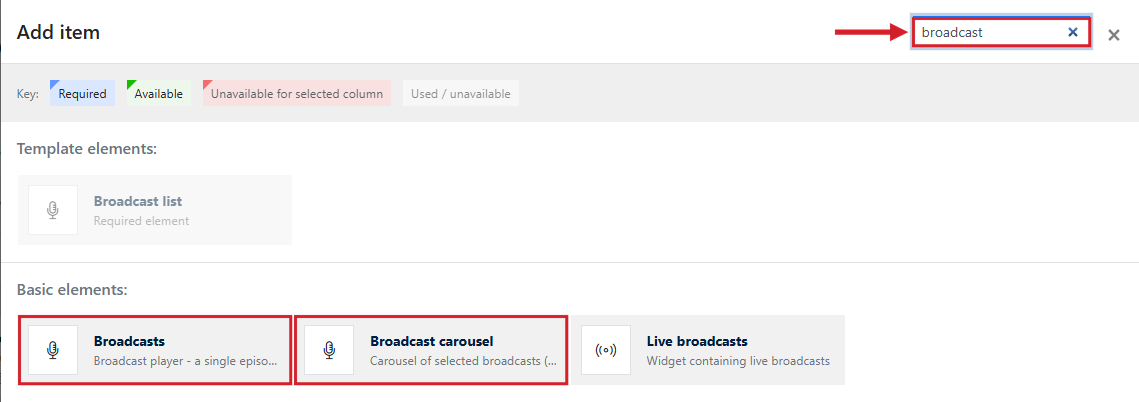
- Click [+ Add item] and type “broadcast” in the search box. Widgets matching the search phrase appear as you type.
- Select [Broadcasts] or [Broadcast carousel], configure the widget and click [Apply].
- Save your changes with the [Save] button.
IMPORTANT: Only active broadcasts with published episodes appear in the widgets. If you enable the widget header, fill in its text in every language version active on your website.
Both widgets have the standard header settings: header text in the available language versions, a link (by default it leads to the broadcast list), an icon and a menu with arrows and a “See more” icon. You will find the most important settings in the [Content] section.
Broadcasts widget
The Broadcasts widget is a player that can work in three ways, set in the [Display mode] field.
Recently added episodes – the latest episodes from all broadcasts. In the [Number of episodes] field, specify how many episodes to display.
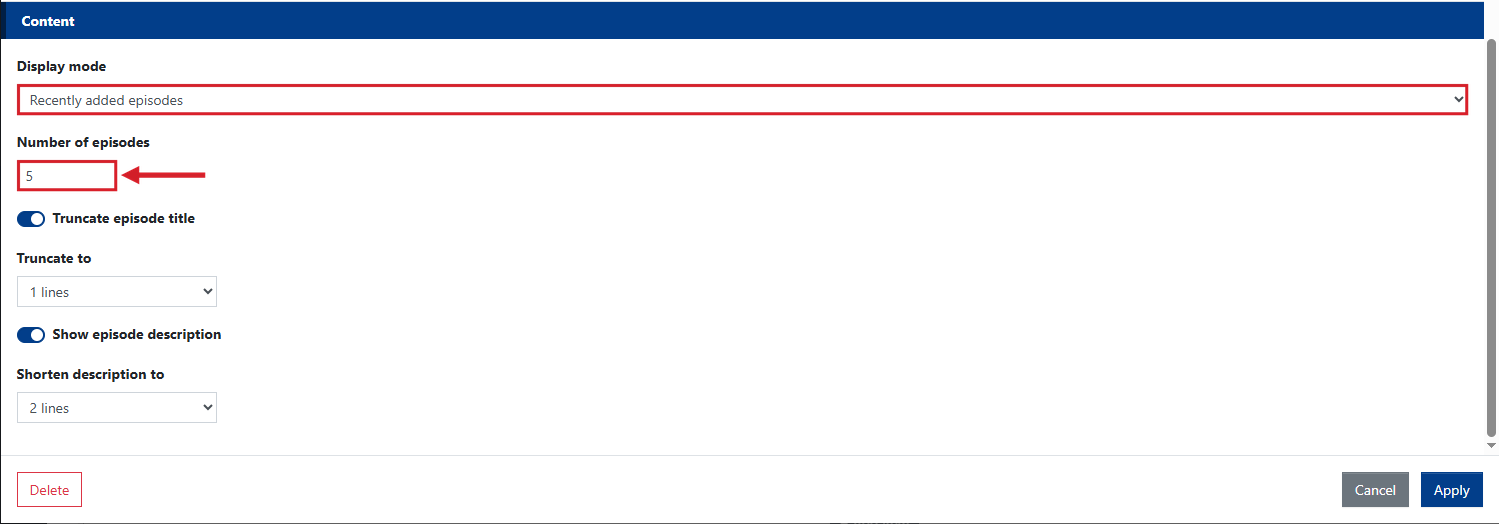
Display mode and number of episodes 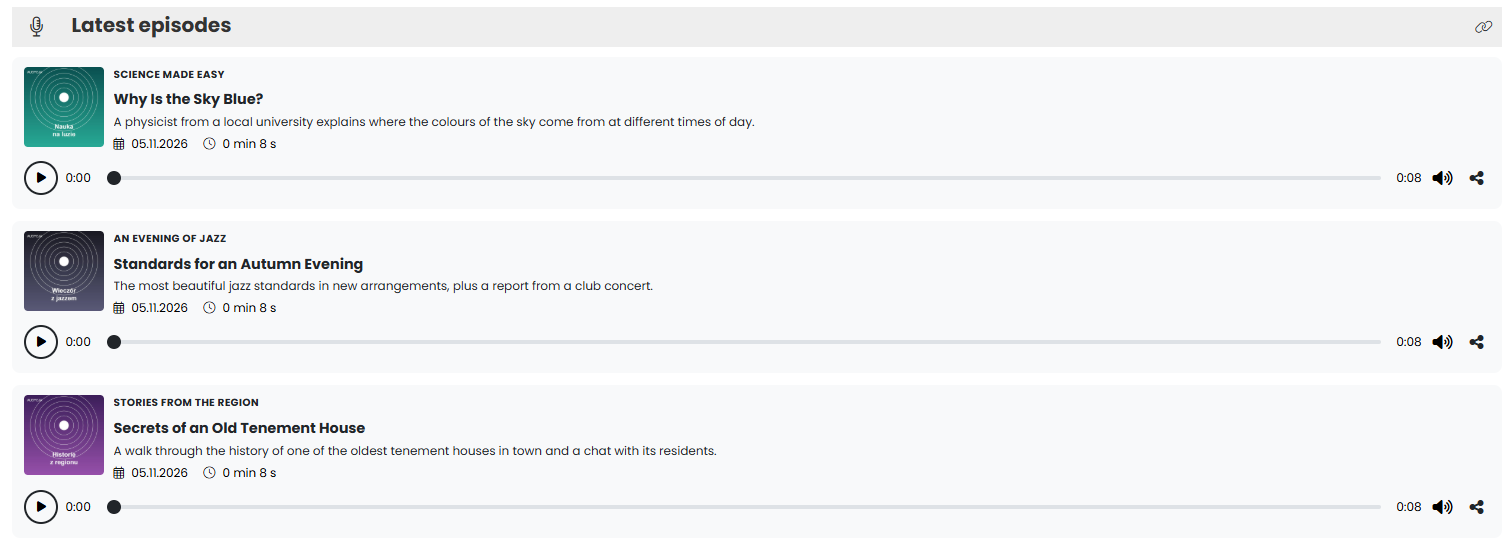
Display mode: [Recently added episodes] – front-end view Selected episode – a single episode of your choice. First select the broadcast, then the episode. Only published episodes are shown in the episode list. Use the toggles to decide whether to show the episode image, air date, duration and description.
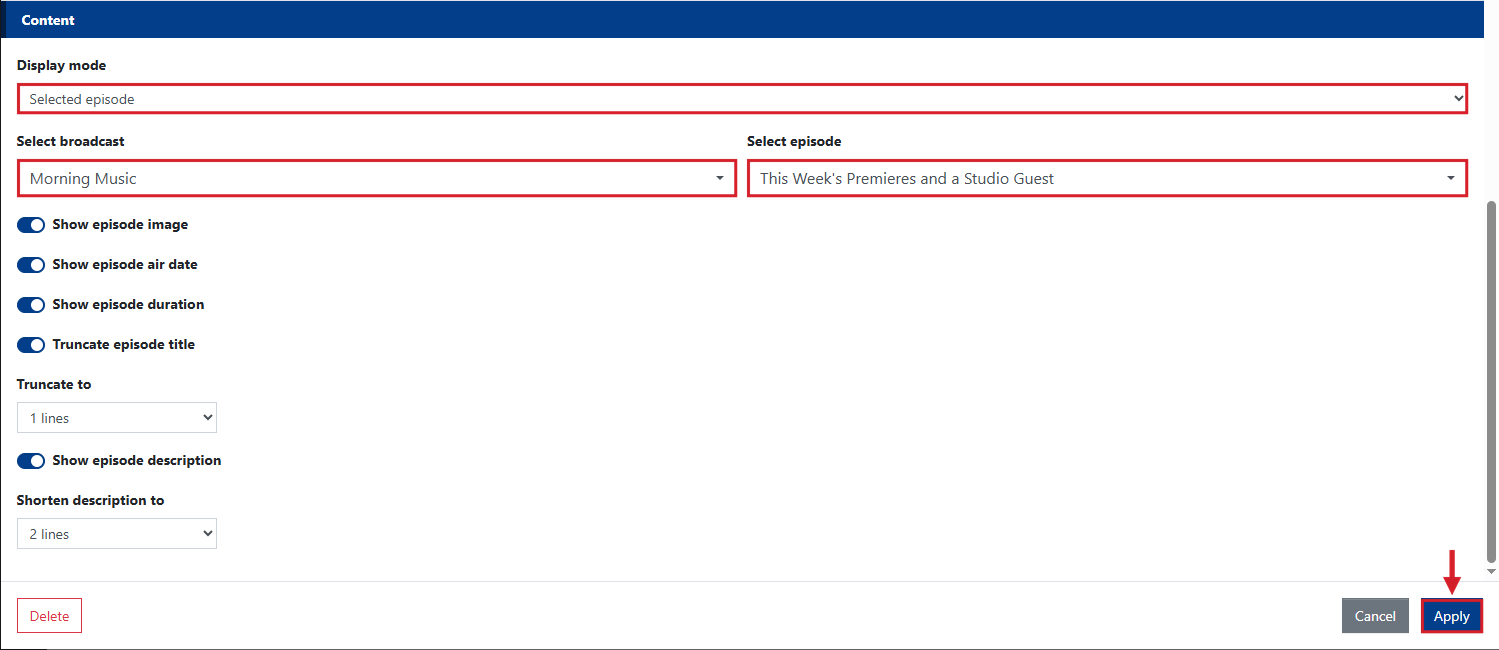
Selected episode mode, broadcast and episode selection 
Display mode: [Selected episode] – front-end view All episodes of the selected broadcast – a list of episodes of one broadcast. Select the broadcast and the number of episodes. You can also show the broadcast description and shorten it to a chosen number of lines.
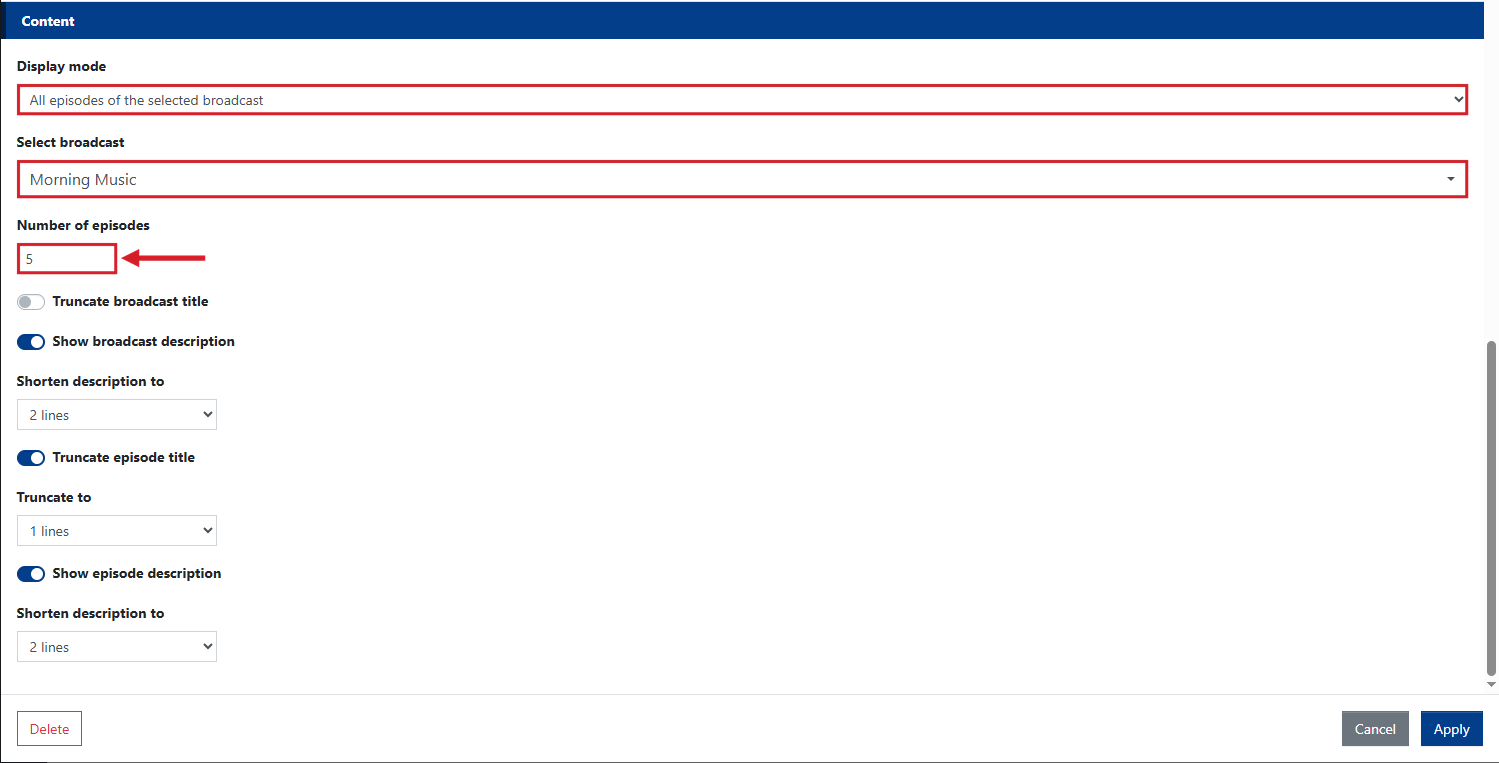
All episodes of the selected broadcast mode, broadcast selection and number of episodes 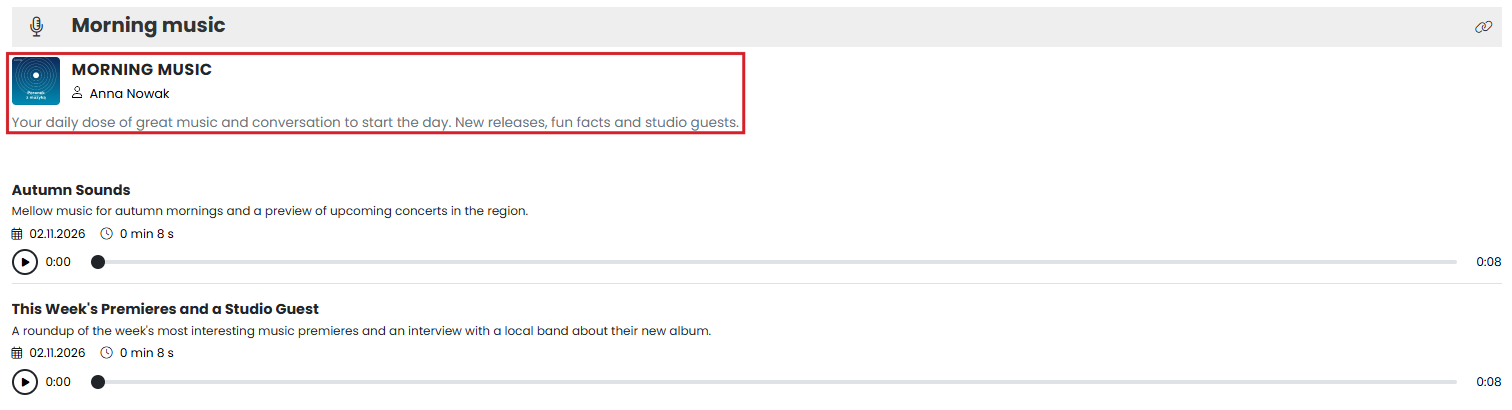
Display mode: [All episodes of the selected broadcast] – front-end view
In every mode you can enable [Truncate episode title] and choose the number of lines the title is shortened to. The same applies to the episode description once you enable [Show episode description]. Confirm the settings with [Apply], then save the template or the home page.
Broadcast carousel widget
The Broadcast carousel displays selected broadcasts as a scrolling carousel with an expandable, active slide.
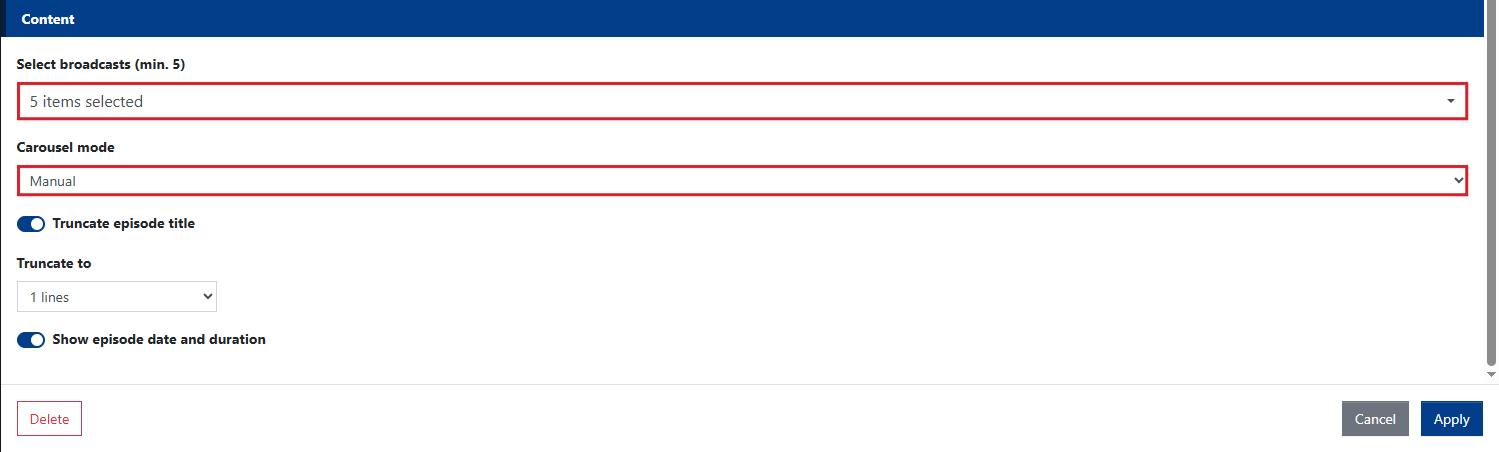
- In the [Select broadcasts (min. 5)] field, choose the broadcasts to appear in the carousel.
- In the [Carousel mode] field, choose [Manual] or [Automatic] scrolling. The automatic carousel rotates slides on its own – you only need to set the [Time between slides (s)].
You can also truncate the episode title and turn the episode date and duration on or off.

IMPORTANT: The carousel requires at least 5 broadcasts. As in the [Broadcasts] widget, only active broadcasts with published episodes appear in the selection list.