polski
 español

 Jakub Krawczak
What is this tool for?
The robots.txt file tells search engine robots which parts of a website they may crawl and which they should skip. It also points them to the website’s sitemaps. Until now, you had to edit it separately for every website: website editing > [Settings] tab > the [Rules for search engines - robots.txt file] field.
Bulk editing saves changes to that same field. Everything you add or change with the tool will be visible later in each website’s settings, where you can still edit it manually.
Important: You can only edit websites assigned to your currently active business profile. If you are a member of multiple business profiles, switch to the appropriate one before you start.
Opening the tool
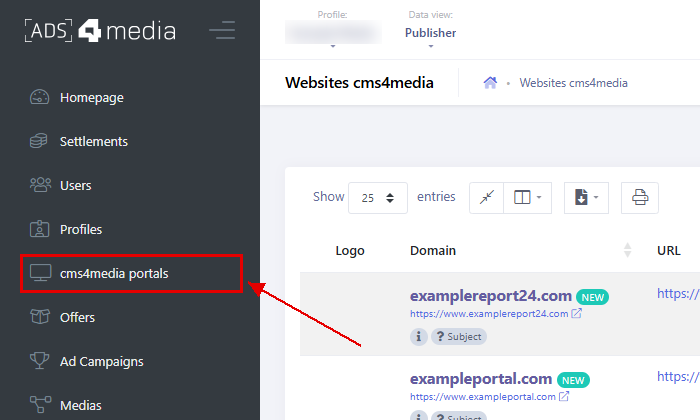
Log in to Ads4Media and navigate to the [cms4media portals] module.
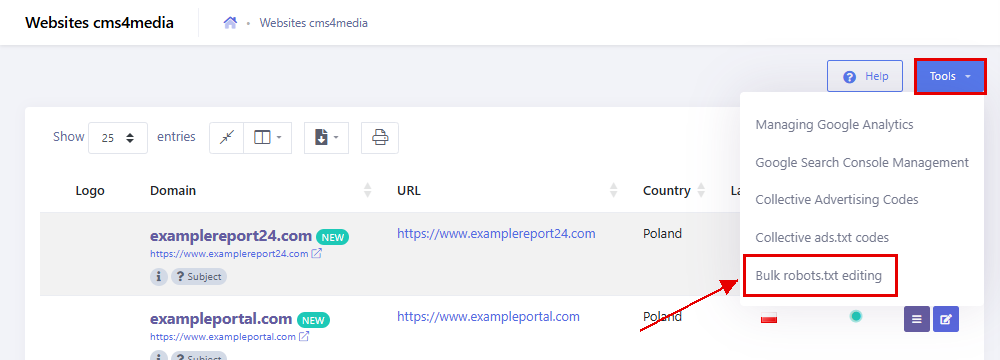
Click [Tools] to open the dropdown menu, then select [Bulk robots.txt editing].
A form will open with the following fields:
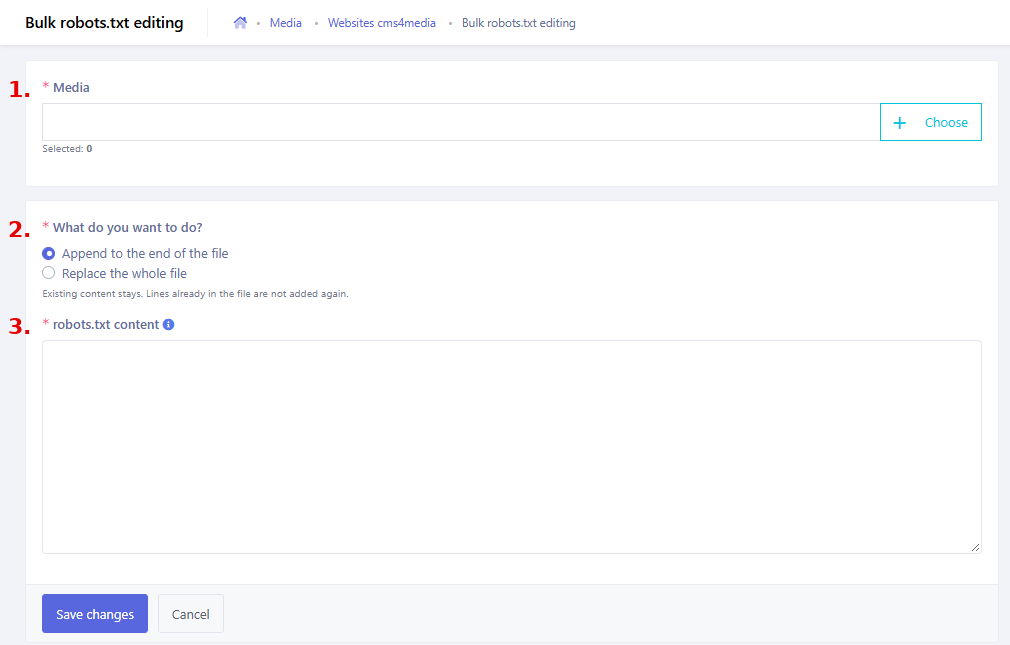
- Media – the websites whose robots.txt you want to change.
- What do you want to do? – how the change is applied: append lines to the end of the file or replace the whole file.
- robots.txt content – the rules to append, or the content that will replace the current file.
Step 1: Choose websites
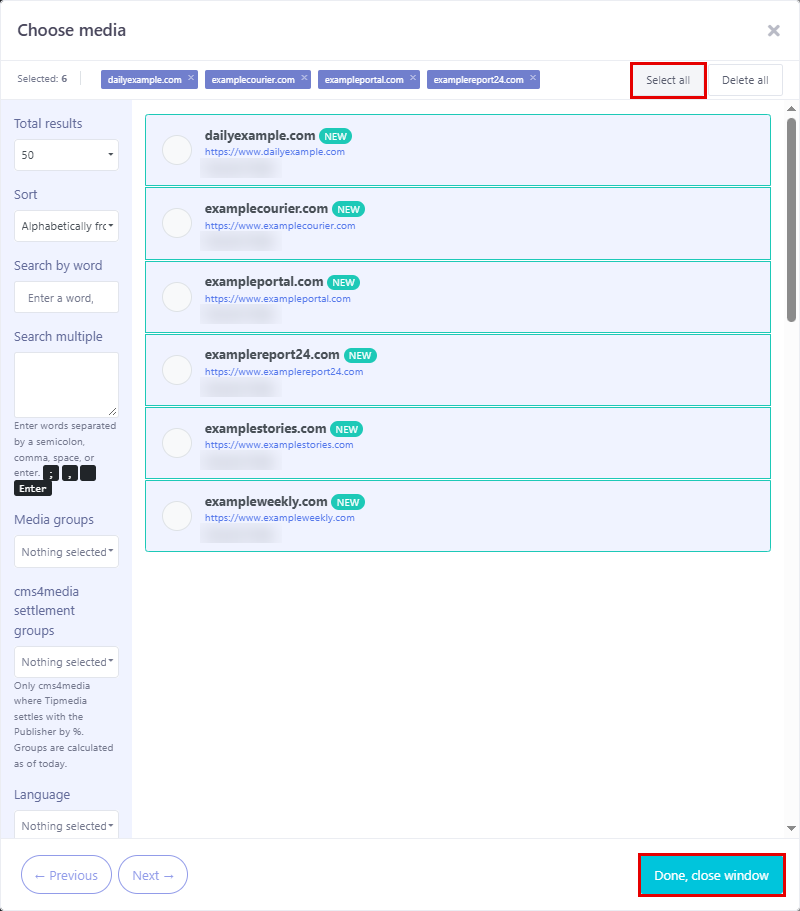
Click [+ Choose] next to the Media field. A pop-up window will open where you can select the websites to edit. Click the media you wish to choose – they will be marked with a green frame and listed at the top of the window. To select all visible websites at once, click [Select all]. You can also use the filters on the left to find specific media.
There is no limit on the number of websites. Confirm your selection by clicking [Done, close window] at the bottom.
Step 2: Check the current files
The selected websites may have different robots.txt content. The tool doesn’t show one shared file – instead, it tells you about the differences. If the files differ, you will see the message “the selected sites have different robots.txt files (X versions)” below the media list.
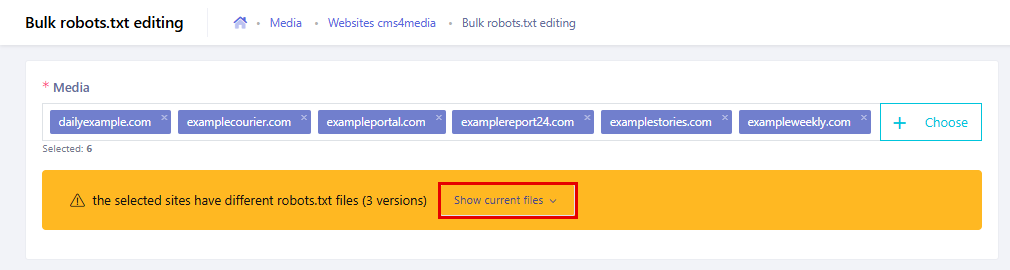
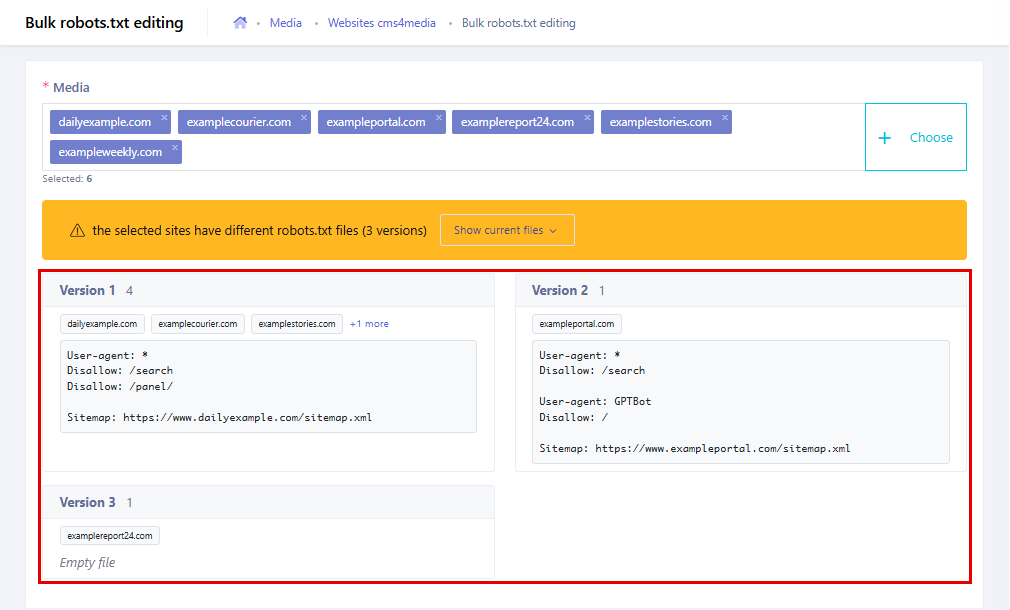
Click [Show current files] to expand the preview. Websites with identical content are grouped into one “Version”. Each tile shows:
- the number of websites in that version,
- the names of the first three websites,
- the file content (scrollable).
Websites with an empty file form a separate version labelled “Empty file”.
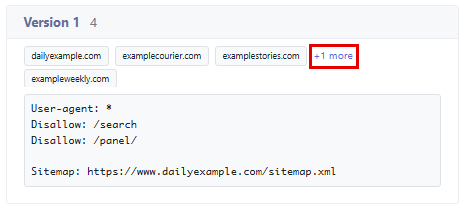
If a version contains more than three websites, click [+X more] to see the rest.
Good to know: When comparing files, the system ignores trailing spaces and empty lines, and treats the website address as a variable. This way, files that differ only by the domain in the Sitemap line end up in the same version. If all selected files are identical, the message is not shown.
Step 3: Choose the type of change and enter the content
Under [What do you want to do?] choose one of the options:
- Append to the end of the file (default) – the current content stays and the new lines are added at the end. Lines that are already in the file are not added again.
- Replace the whole file – the entered content replaces the whole file on every selected website (see “Replacing the whole file” below).
Then type or paste your rules into the [robots.txt content] field.
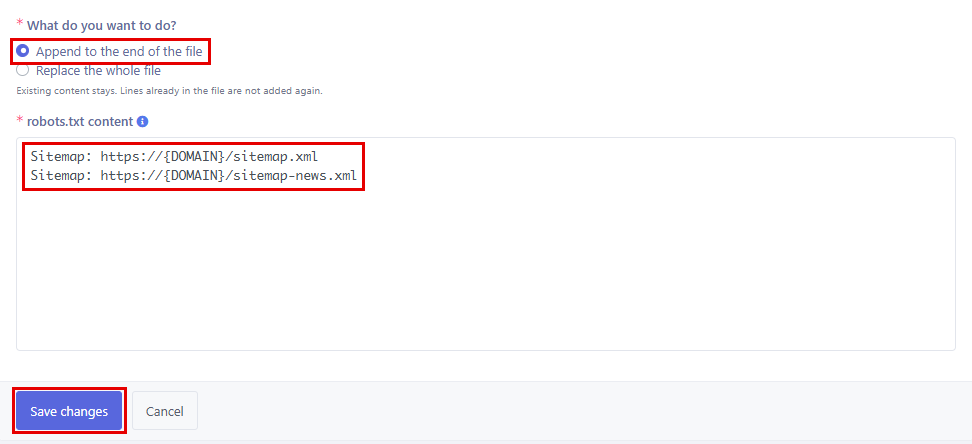
The {DOMAIN} variable
If a rule needs the website’s address (e.g. a sitemap link), type {DOMAIN} in its place. The system replaces it with each website’s domain – without https:// and without a trailing slash, exactly as it appears in the website’s URL address. For example:
Sitemap: https://{DOMAIN}/sitemap.xml
is saved on the website https://www.dailyexample.com as:
Sitemap: https://www.dailyexample.com/sitemap.xml
Note: If a website’s address includes “www”, the {DOMAIN} variable already contains “www.”. Don’t add it before the variable – https://www.{DOMAIN}/ would produce an address with a double “www.www.”. Always check the result in the changes preview (Step 4).
Step 4: Review and confirm the changes
Click [Save changes]. Before anything is saved, the “Confirm robots.txt changes” window opens with a list of websites and the number of websites whose file will change.
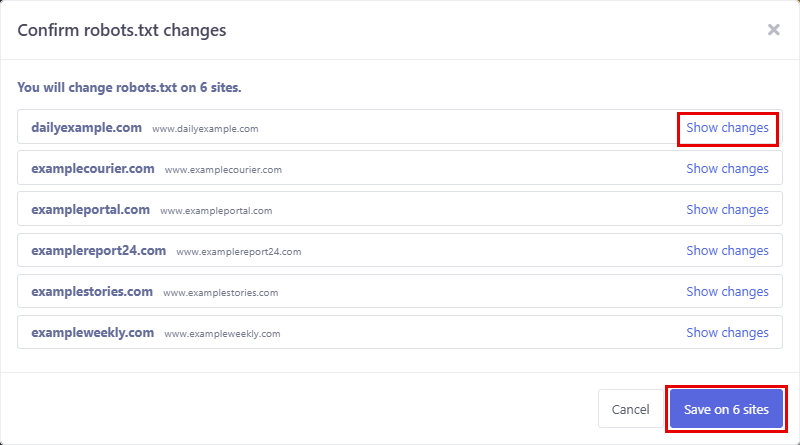
Click [Show changes] next to a website to see what its file will look like after saving, with the domain already filled in. Added lines are highlighted in green.
In the example below, dailyexample.com already had the sitemap.xml line, so only sitemap-news.xml will be added. examplereport24.com had an empty file, so it will get both lines.
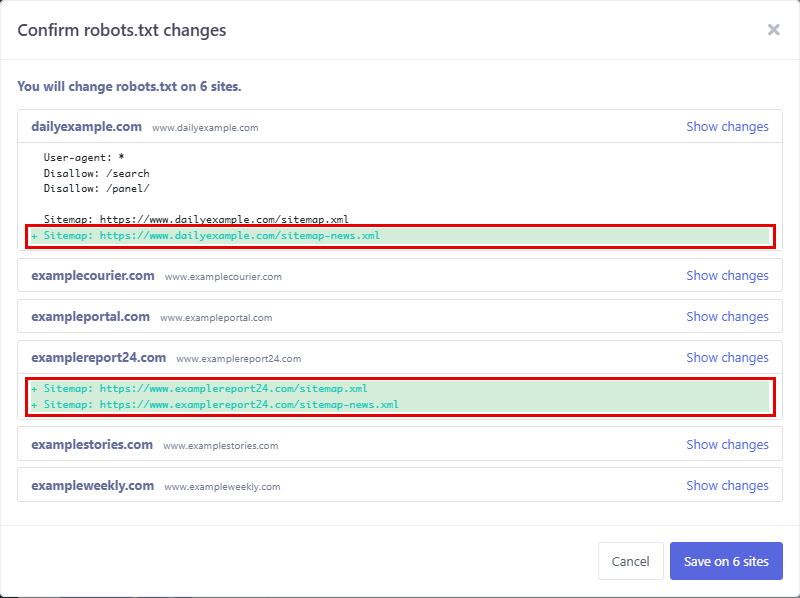
If everything looks right, click [Save on X sites]. A “Changes saved.” message will appear at the top of the screen.

If you want to adjust something, click [Cancel]. You will return to the form with your data intact, and you can click [Save changes] again once you’re done.
Important: No file is changed until you click [Save on X sites] in the confirmation window.
Skipped websites
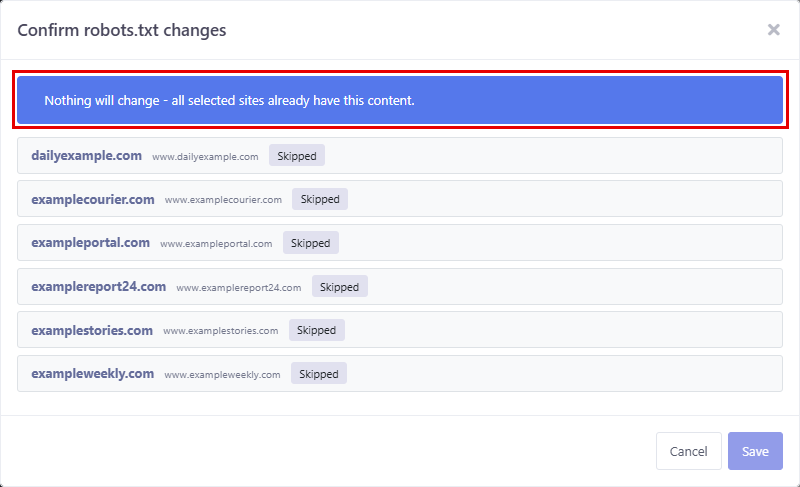
If the change would make no difference on a website (its file already contains all entered lines or has identical content), the website is marked as [Skipped] and won’t be saved. If this applies to all selected websites, you will see the message “Nothing will change - all selected sites already have this content.” and the save button will be inactive.
Replacing the whole file
Use [Replace the whole file] when you want the same robots.txt on all selected websites. Enter the full file content in the [robots.txt content] field – you can use the {DOMAIN} variable here as well.
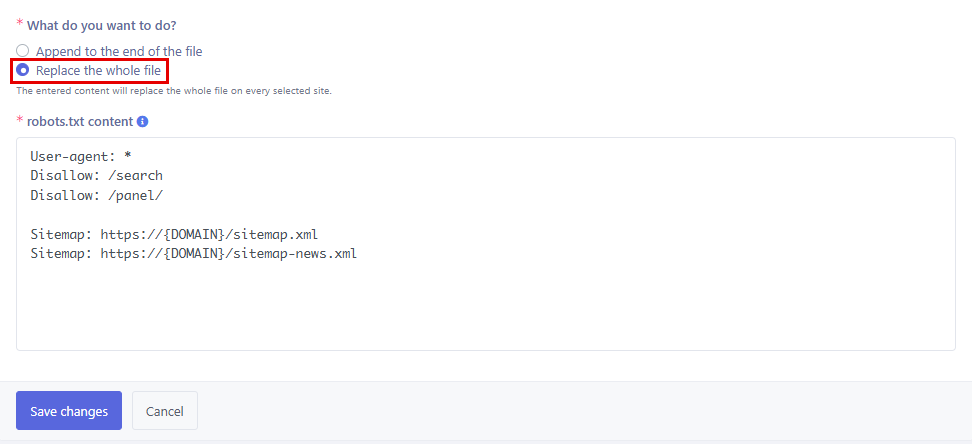
In the confirmation window, [Show changes] displays removed lines in red (struck through) and added lines in green. Websites that already have identical content are skipped.
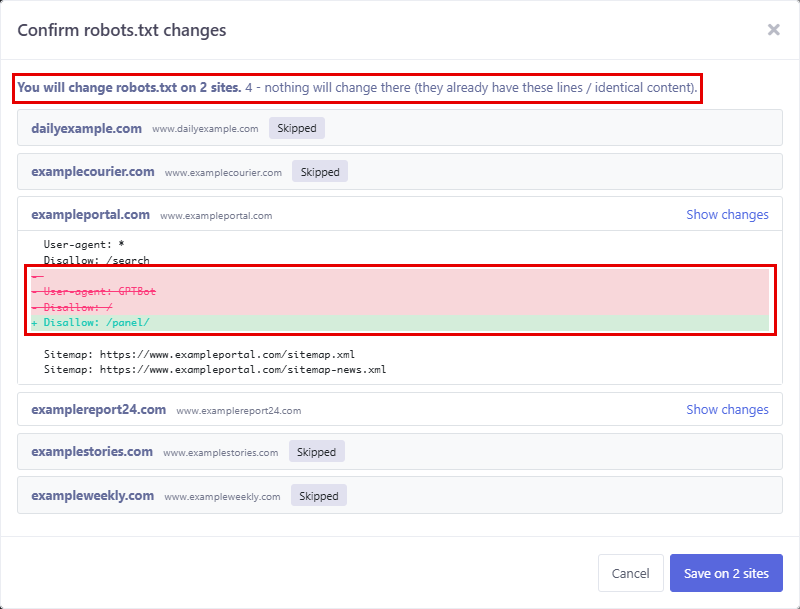
Important: Replacing removes all existing content of the file on the selected websites, including rules not present in the new content. Before saving, review the current files ([Show current files]) and copy their content if needed.
Where can you see the changes?
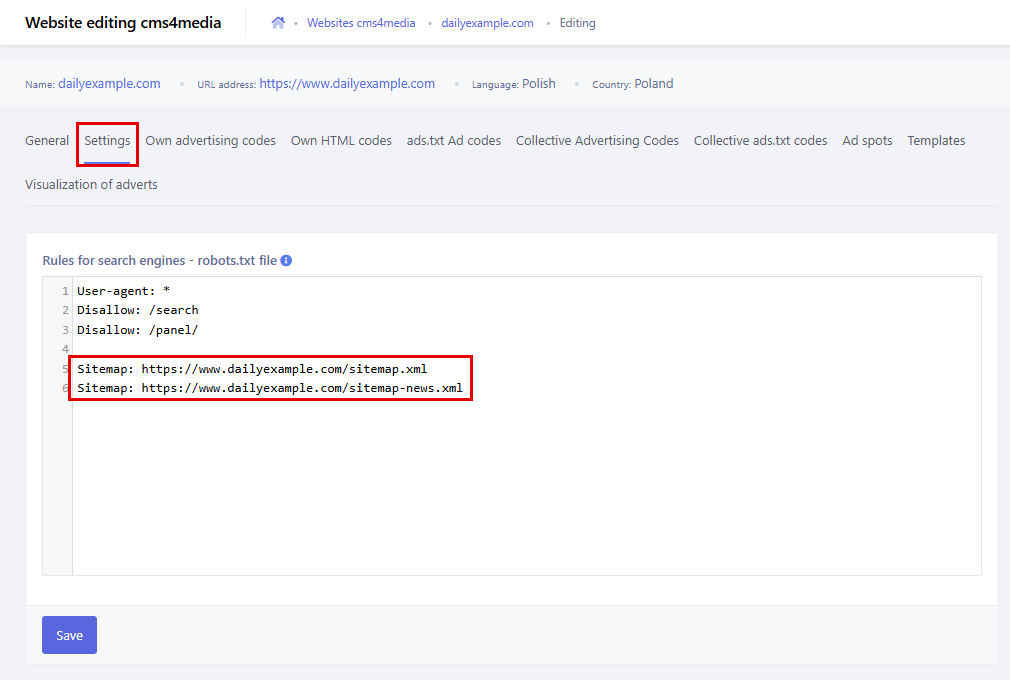
Changes are saved to the same field you know from website editing. To check them, go to the [cms4media portals] module, click [Edit] next to a website and open the [Settings] tab. The added lines are visible in the [Rules for search engines - robots.txt file] field, where you can also edit them manually.
Frequently asked questions
How many websites can I edit at once?
There is no limit. You can select as many websites from your active business profile as you need.
Can I edit websites that belong to another company?
No. The tool only shows websites assigned to your currently selected business profile. To edit websites of another company you have access to, switch the profile at the top of the screen.
Can “Append” duplicate lines in the file?
No. Lines that are already in the file are skipped. Keep in mind that the system compares individual lines. If you append a whole group of rules (e.g. a User-agent and several Disallow lines) and one of those lines is already in the file, that line won’t be added again. That’s why you should always check [Show changes] before saving.
I clicked “Cancel” in the confirmation window. Was anything saved?
No. You return to the form with your data intact, and the robots.txt files stay unchanged.
How do I undo changes?
The tool has no undo button. You can fix the file manually in website editing ([Settings] tab) or use the tool again with [Replace the whole file] and enter the previous content.