polski
 español

 Monika Borowiec
New
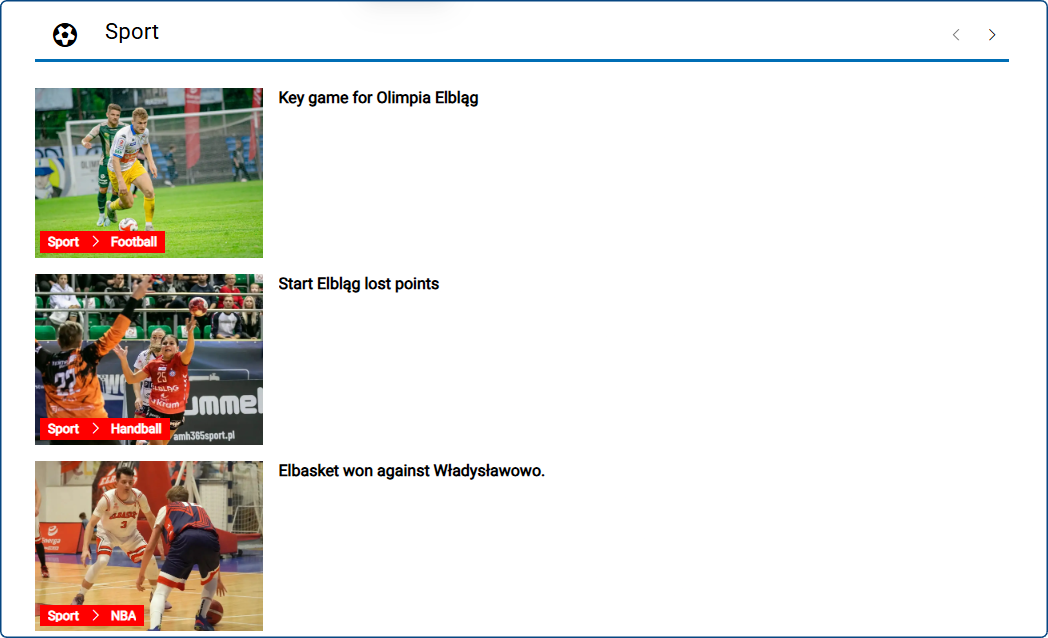
The newly added feature allows you to change the way of displaying the name of an article's category in a widget.
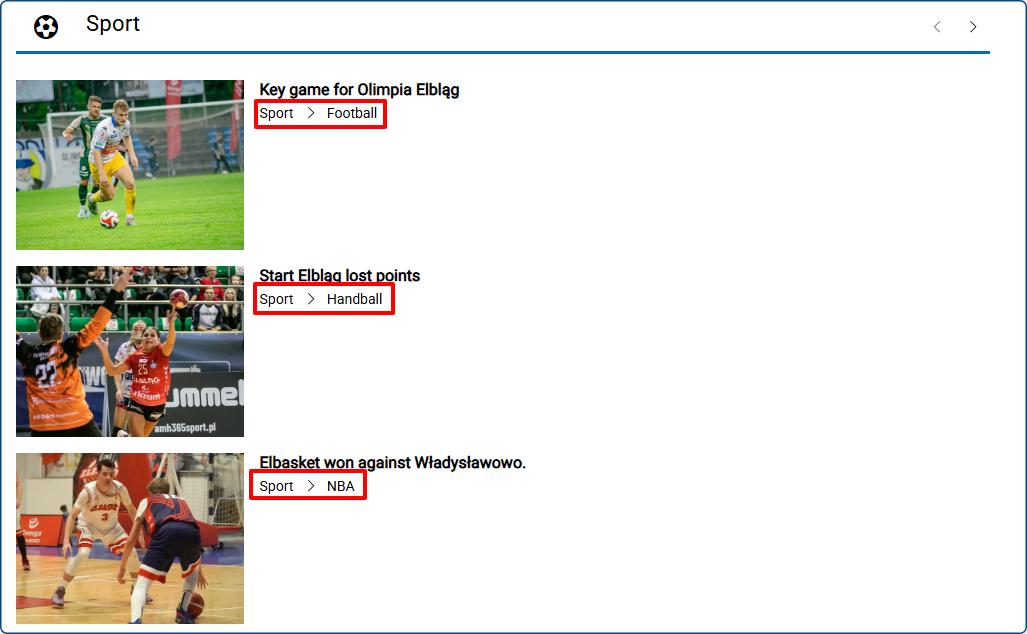
Until now, the name of the category was displayed only below the title and description of a story:
Now we can display it as a label above the main photo in the widget adjusting both its position relative to the image, and its distance from the edges (spacing):
Feature activation:
The display style of the article’s category is set from within the widget’s options. To configure it, please go to the [Page builder] module, then choose the template you are interested in, and click the edit button of the chosen widget.
In the [Displaying results] section, there is the familiar “Show categories” toggle. When enabled, several options now appear, allowing you to display it as a label above the photo, and customize it:
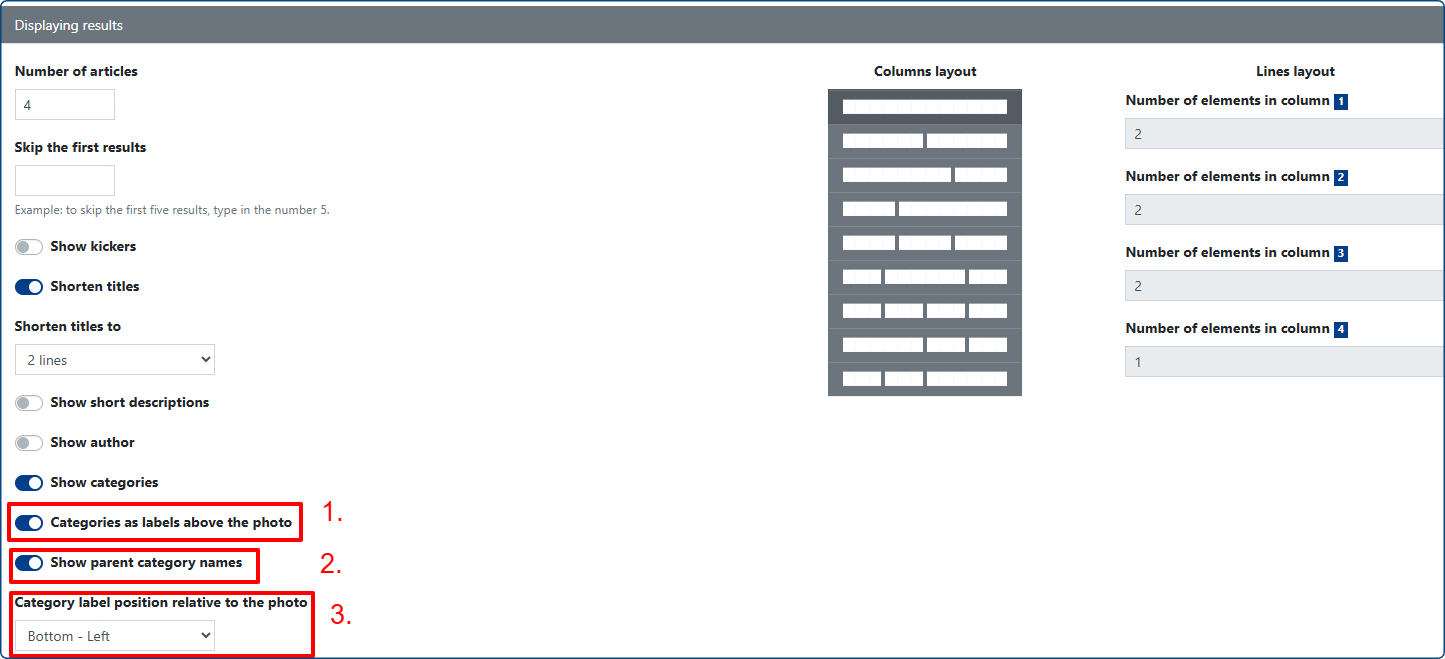
1. Categories as labels above the photo
The option allowing you to activate or deactivate the feature.
2. Show parent category names
This setting applies to second- and third-level categories. If an article belongs to the category “Sport > Volleyball”, we can choose whether we want to show only the final category, or also its parent category.
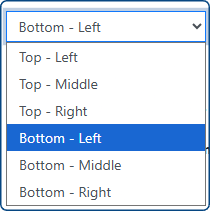
3. Category label position relative to the photo
This allows us to specify whether the label should be in the center, bottom left corner, upper right one, etc.
IMPORTANT: The category label is intended for the following text placements in relation to photo:
- Beside photo, on the left
- Beside photo, on the right
- Above photo
- Below photo
In the Above photo setting, the position of the category will remain unchanged.
Style and spacing customization:
To set the font, its weight, color, as well as label’s background color - go to the [Page builder] > [Template design]
Then expand the [Component content] and [Category label style]:
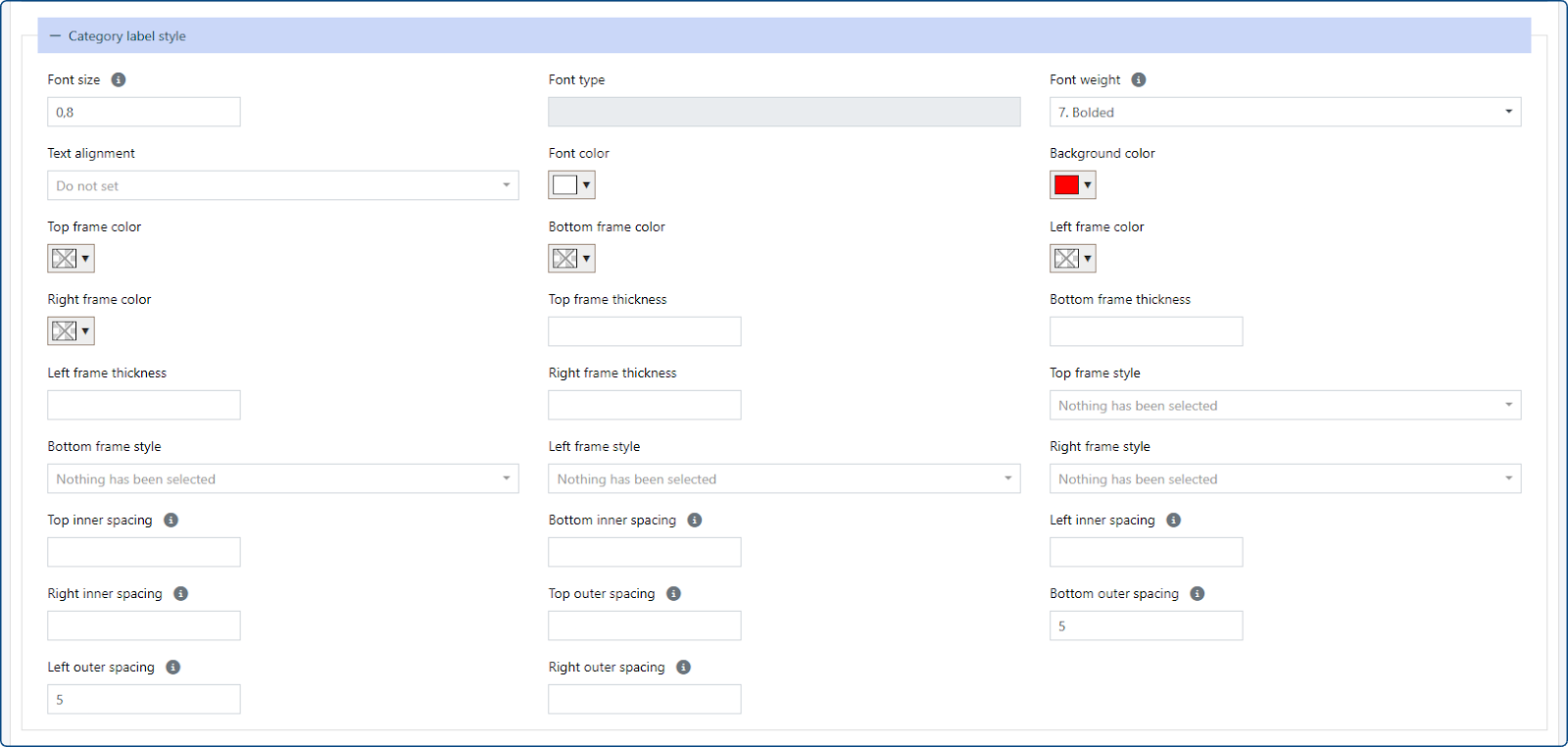
Here you can adjust the spacing (expressed in pixels), label’s frame color, etc.
You can also do the same thing for an individual widget directly while editing it. The [Widget design] button gives you access to the same settings described above but these will apply only the widget that is edited.