polski
 español

 Jakub Krawczak
The configuration is optional. If you leave it empty, the system still sends messages using the default settings. Below we show where to find these settings, what each field means and how to check that the server connection works.
Where to find the e-mail settings?
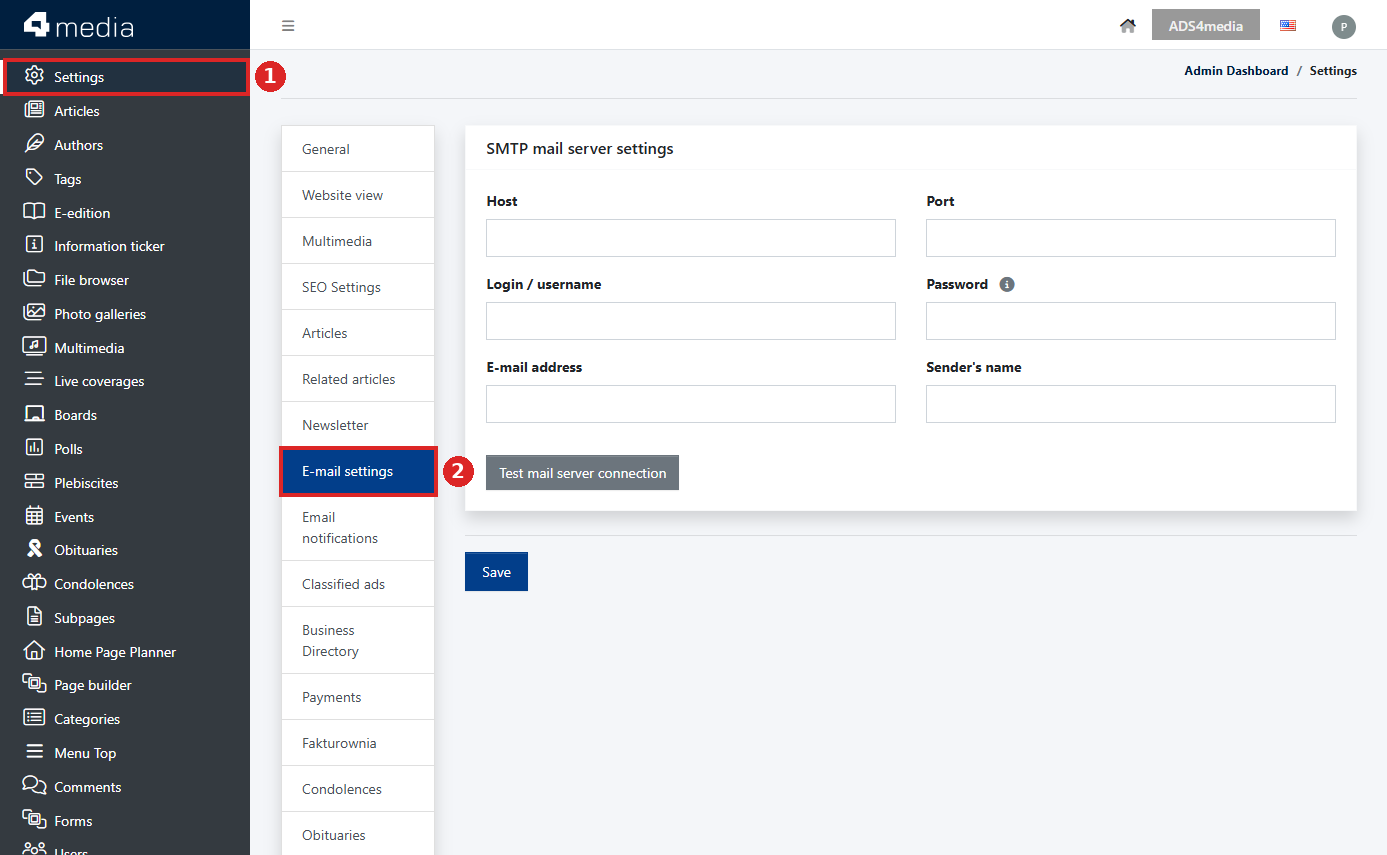
Go to the [Settings] > [E-mail settings] module.
- In the left-hand menu, click [Settings].
- In the list of tabs, select [E-mail settings]. The [SMTP mail server settings] section appears.
How does the default configuration work?
When no field in the [SMTP mail server settings] section is filled in, the default configuration is active. System messages (ex. password resets, confirmation of purchased subscriptions) are then sent by the 4media server, and the sender is the factory address [email protected].
This works out of the box and requires no changes. If you want recipients to see an address from your portal’s domain as the sender, enter the details of your own mailbox.
Configuring your own SMTP server
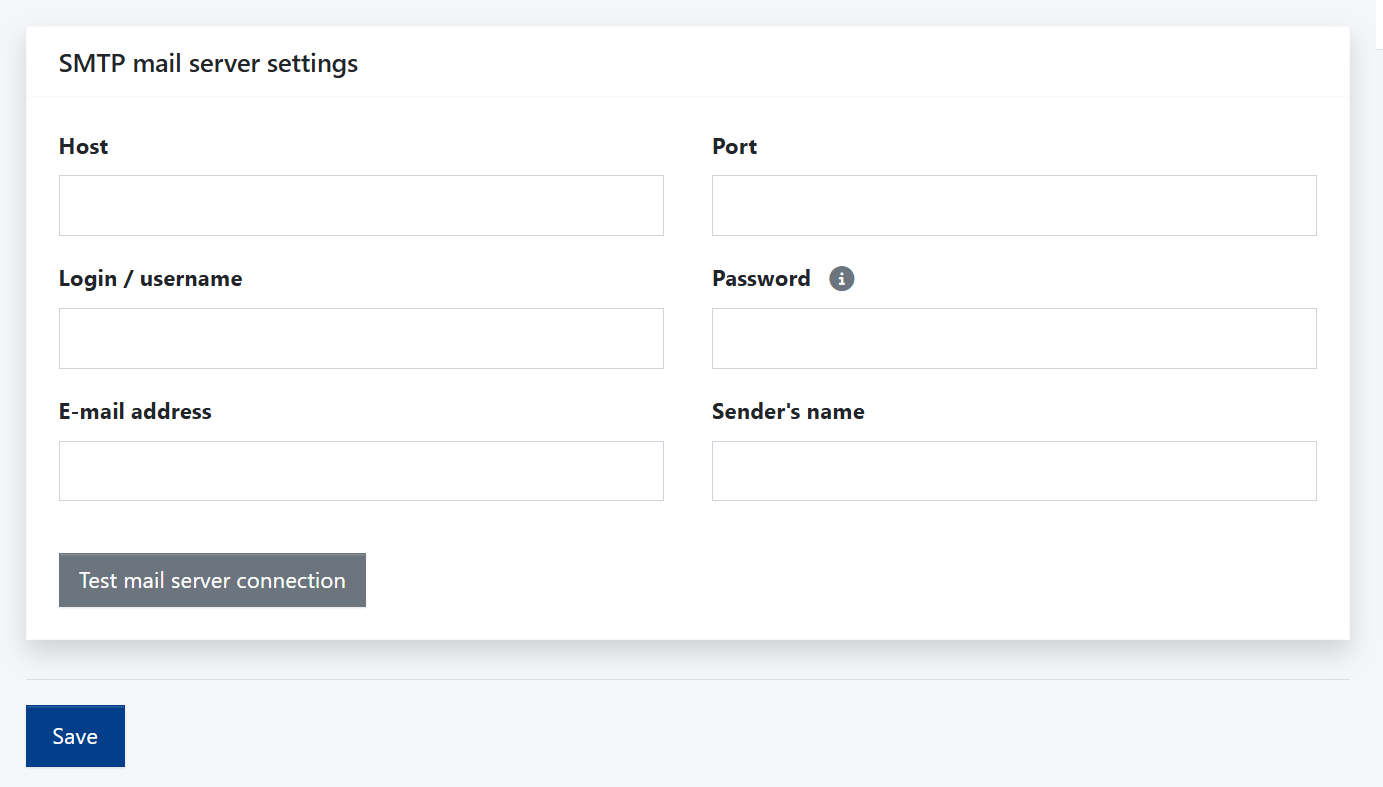
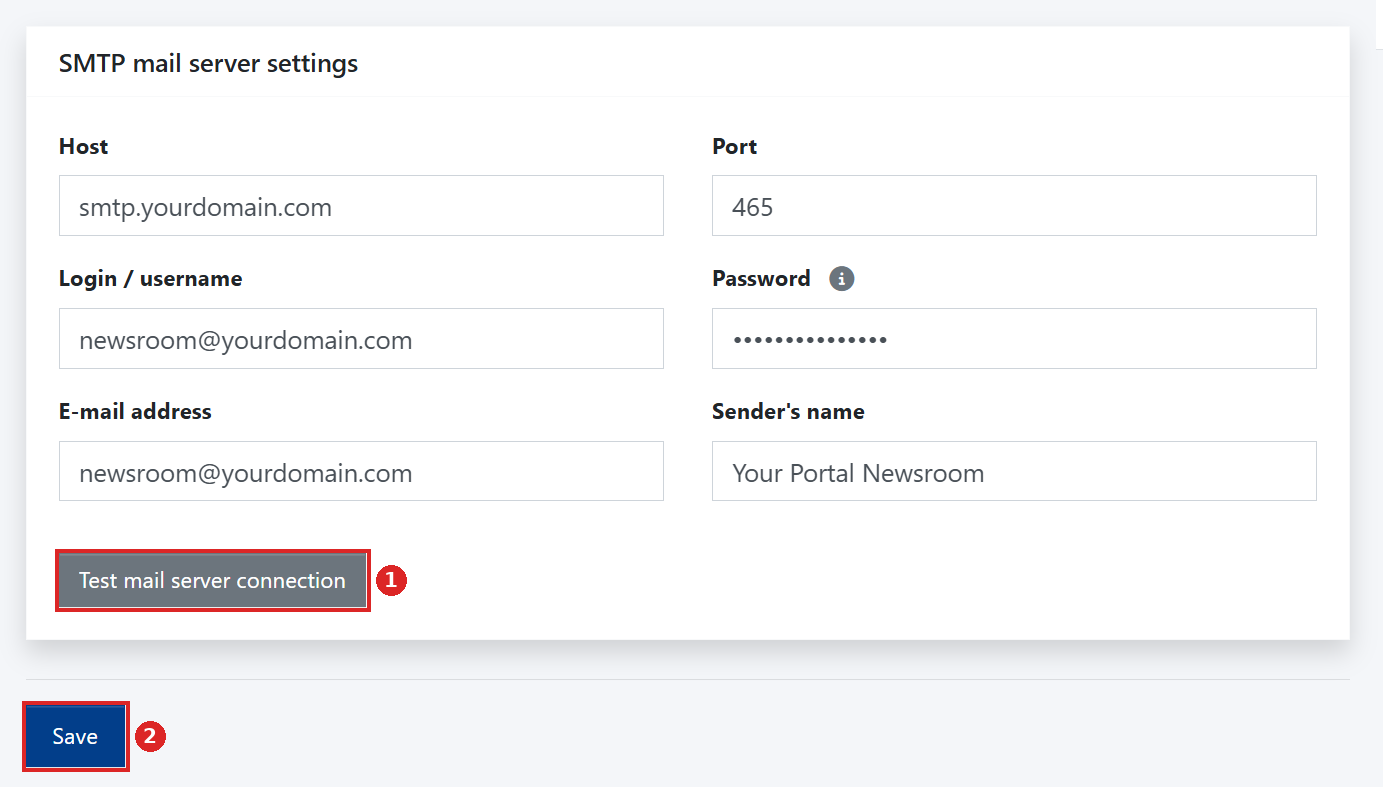
You will get the required details from your e-mail provider or your domain administrator. Fill in the fields:
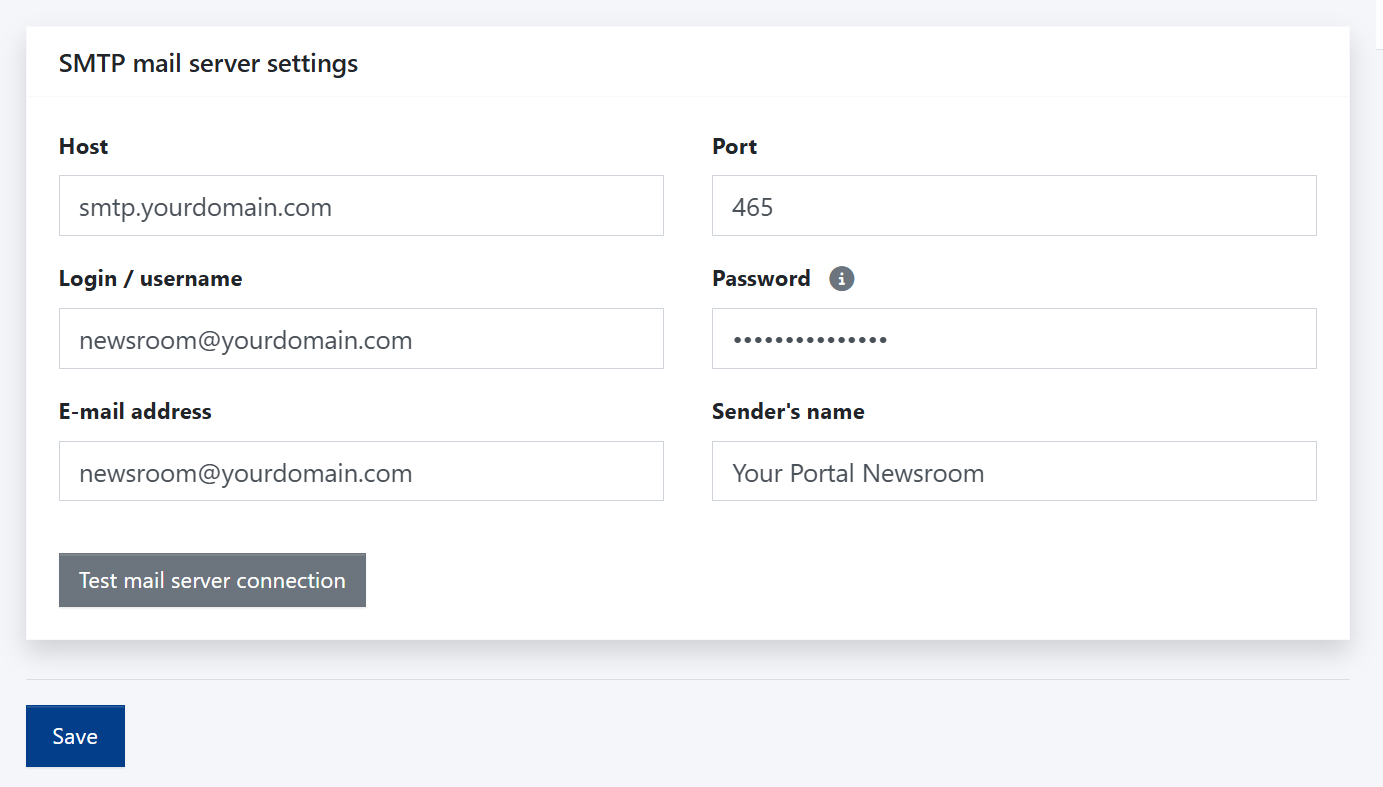
- Host – the address of the outgoing SMTP mail server, e.g. smtp.yourdomain.com.
- Port – the SMTP server port number. Most often it is 465 (SSL connection) or 587 (TLS/STARTTLS connection). Your e-mail provider will tell you the correct value.
- Login / username – the mailbox login. Usually this is the full e-mail address.
- Password – the mailbox password. Once saved, the password is not displayed. As the info icon next to the field explains, you only enter a new password if you want to change the current one.
- E-mail address – the address system messages are sent from. Recipients will see it as the sender address.
- Sender’s name – the name shown to recipients next to the sender address, e.g. the name of your portal or newsroom.
Testing the connection and saving changes
- Once the fields are filled in, click the grey [Test mail server connection] button. The system checks whether it can connect to the server with the details provided. That ensures your configuration will be working as intended.
- If the test fails, check the host, port, login and password.
- When the test succeeds, click the blue [Save] button at the bottom of the page. From now on, system messages are sent from your mailbox.
Returning to the default configuration
To go back to sending from [email protected], clear the fields in the [SMTP mail server settings] section and click [Save].
IMPORTANT: Your browser may automatically suggest or fill in the Login and Password fields with saved sign-in details. Before clicking Save, make sure the form contains only your SMTP mailbox details.
Some e-mail providers require a separate app password for SMTP sign-in instead of the regular mailbox password. See your provider’s documentation for details.