polski
 español

 Monika Borowiec
People often attach great importance to reviews presented by other people. Would you like the reviews presented by users to increase the credibility of your website? Take advantage of our novelty, which is the Opinions widget.
Our new Opinions widget in CMS 4media allows you to promote, e.g. on the main page of your website, an Author's opinion on a topic presented in a specific article that is already published on your website.

Adding a widget
First of all, log in to your administrator account in CMS 4media. From the main menu on the left, select the Page Builder module. A list of page templates will appear in front of you.
Select the template in which you would like to place the Opinions widget by clicking on its name or on the “Edit" button. The current page structure, which is formed by the previously selected widgets, will be displayed in front of you. If necessary, the position of the widget after saving the changes can be changed by dragging it to another place.
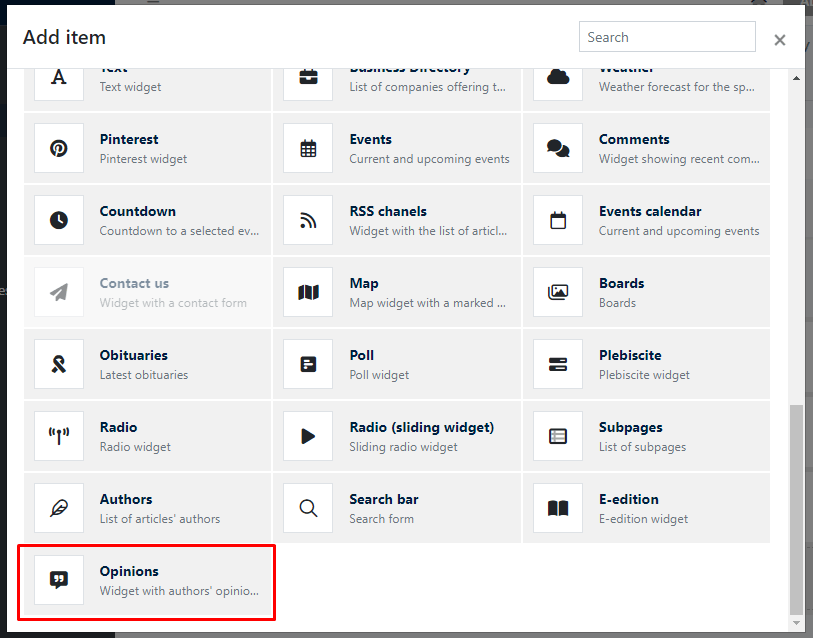
In the column of your choice, where you want to place the new widget, click [+Add item]. A window with a library of widgets will open. Select the [Opinions] widget from the available list and click on it. This will open a new window to configure the said element.
If you are lost, watch our tutorial: Adding widgets
Header settings
The header section will be automatically enabled when you add the widget. You can customize it according to your needs.
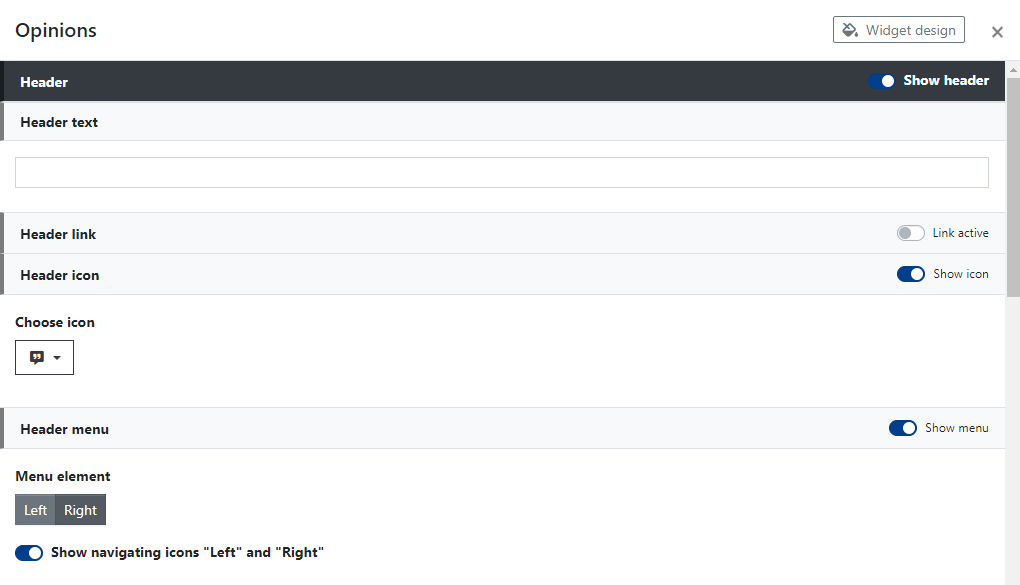
Here you will be able to set:
- Header text – a short text that you enter above the widget content. It will be displayed on the so-called header bar. Its appearance can be changed in the advanced [Widget design] settings. The header text can function as a link if you enable Header link.
- Header link – here, you can decide whether the header text you entered earlier should function as a link on the page. You can enter, for example, a link to a subpage containing all reviews.
- Header icon – enable the icon by clicking the [Show icon] toggle. The icon will be displayed before the header text. As with the header text, if you enable [Header link], the icon will also function as a link. You can change the icon by clicking [Select icon].
- Header menu – here, you can choose the position of the menu displayed in the header.
Content settings
In the content settings, you will have the option to specify a category or tags for the widget. This will allow the widget to provide reviews related to articles belonging to the selected subject categories.
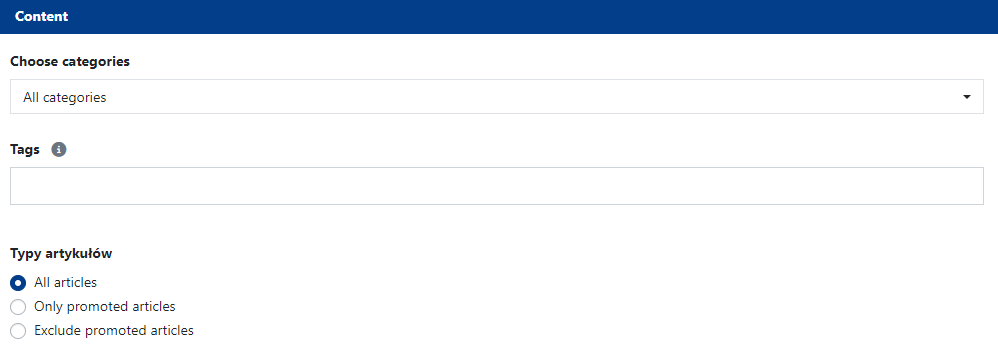
You can also set how opinions written by Authors will be presented. You get the ability to specify the number of entries displayed by the widget and also to choose the appropriate tiled layout in relation to the number of entries displayed.
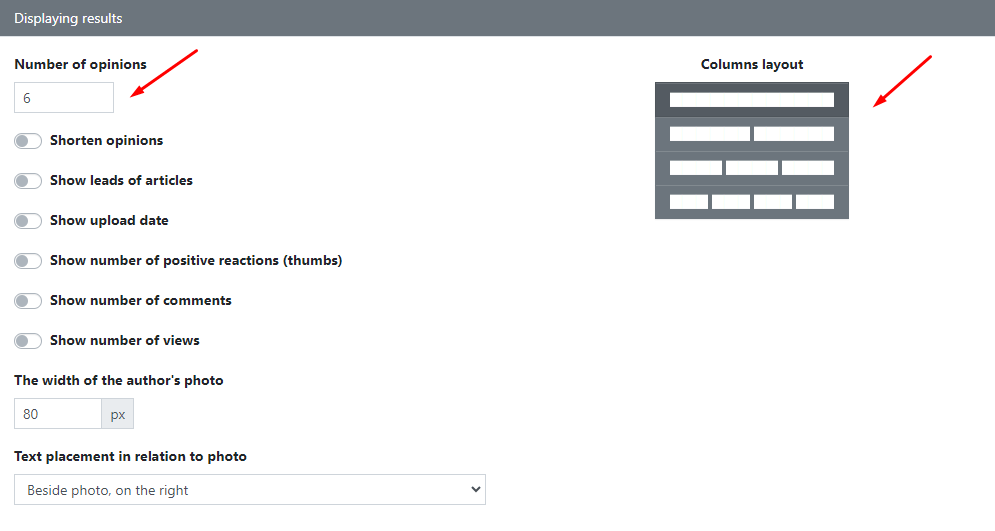
While editing, we should also pay special attention to:
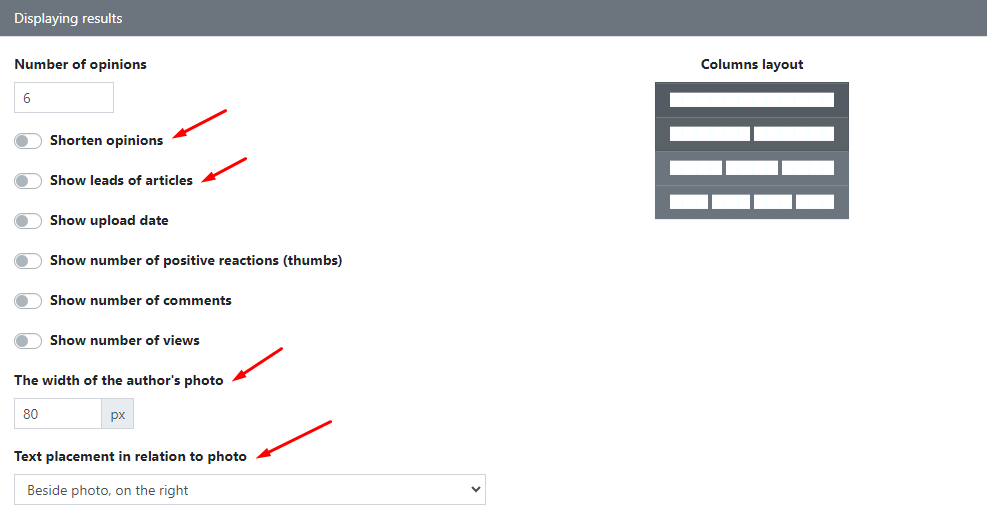
- Shorten opinions - by activating this switch you will be able to decide how many lines the opinions written by Authors will be shortened to. Activating this feature allows you to better control the opinions displayed in the widget.
- Show leads of articles - by checking this option, it is possible to additionally display a fragment of the introduction (so-called lead) of articles in the widget. This allows you to see exactly which article the displayed opinion refers to.
- Width of the author's photo - specifying the width here will refer to the adjustment of the authors' photos, which will be displayed next to the opinions on their articles. In this widget, there is no possibility to display the photos of the main articles.
- Text placement in relation to photo - here you have the option to specify where you would like the text of the opinion and the lead to be placed against the Author's photo. The options that are available to choose from are: display the text next to or below the photo).
When activating the Opinions widget, remember to:
- Publish the first Opinions
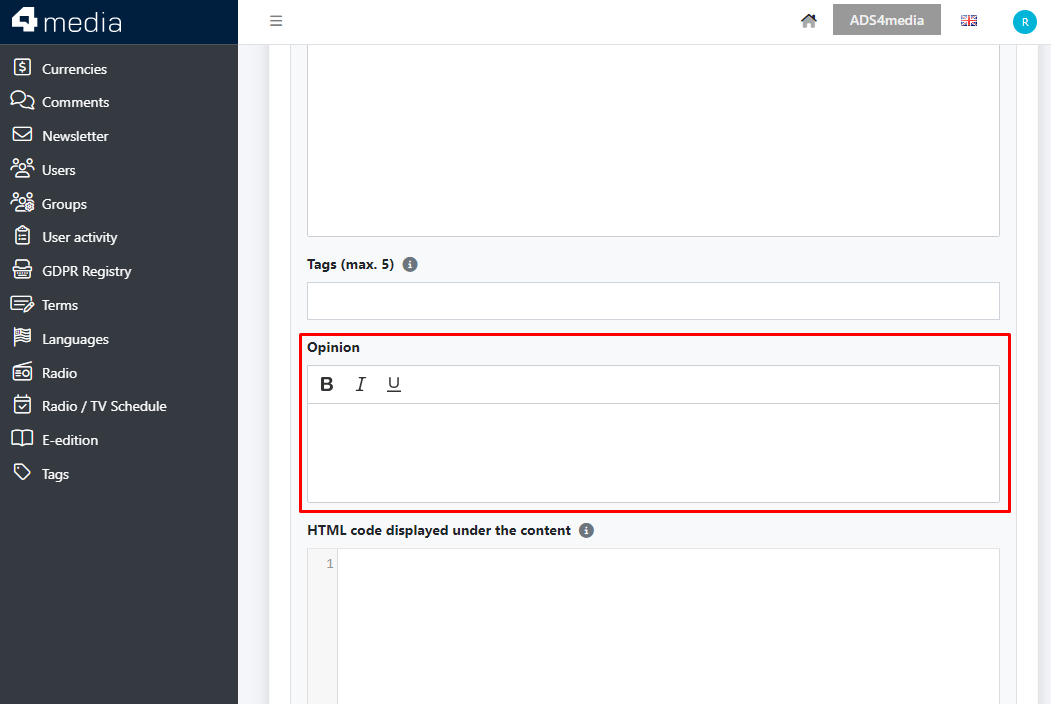
In the form for adding/editing an article, a new field called “Opinion" has appeared. It is intended precisely for the Author to write in it his/her opinion about the given article. Everything written here will later be visible in the Opinions widget.
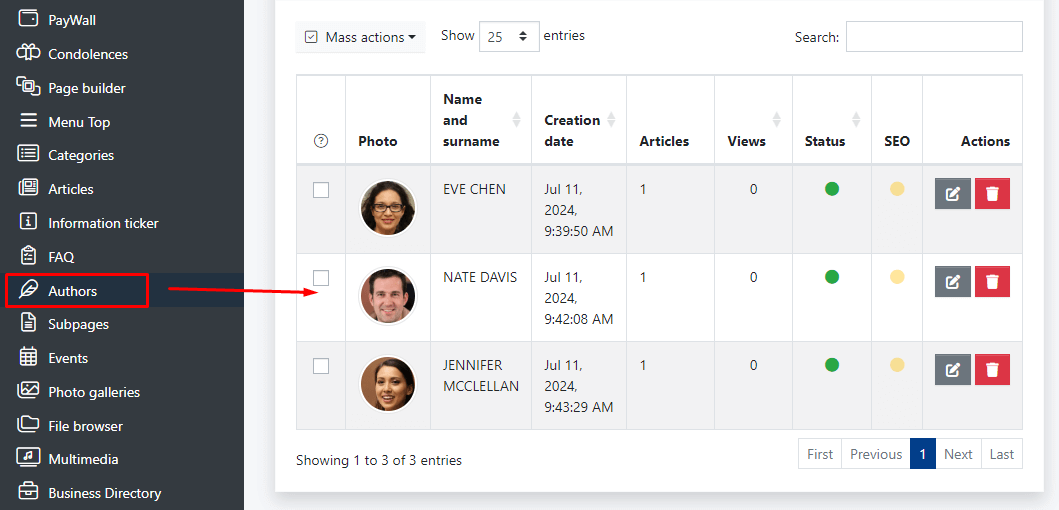
- Adding business cards of Authors in the [Authors] module
Make sure that the authors have a fully filled business card so that their opinion will be displayed in the [Opinions] widget.
After performing all the steps written above, the [Opinions] widget will appear in the pre-selected location and can present itself as follows:
In the new [Opinions] widget in CMS 4media, clicking on an Opinion will redirect you to the article where it was originally published. Its content will not be displayed within the article.