polski
 español

Adding the Widget
The FAQ Widget in CMS 4media is added in the [Page Visualization] module. From the list of templates, select the one you want to edit by clicking the [Edit] button. You will be taken to the template content, which consists of the layout of the widgets already added to the template.
To add a new widget, click [+ Add element]. This will open the library of available widgets, where you can select the [FAQ] widget.
Header Settings
As with other widgets, you can choose whether to display or hide the header. To change the display mode, use the [Show header] button.
When the header is enabled, you will see settings similar to those shown in the screenshot below:
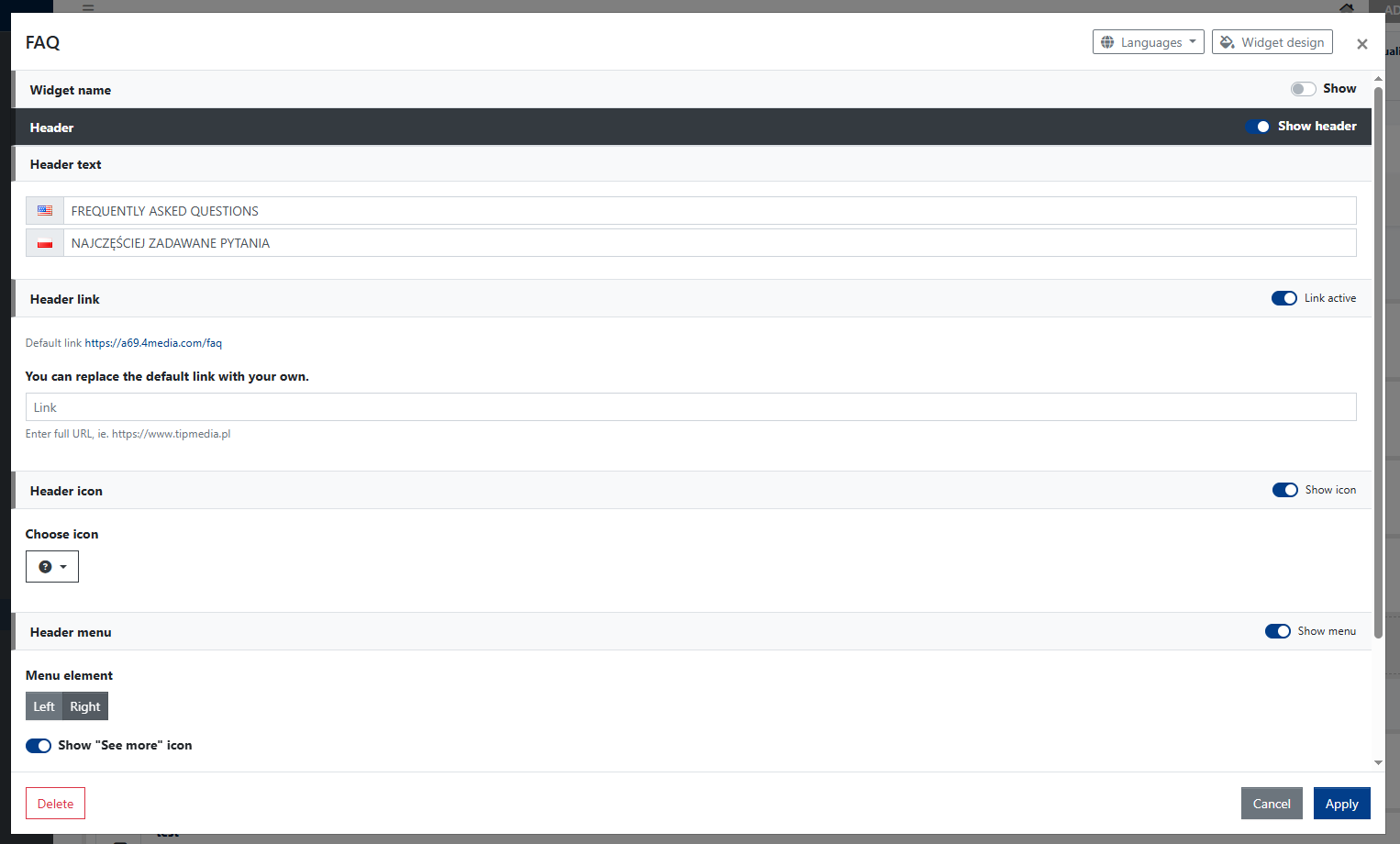
Here, you can configure:
- Header text – a short text describing the content of the widget displayed directly below the header.
- Header link – allows you to add a link redirecting users to a selected URL. By default, the link redirects to the general FAQ page: https://demo.4media.com/faq. To change the active link, enter the desired URL in the [Link] field.
- Header icon – allows you to show or hide the icon displayed before the header text. When the Header link is active, the icon also becomes a link. Click [Select icon] to change it to another icon.
- Header menu – allows you to add the [See more] icon and specify whether it should be displayed on the left or right side of the header banner.
Content Settings
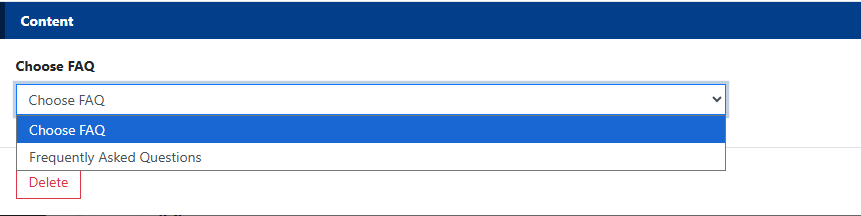
The content settings for this widget are limited to selecting an existing FAQ section. The section must first be created in the [FAQ] module. A separate guide for this module is available here: FAQ module (Frequently Asked Questions).
From the drop-down list, select the FAQ section you want the widget to display. Please note that only one FAQ section can be displayed within a single widget. If you want to display multiple sections on a selected page template, you need to add a separate [FAQ] widget for each section.