polski
 español

 Monika Borowiec
Live Coverages
Changes in the Admin Panel
Live Coverages are no longer part of the Multimedia module. A separate, dedicated module has appeared in the CMS side menu.
Location: By default, the new module is available in the lower-left corner of the screen.
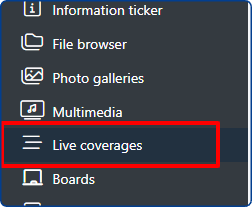
Inside the module, tabs have been introduced to organize live streams according to their type.
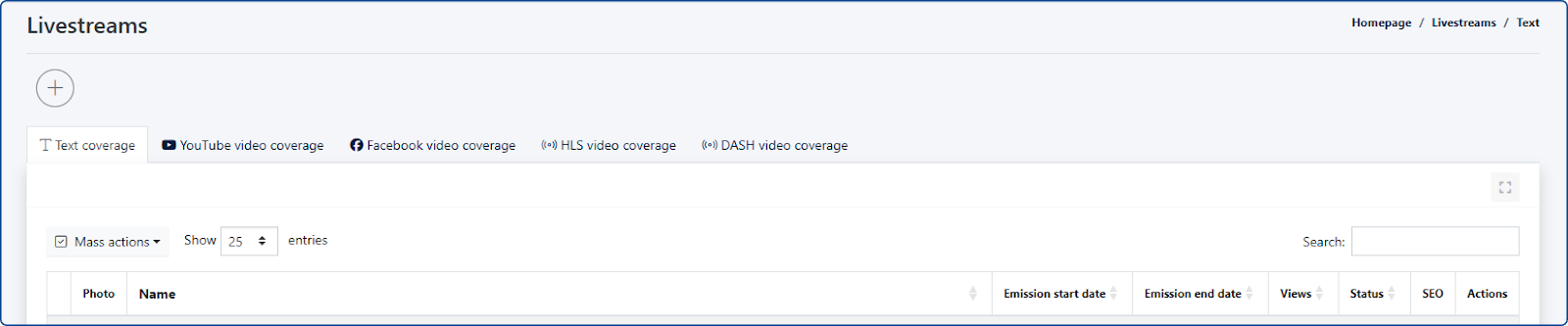
Additional Improvements:
- YouTube Integration: For live coverages added from YouTube, we introduced the ability to attach streams using a channel-based URL format: https://www.youtube.com/embed/live_stream?channel=...
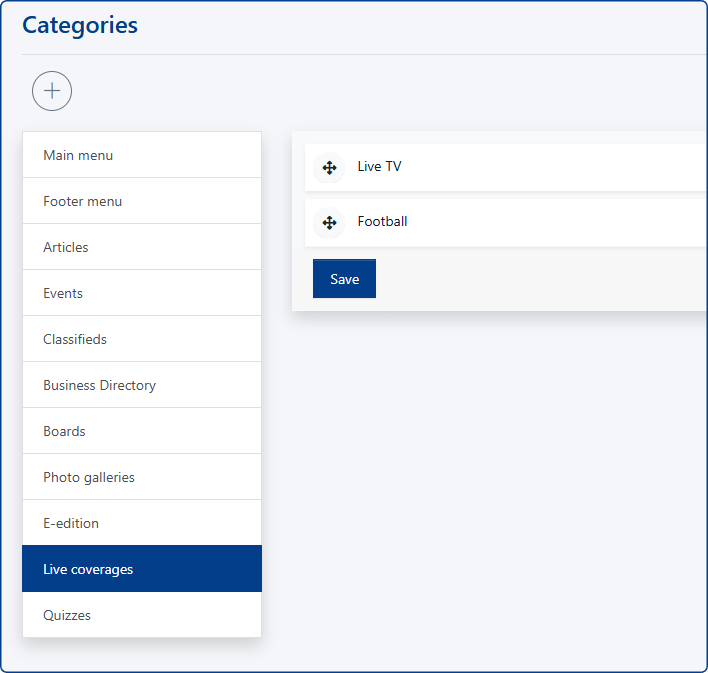
Categorization: In the Categories module, we introduced categorization for live streams. Creating categories for the live streams module is optional but recommended for organizing content.
Text Coverages - New!
The development of text coverage functionalities is being carried out in stages.
- Currently: The module allows for full text coverage of sports events.
- Coming Soon: In the coming weeks, a new type of text-based stream - [Interview] - will be introduced.
Creating a Text Coverage
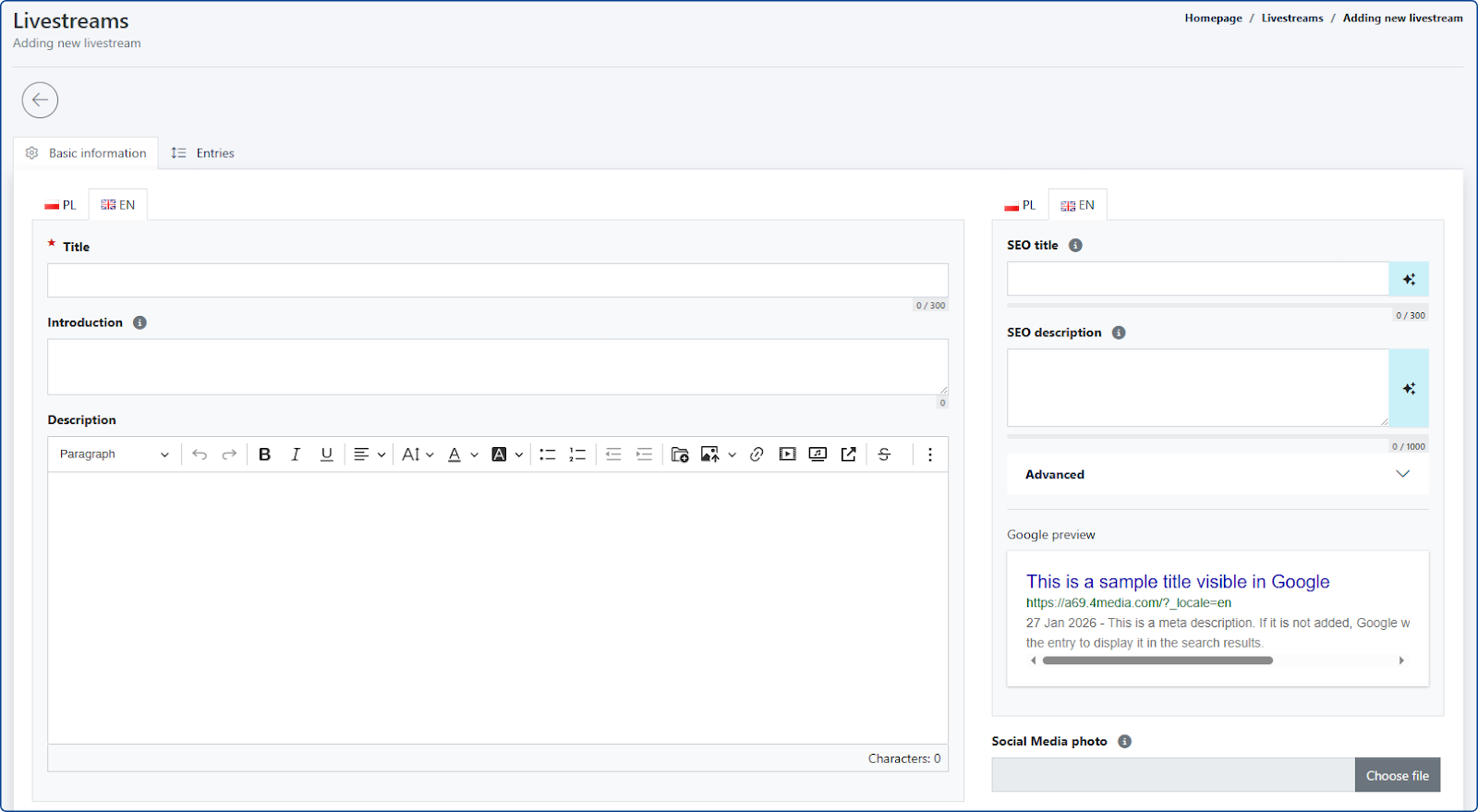
The creation process is divided into two main tabs: Basic Information and Entries.
1. [Basic Information] Tab Here you can enter the key data for the event:
- Title, Lead, Description, and Metadata
- Team lineups (specifically for sports events)
- Basic stream settings configuration
Promotional Image - this will be visible within the entry, in listings, and in the widget.
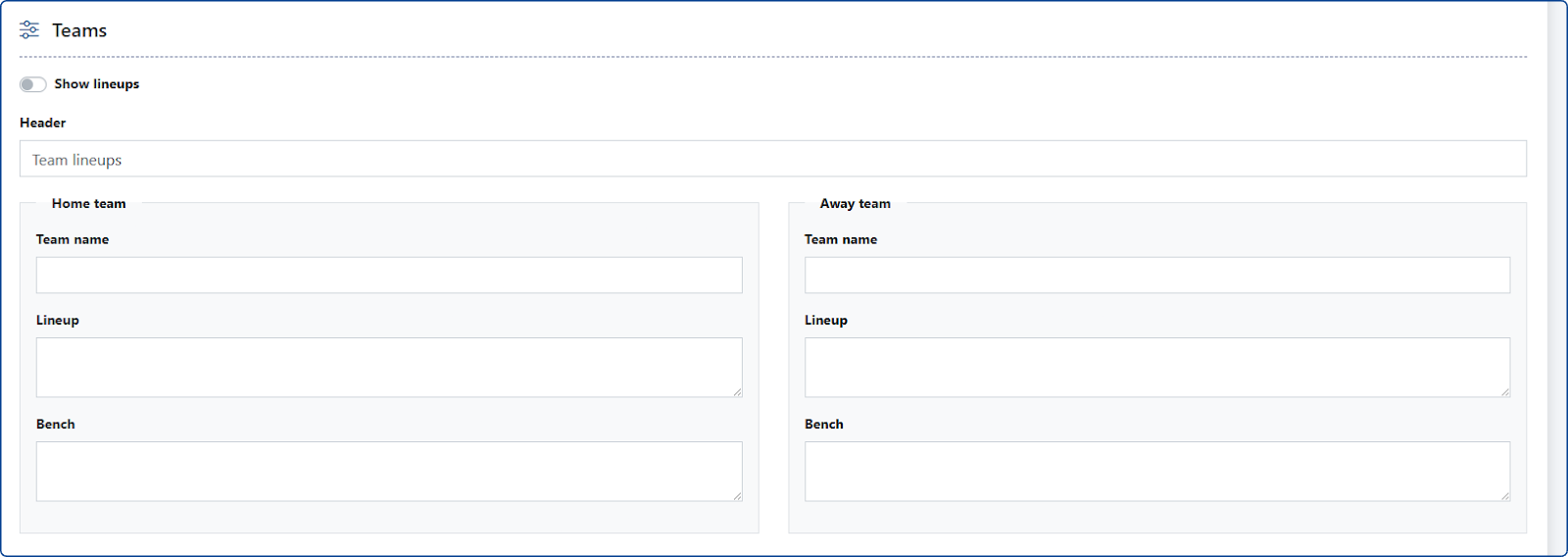
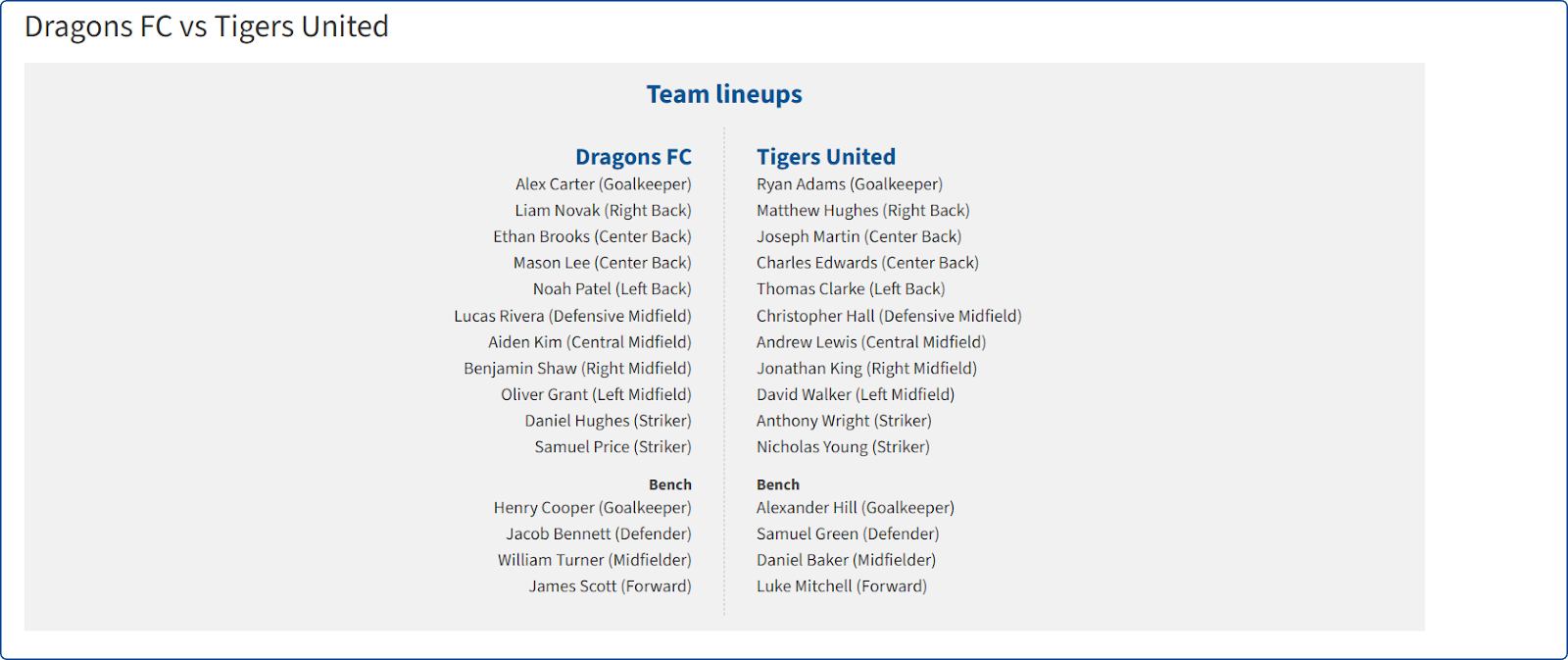
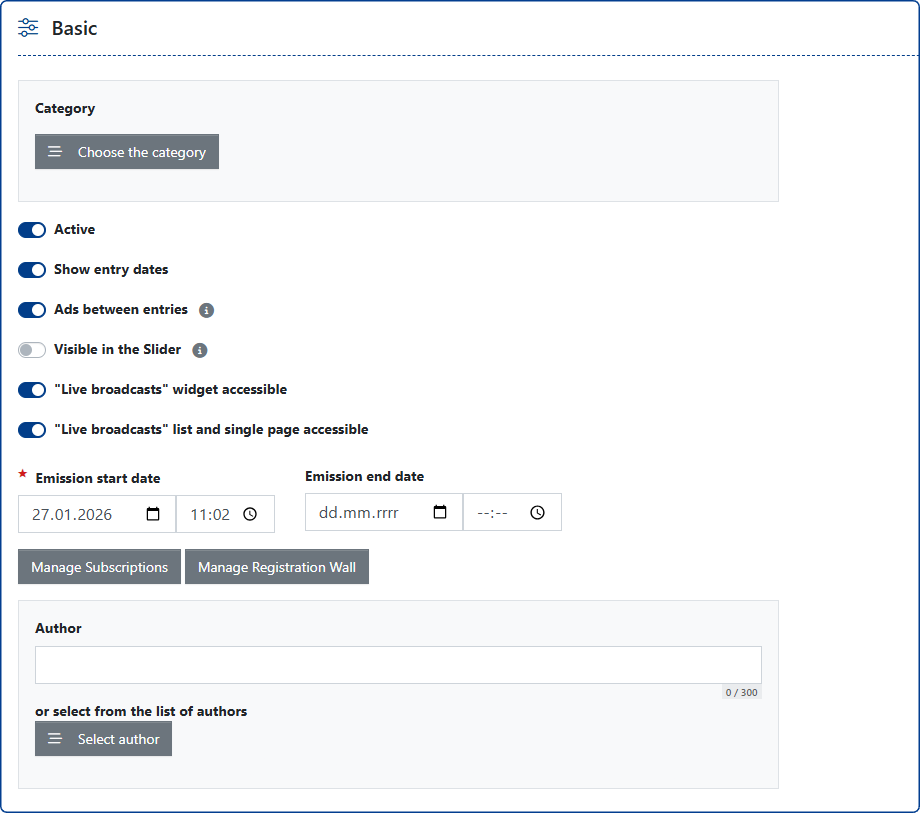
2. [Entries] Tab This is the command center for the live event. Here you publish the current score of the match and the entries displayed live on the portal.
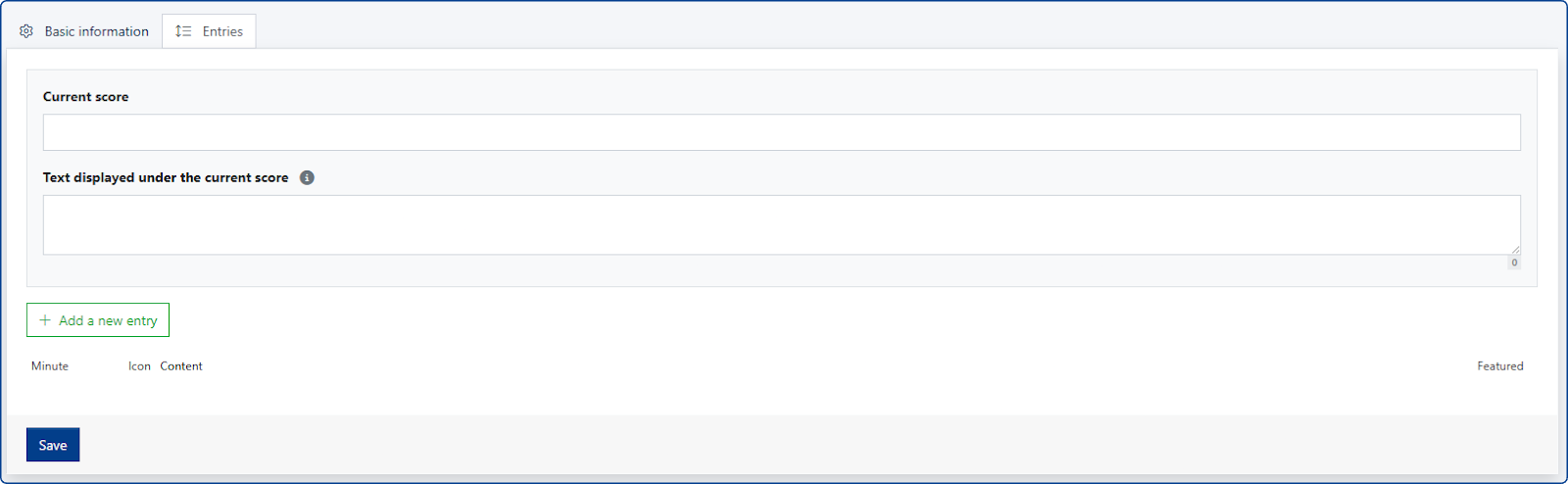
Publishing an Entry
To add updates during the event, click the green [Add New Entry] button to expand the available fields.

- Minute field - allows you to enter any value indicating time or progress, e.g., 01:00 or 1st SET.
Icon field - clicking it opens a list of icons to choose from (e.g., goals, cards, whistles).
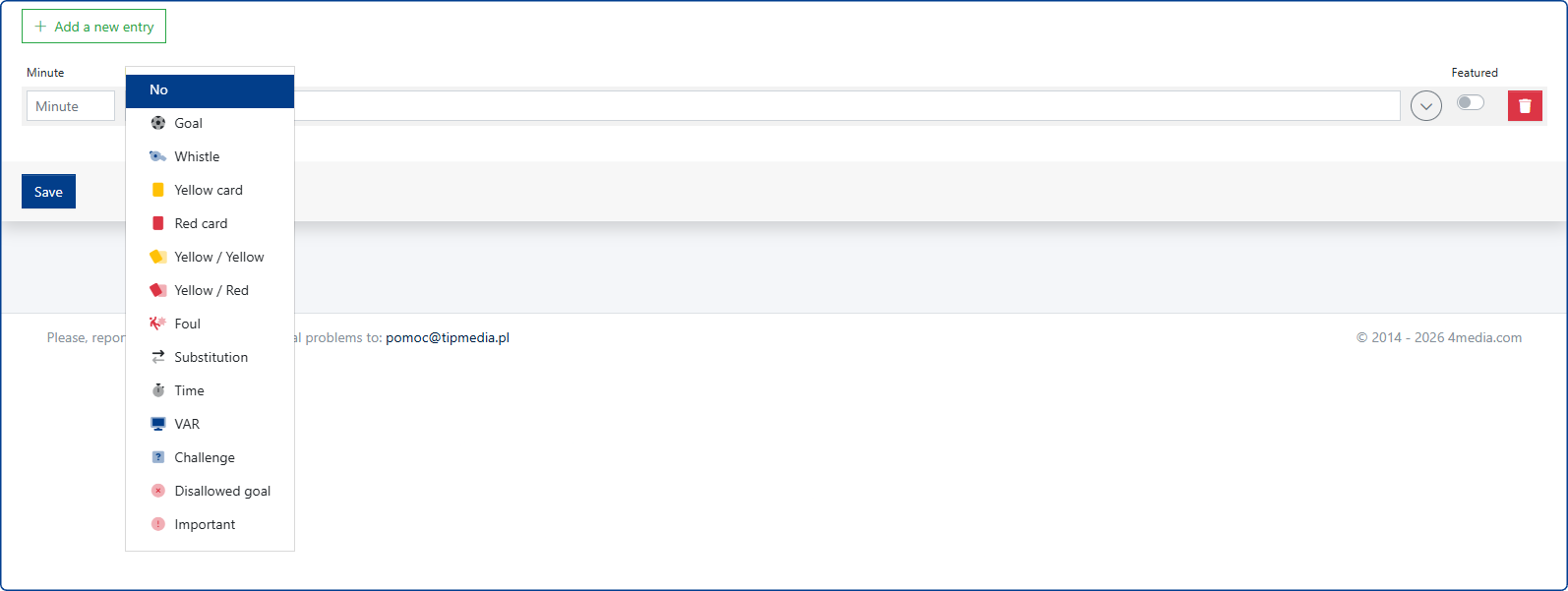
- Content field - allows you to enter standard text updates.
Rich Media (Gray Button): Clicking the gray button on the right opens an additional text window. Use this to embed images, multimedia, social media posts, etc.
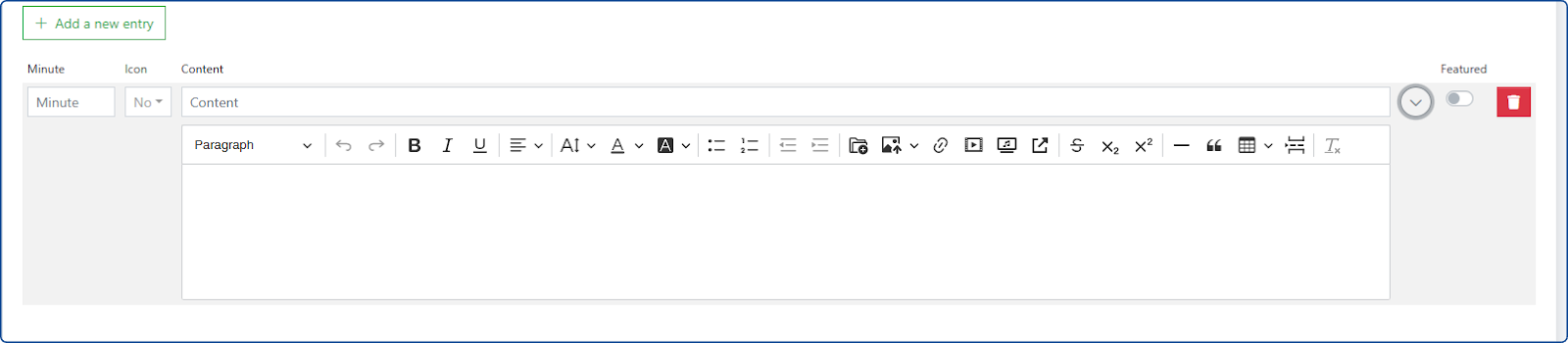
The entry will be published on the portal immediately after clicking the blue [SAVE] button.
Frontend & User Experience
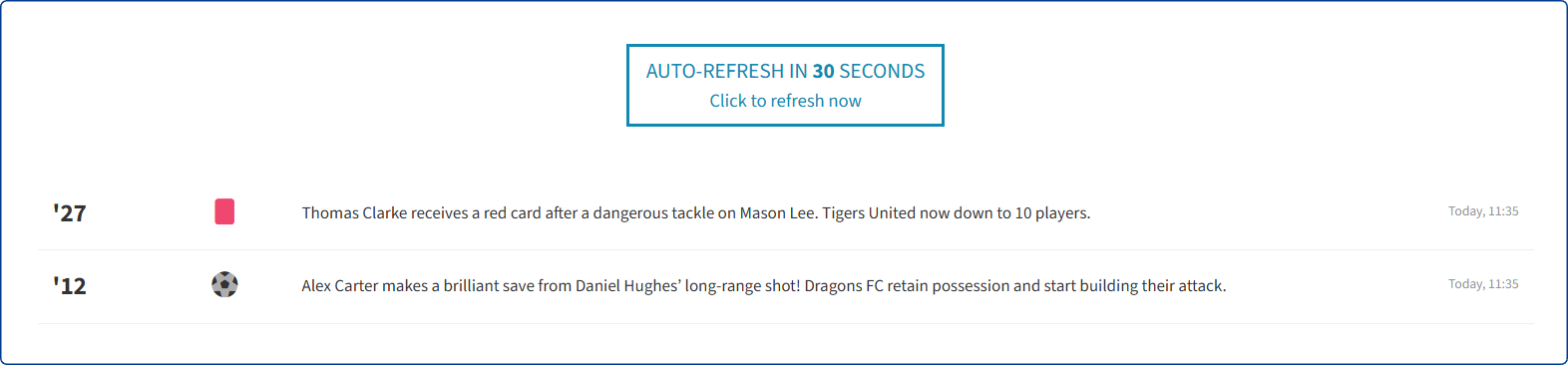
Auto-Refresh: An active stream available to online readers has automatic refresh enabled. The browser tab refreshes every 30 seconds to load new entries. Alternatively, the reader can click a pop-up notification to manually refresh the tab immediately.
Status Labels: In the live streams list view, each stream is labeled with one of the following statuses:
Planned - Displays a pop-up on the website informing readers about the scheduled start date.

- In Progress - The active state with auto-refresh enabled.
Finished
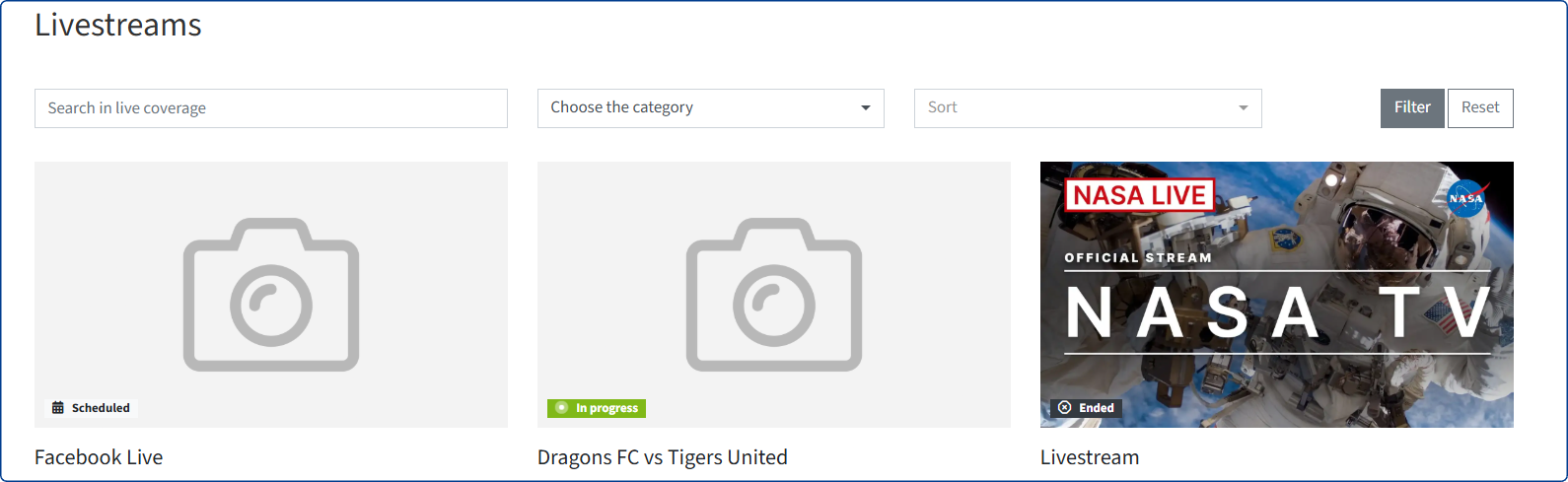
- The coverage remains available to readers as an archive. Users can read past entries, but the automatic tab refresh is disabled.

New Version of the Live Coverage Widget
The updated widget offers flexible display options for your site layout:
- Single Live Coverage:
- Displays one specific coverage (text or video).
- The main photo will display a label indicating the status: Waiting, On Air, or Finished.
- Multiple Coverages:
- Displays a list of coverages (both text and multimedia).
- Populated based on the thematic category selected in the widget settings.