polski
 español

A key advantage of the new gallery is the ability to smoothly display both local and central ads between photos in the gallery. Ads are displayed using a type C ad banner.
How to activate the Cascade Gallery?
To activate it in the Photo Galleries module:
- Go to Settings → Galleries
- In the Photo gallery type field, select Cascade Gallery
Save the changes by clicking the Save button

The Cascade Gallery activation
To activate for photos displayed in an article:
(photos uploaded as additional images or a gallery linked to the article)
- Go to Settings → Articles
- In the [Images view below article content] field, select [Cascade Gallery]
Save the changes by clicking the [Save] button
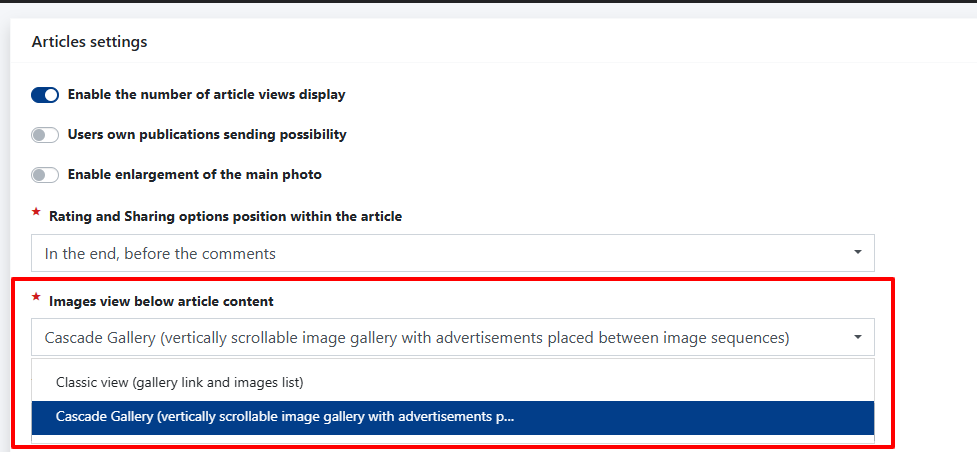
The Cascade Gallery activation
To activate the widget (or widgets) displaying type C ad banners between photos in the gallery:
- Log in to the Ads4Media platform
In the CMS4media Portals tab, click Options, then click Ad Spots
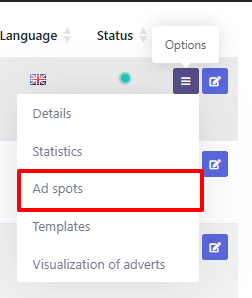
The activation of C ad banners between photos in the Cascade Gallery
Click the green Add new C ad space button
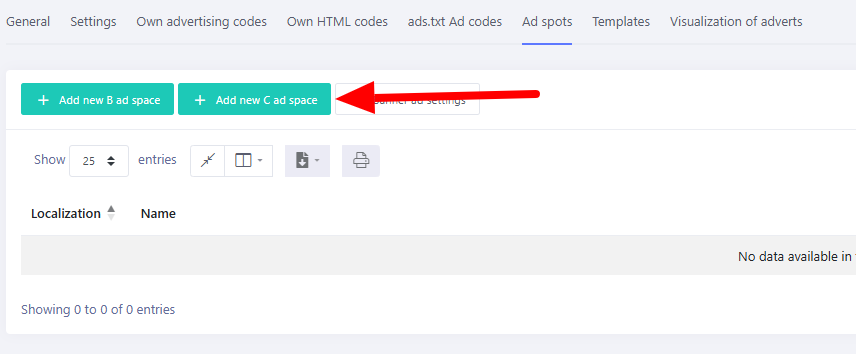
The activation of C ad banners between photos in the Cascade Gallery - Select Available on the lists, in between the elements
From the expanded options, choose the new feature – List of photos in the cascade gallery
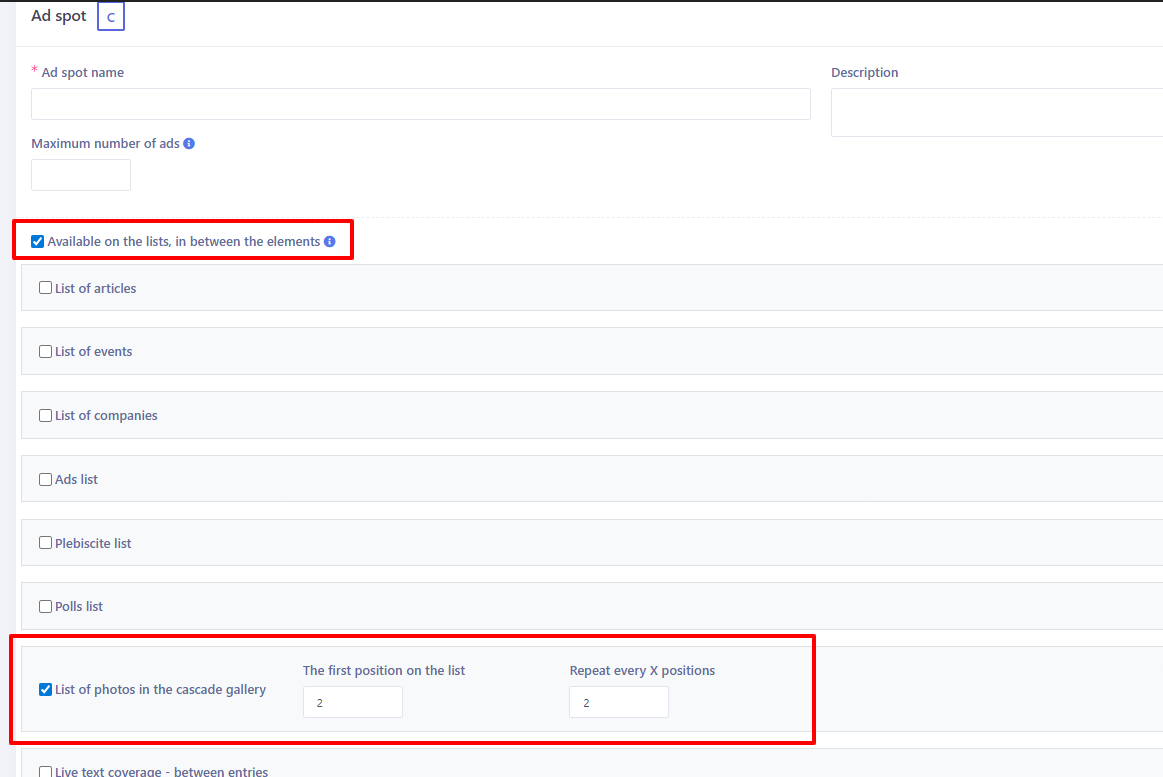
The activation of C ad banners between photos in the Cascade Gallery - Specify after how many photos the advertising widget should appear for the first time, and whether it should be displayed again – if so, define after how many photos it should reappear.
In the cascade gallery, a solution has been implemented that allows independent activation of type C widgets displaying central ads, as well as separate widgets for displaying local ads.