polski
 español

The Hybrid Gallery combines the functionalities of both the Cascade and Classic galleries.
In this layout, users browse photos by scrolling vertically. After scrolling through a set number of images, the browser tab refreshes (reloads) to display the next batch of photos in the gallery.
This solution allows for the seamless display of banner ads between photos, while ensuring page views are accurately tracked during the refresh triggered by scrolling. Ads are served using the Type C ad widget.
How to activate the Hybrid Gallery:
- Navigate to Settings -> Photo Galleries.
- In the Gallery Type field, select Hybrid Cascade Gallery.
- Define the number of photos after which the browser tab should reload and load the next set of images.
- Save your changes by clicking the Save button.

Hybrid Gallery Interface
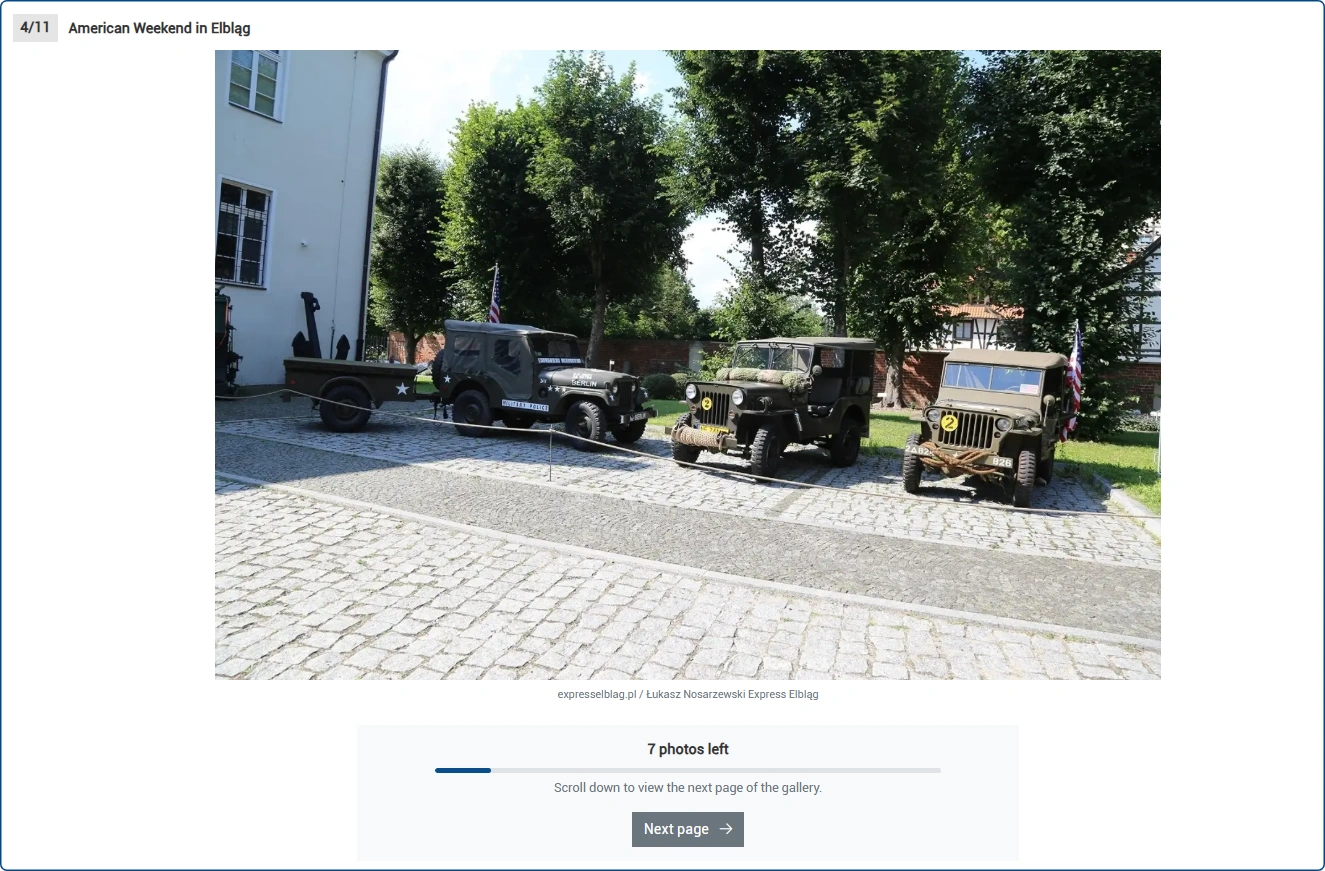
After viewing the first group of photos, the user will see a "Next Page" button. They can either click it to reload the tab or simply scroll further down to trigger an automatic refresh, which will load the next batch of images.
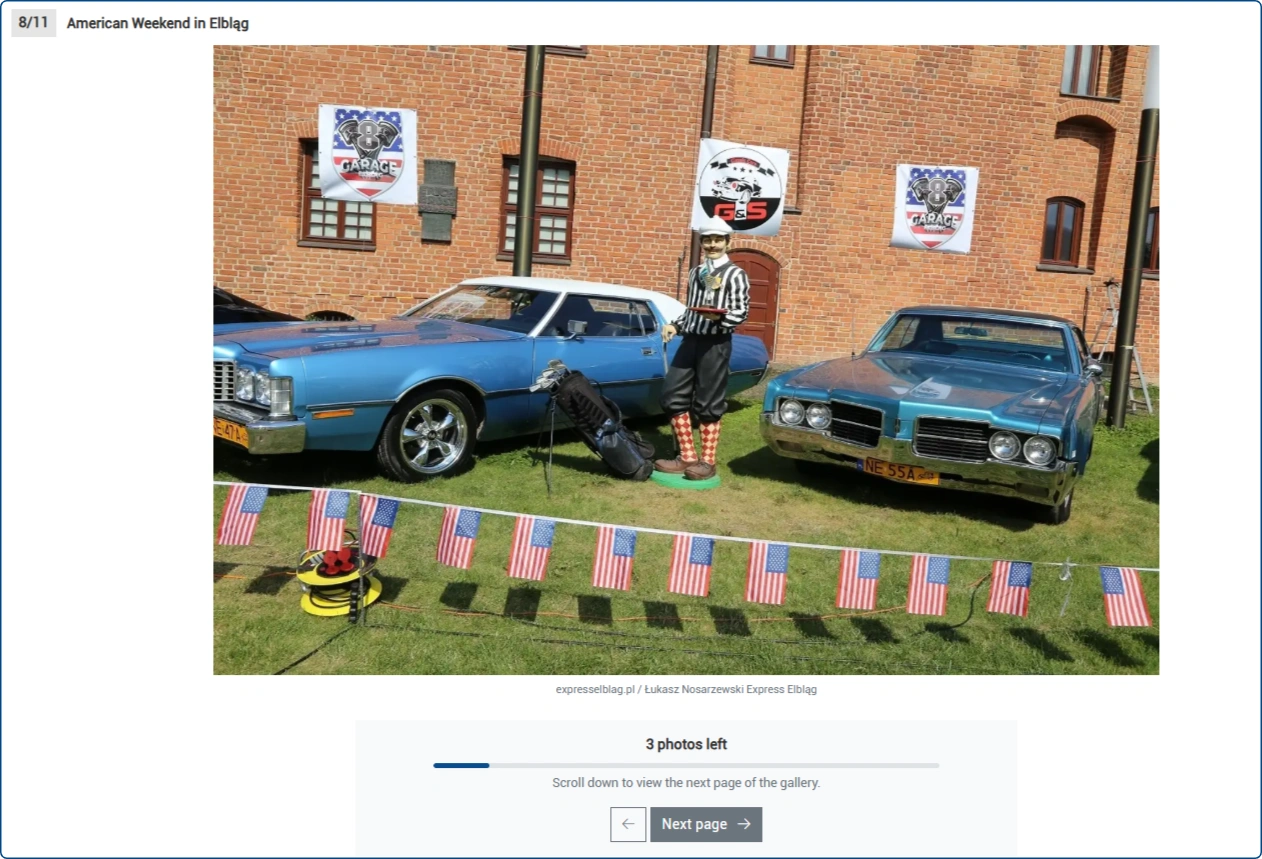
Users can return to the previous set of photos by clicking the arrow button.
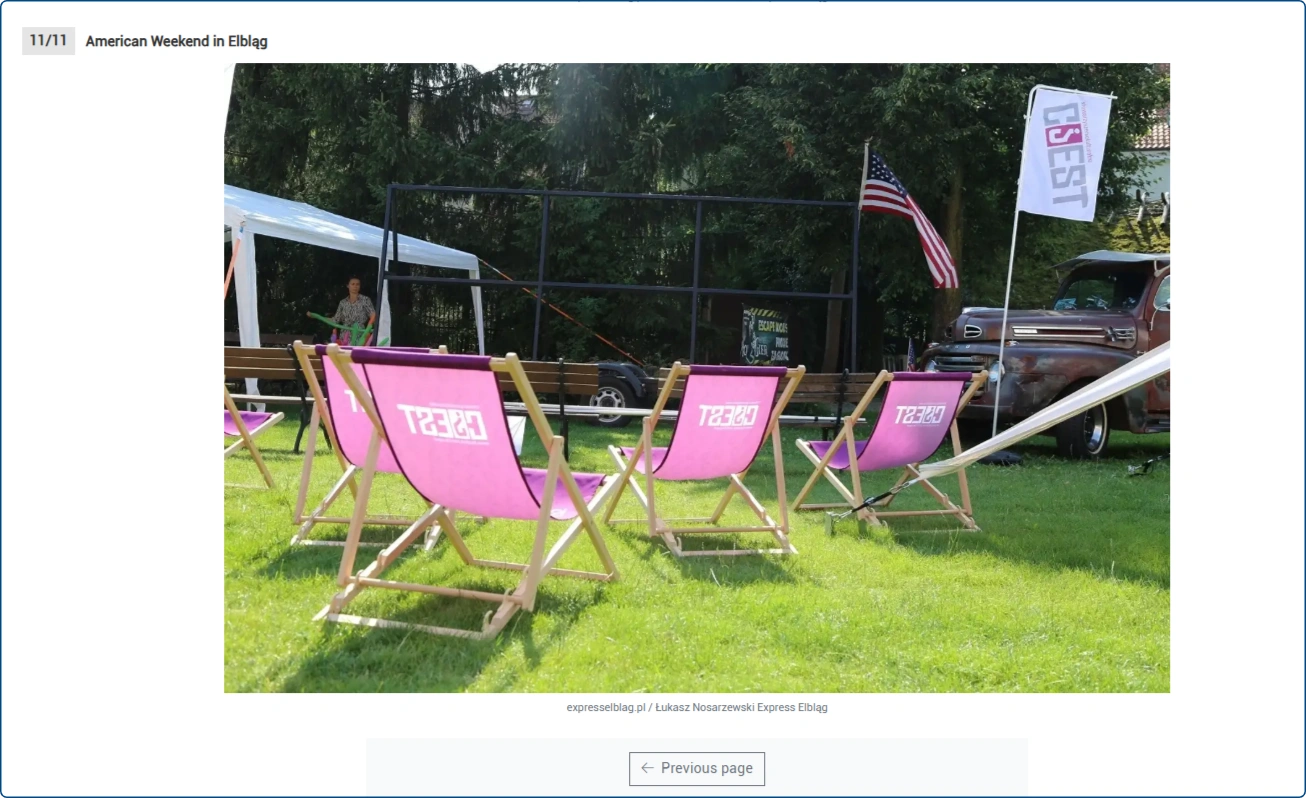
Below the last image in the gallery, the user can use the Previous page button
To activate ad widgets displaying C-type banners between images in the gallery:
- We log in to the Ads4Media advertising platform
- in the CMS4media Portals tab, click the Options button and then the Ad spots button
- click the green Add new C ad space button
- select the option Available on the lists, in between the elements
- from the expanded options, select – List of photos in the cascade gallery
- specify after how many images the ad widget should appear for the first time and whether it should be displayed again – if so, specify every how many images its display should repeat
As part of the cascading gallery and hybrid gallery, a solution has been implemented that enables the activation of independent C widgets displaying central ads as well as separate widgets with local ad delivery.