polski
 español

The 4media CMS system is equipped with functionality that identifies whether a user visiting the website is actively using ad-blocking software. If blocking software is detected in the background, the user will see an informational banner on their device screen.
How to Activate These Features?
Go to: Settings module → Ad Block Detection
The first available option concerns the audio/video player.

Activating this feature means that a user who is actively using ad-blocking software will see a message informing them that video playback has been blocked when they click on the player. The restriction will be lifted once the user disables the ad blocker for the website they are browsing.
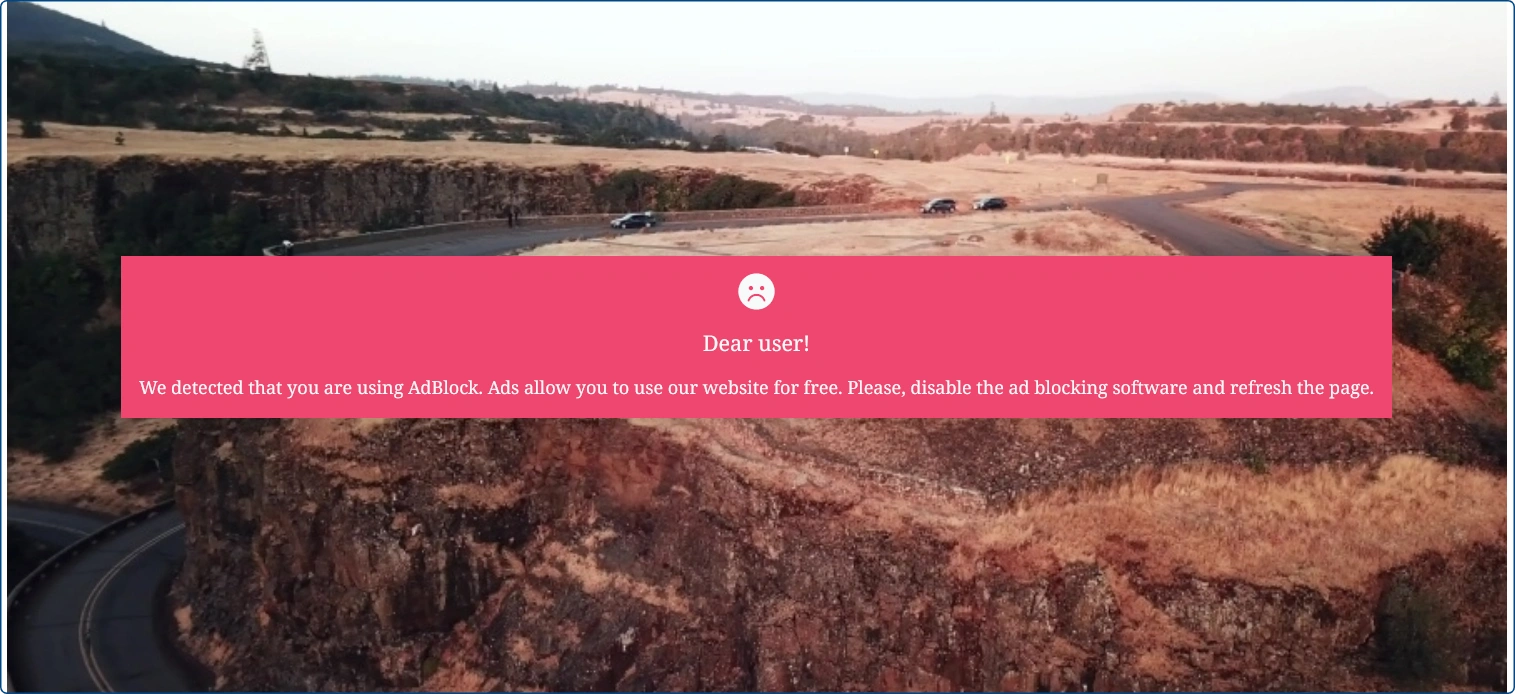
The second available feature is an informational banner, which is automatically displayed to users using ad-blocking software.
Clicking the Show information banner button expands additional settings.
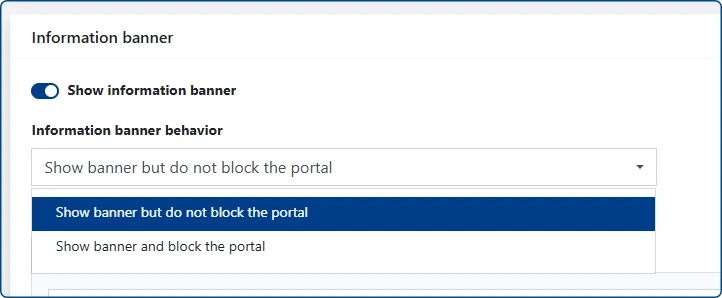
There are two available modes:
- Show banner but do not block access to the portal - with this option enabled, the user will see a notification informing them about detected ad-blocking software, but they will still be able to continue browsing the website.
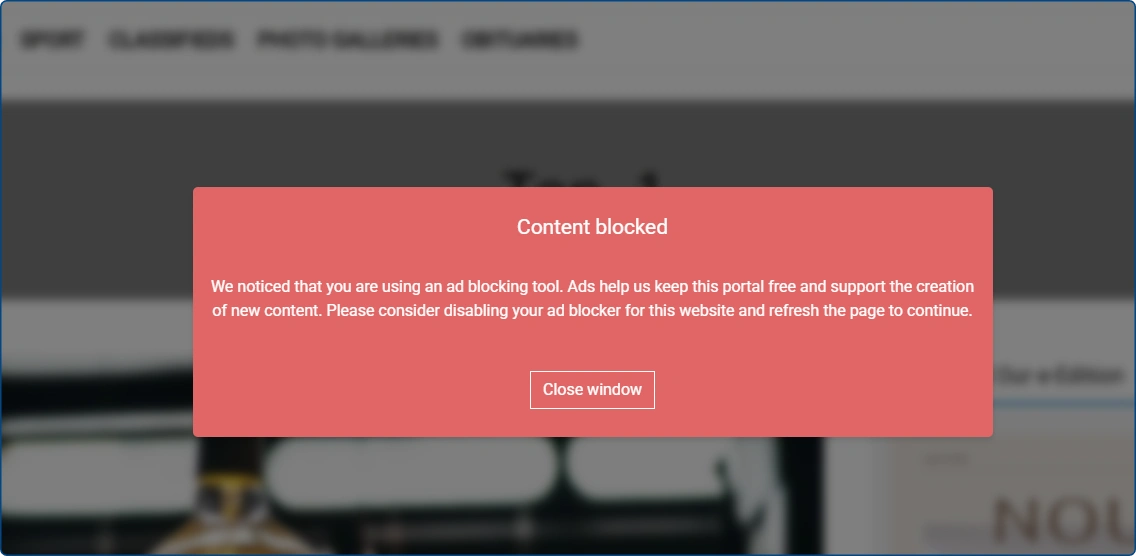
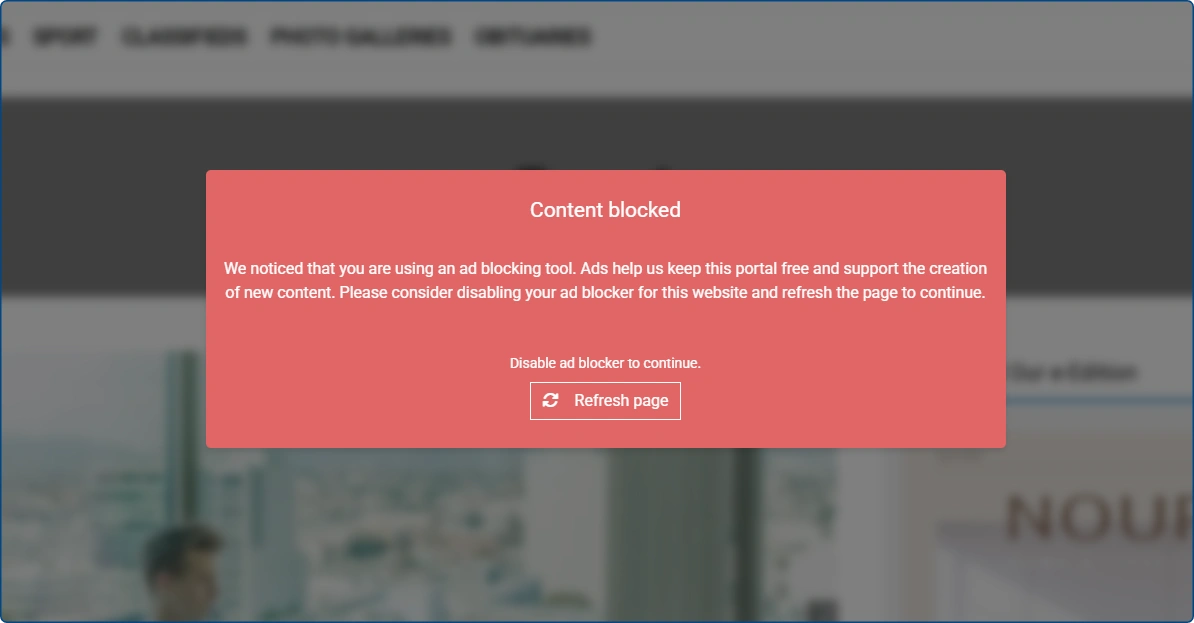
- Show banner and block access to the portal - with this option enabled, users with an active ad blocker will see a banner informing them that access to the portal is blocked. The restriction will be removed automatically once the user disables the ad blocker. After clicking Refresh page, the user will be able to access the portal without restrictions.
Additional Settings
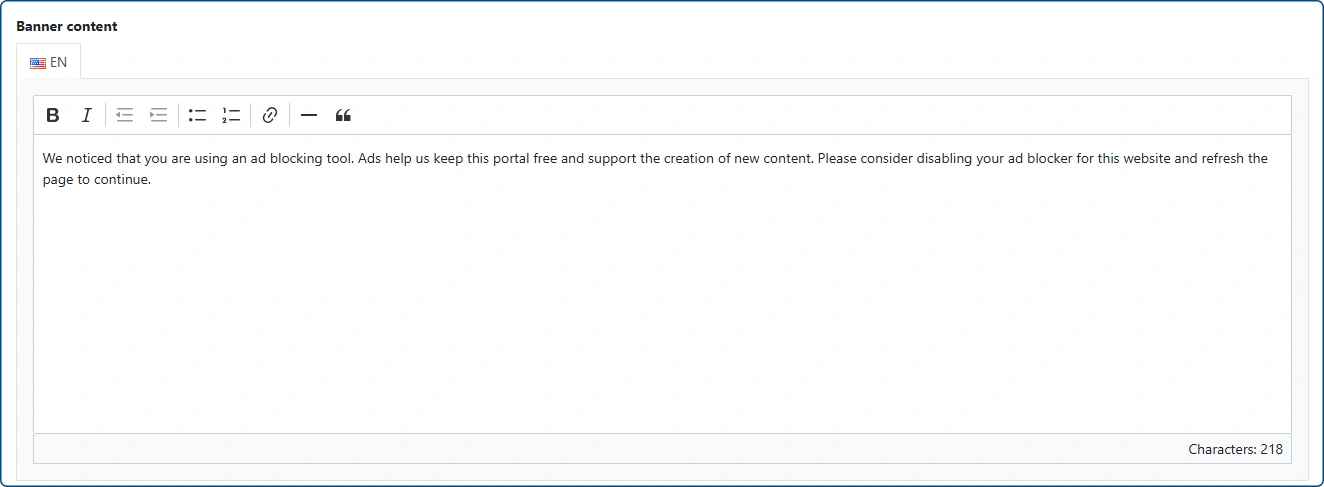
When enabling the banner feature, two text fields must be filled in: banner title and banner content. It is the publisher’s decision what message will be displayed to users with an ad blocker.

Additionally, the portal administrator can configure the visual layer. Using available settings, it is possible to define the font color and background color of the banner. There is also an option to enable a border, where its color, thickness, and style can be defined.