polski
 español

 Jakub Krawczak
This feature is available for portals that meet two conditions:
- They use the AI Assistant module.
- They have specifically two language versions enabled simultaneously.
Tip: Detailed information on language configuration and instructions on how to activate additional language versions of your portal can be found in the following article:
Where Can You Find the Translation Feature?
Automatic translation works in most sections of your panel. You can use it in the following modules:
- Articles
- Authors
- E-editions
- Information ticker
- Photo galleries
- Multimedia
- Live coverages
- Boards
- Polls
- Plebiscites
- Events
- Obituaries
- Subpages
- Categories
- FAQ
- Paywall
- Classifieds
- Business Directory
- Terms
- Quizzes
How Does Language Selection Work?
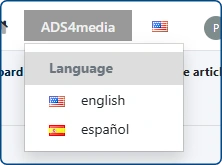
The language you are translating from depends on the language version of the Admin Panel you are currently working in:
- Working in the English version of the panel: The button will trigger a translation from English to the second active language (e.g., Spanish).
- Working in the Spanish version of the panel: The button will trigger a translation from Spanish to English.
To change the language version of the admin panel itself, click the flag icon in the top right corner of the screen.

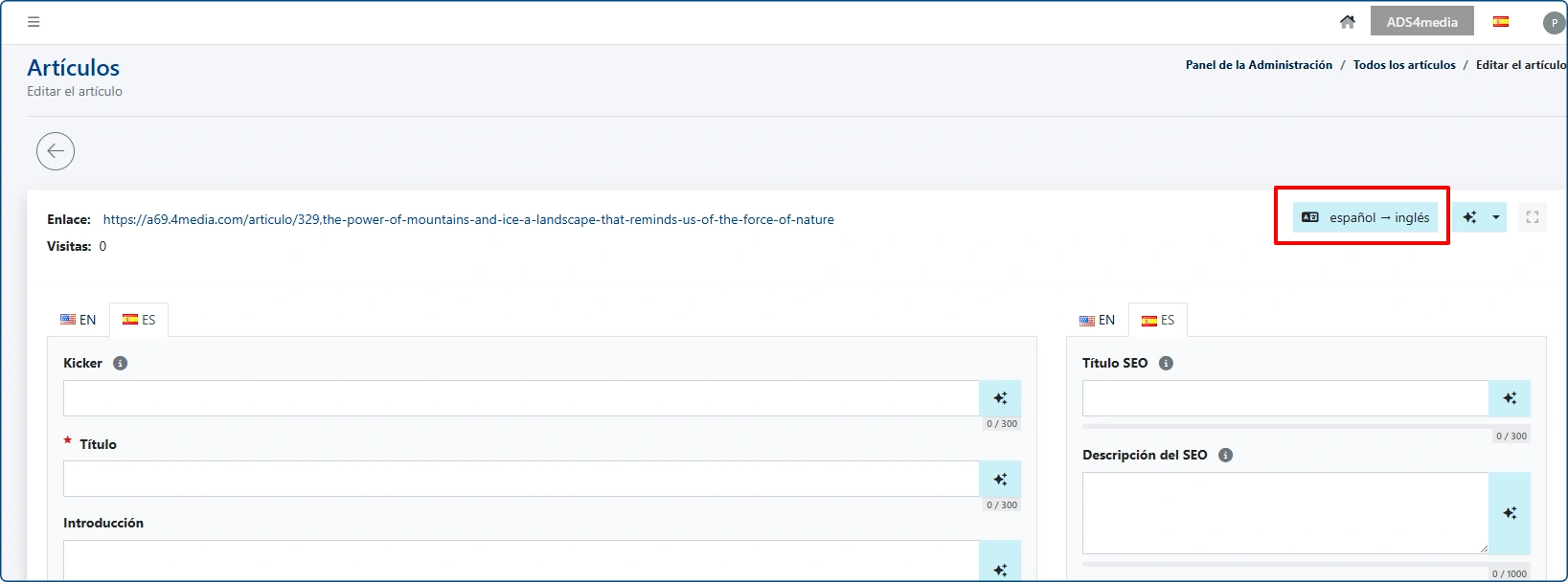
How the AI Translation module works.
The following description is based on the [Articles] module. The feature works exactly the same way in all other modules.
- Prepare and save the text in your native language (e.g., in English).
- Click the translation button (e.g., [English > Spanish]) in the top right corner of the form.
- The AI Assistant will start working and display a message indicating that the translation is being prepared.
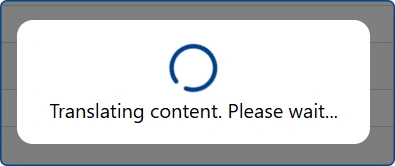
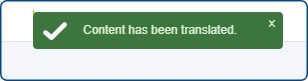
Once the process is complete, a green success confirmation message will appear at the top of the screen.
In addition, a flashing green dot will appear to indicate changes that have been made to the currently inactive tab of the second version of the post. It disappears when you switch to the aforementioned ES tab.
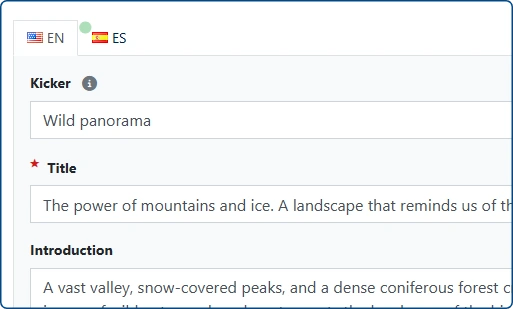
Important Rules for AI Assistant Operation
Preserving Formatting: The translated text retains its original layout. The AI copies the structure of headings and paragraphs, and correctly transfers links and images embedded within the content.
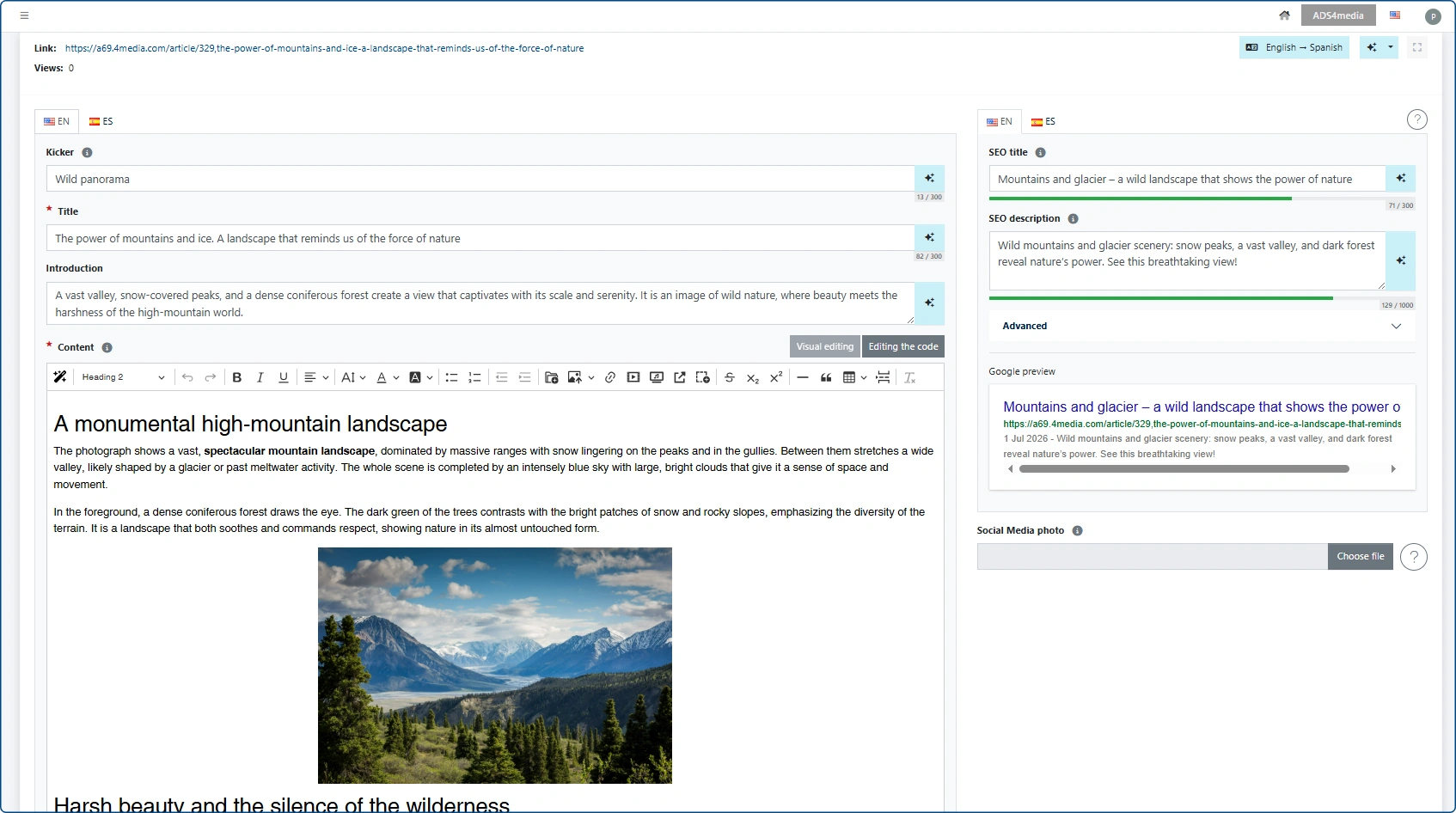
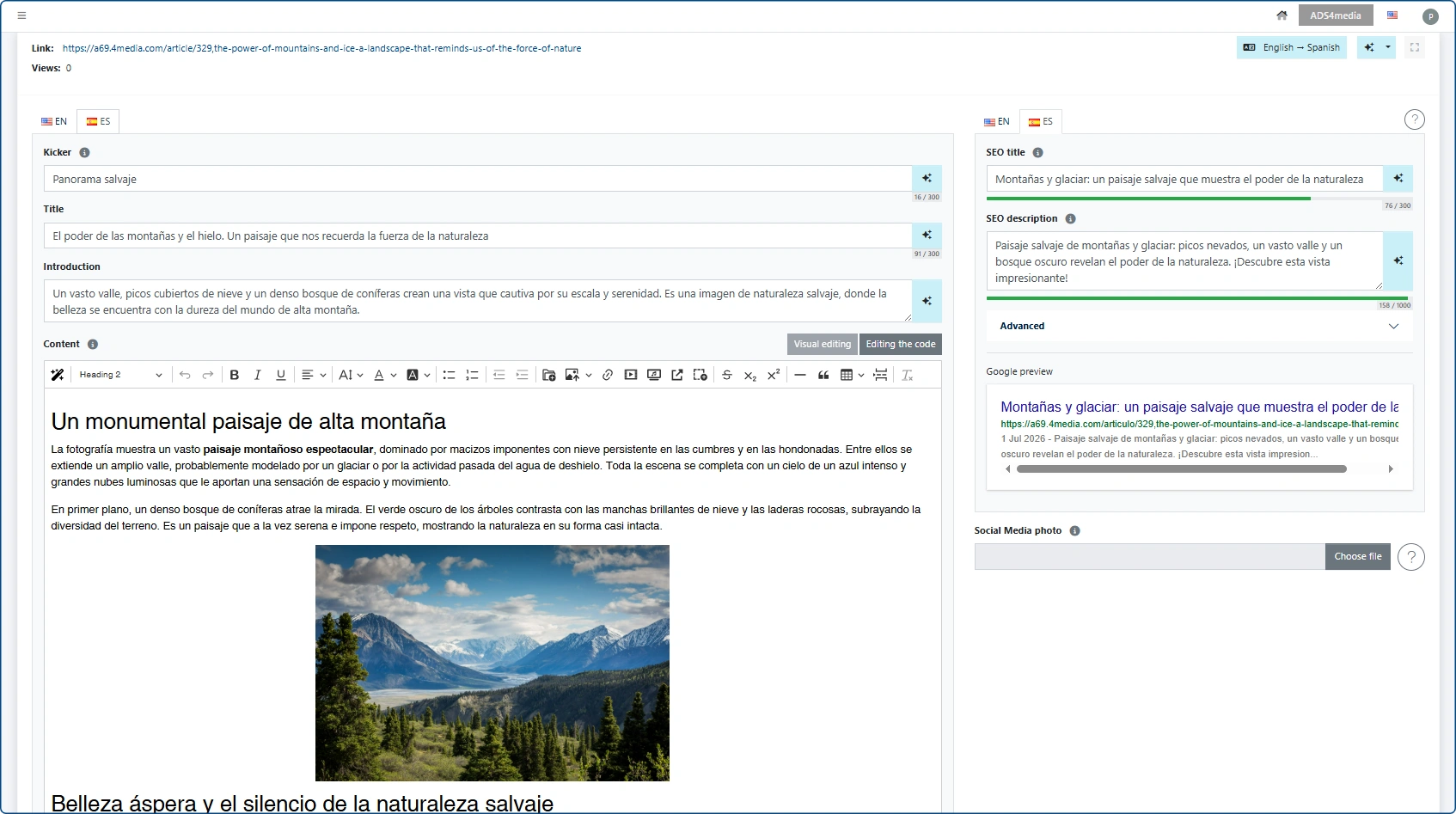
Content Protection (No Overwriting): The AI Assistant does not overwrite fields that you have already filled in manually. If you enter your own title in the Spanish (ES) tab before running the AI, the system will skip that field and leave it unchanged.
Empty Fields: The AI only translates fields that contain text. If you leave a field empty, the system will skip it. If the AI Assistant does not detect any content to translate on the page, it will display an appropriate warning message.
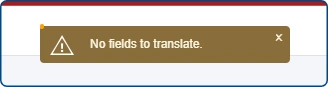
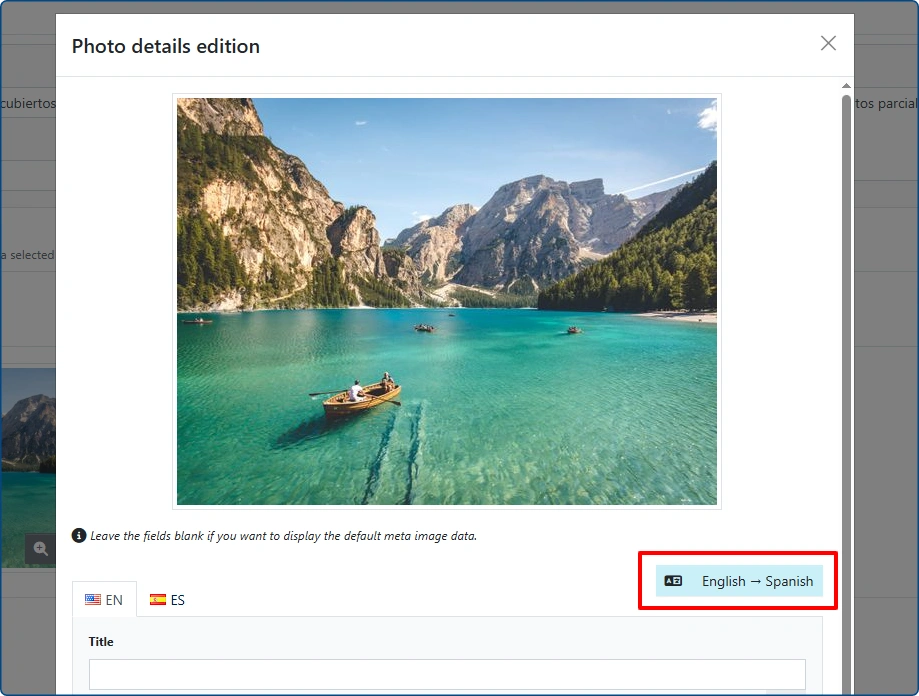
Image Metadata (Descriptions and Titles): The system also automatically translates the descriptions and titles of the main image and additional images, provided they were previously entered in the source language.
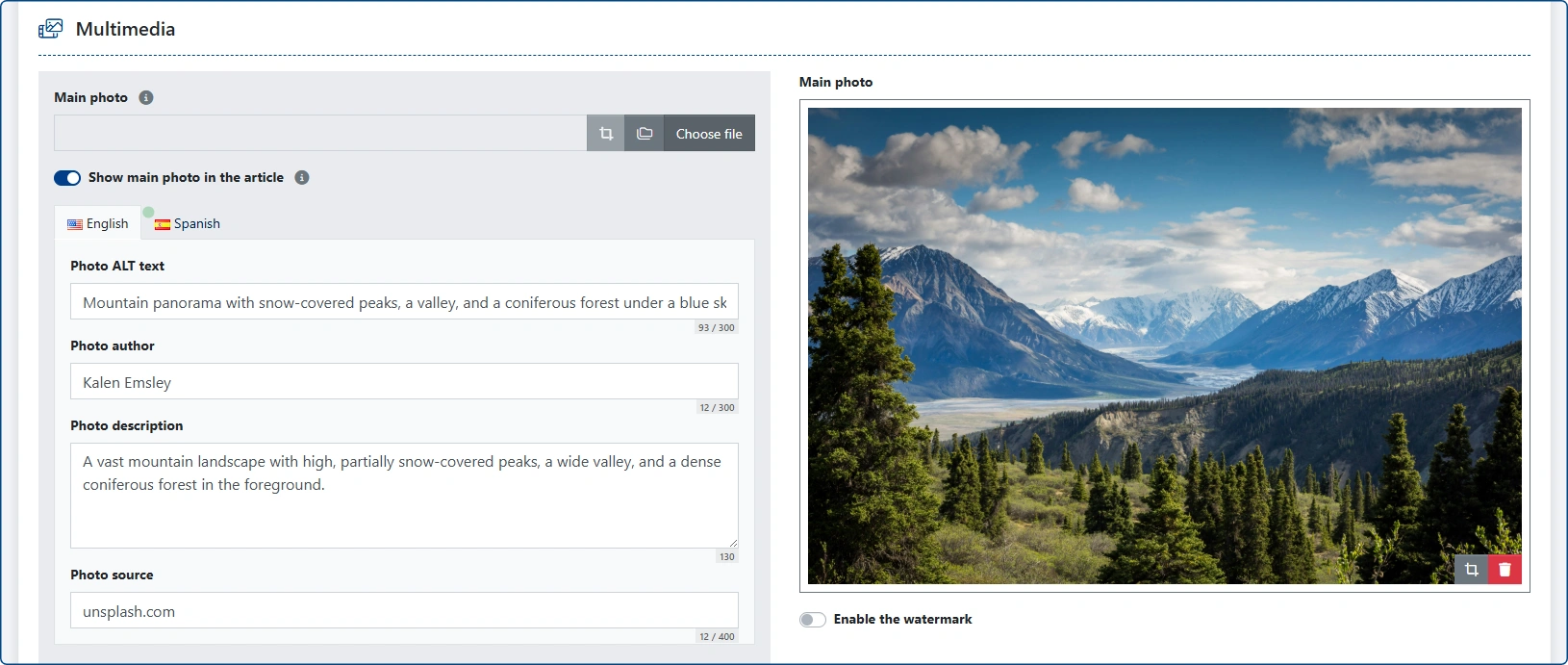
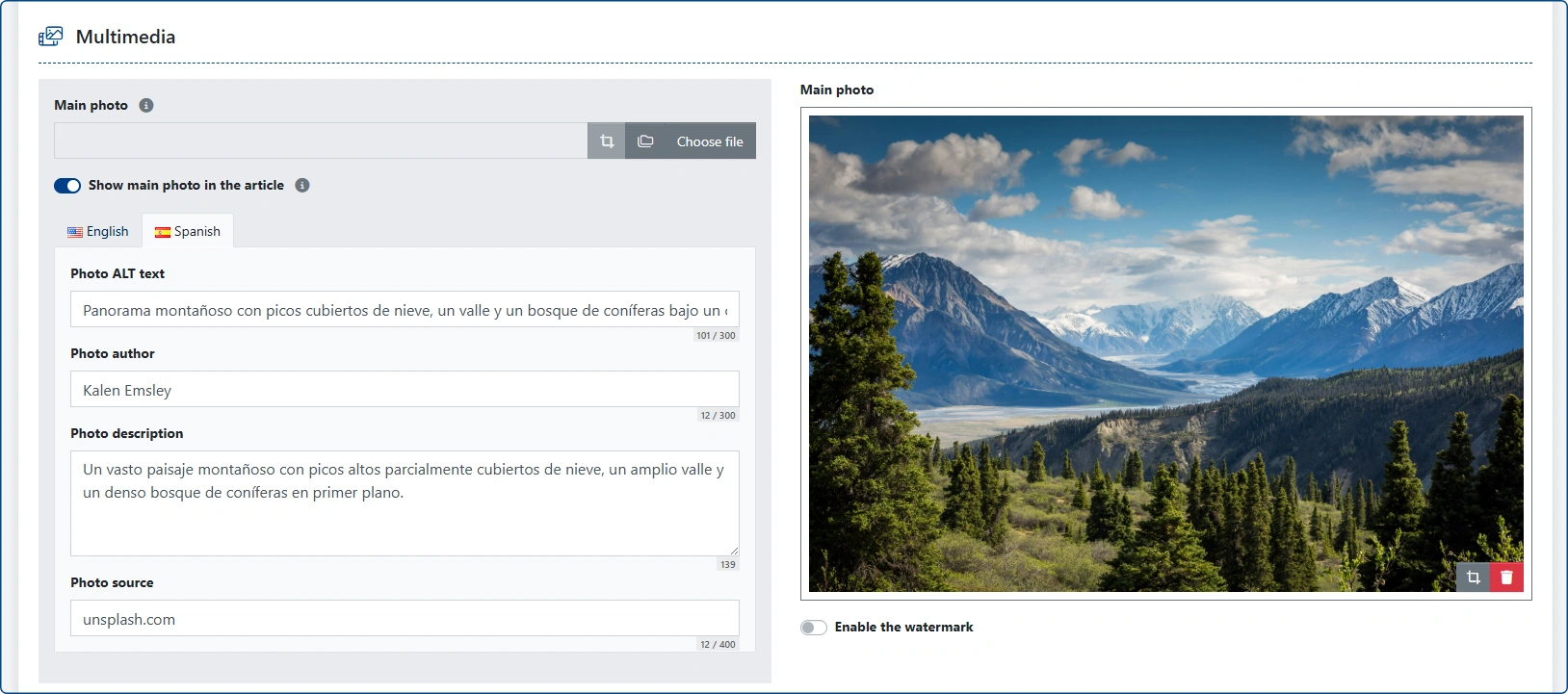
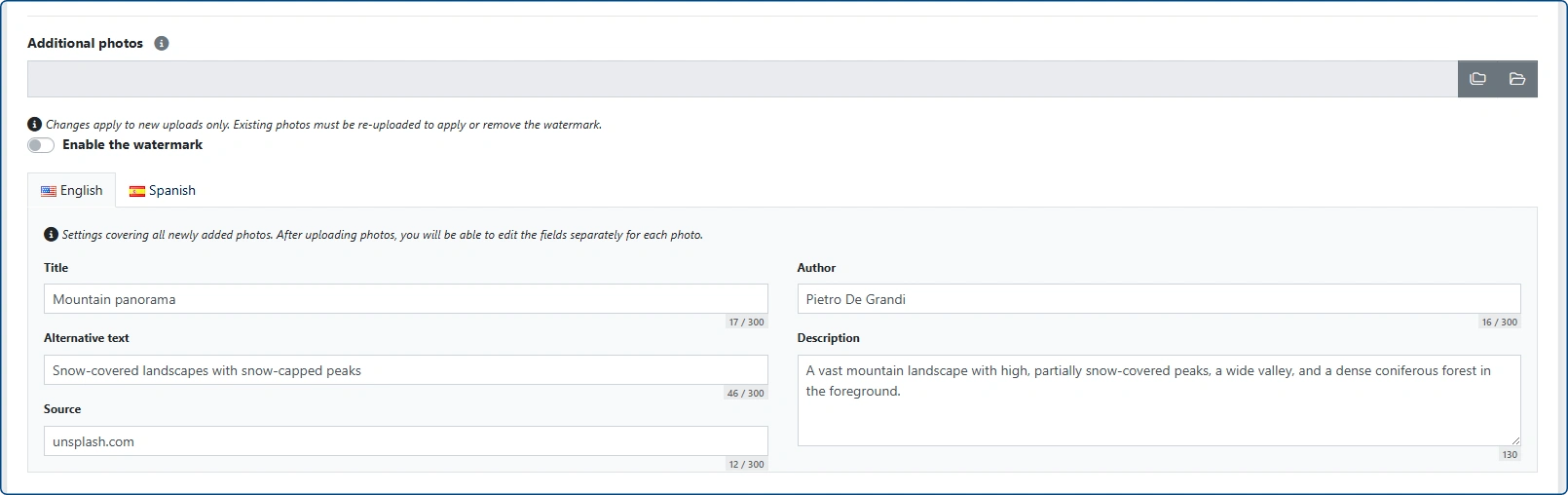
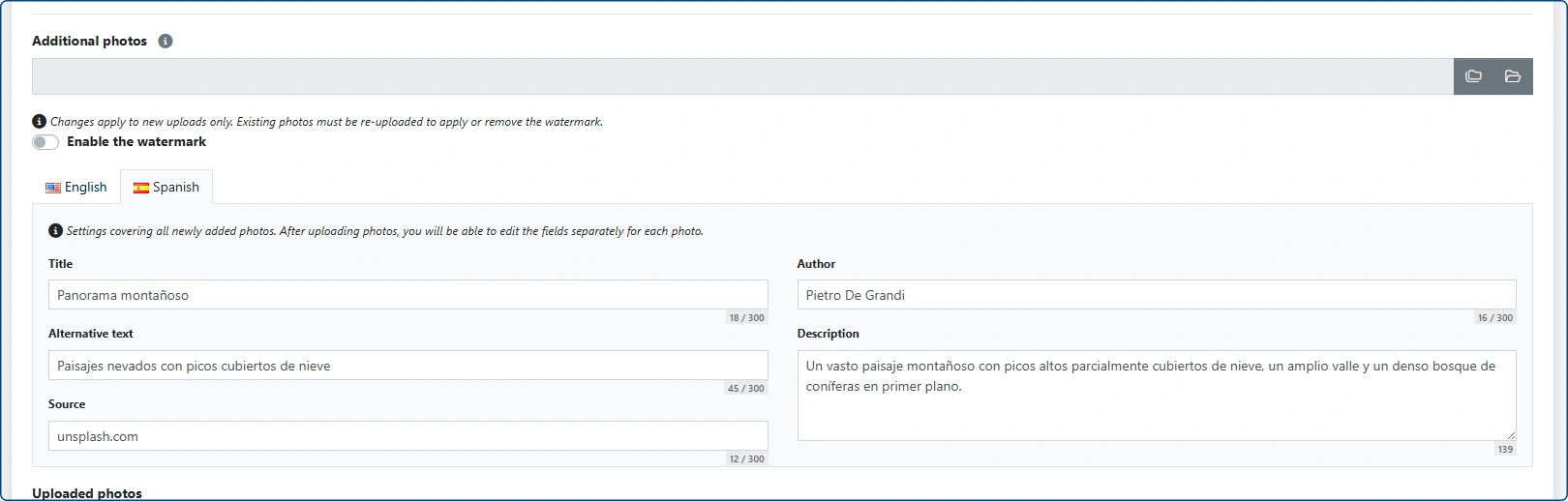
Translating Individual Images: If you are editing the metadata of a single, previously added image, you can find a dedicated translation button directly inside the edit panel for that specific image.