polski
 español

What changed in the panel
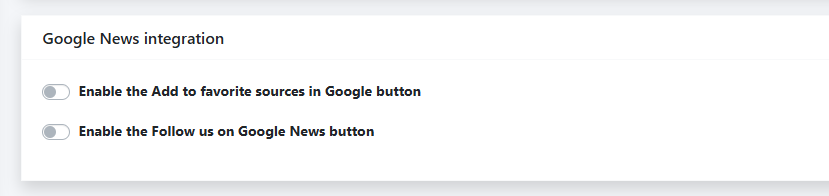
You'll find the new options under Settings > Google Services, at the bottom of the tab. They're off by default, so you decide whether and when they appear. The section is called "Google News integration" and holds two independent toggles: "Enable the Add to favorite sources in Google button" and "Enable the Follow us on Google News button." The panel is bilingual, so the same settings show up in both Polish and English.
Where these buttons come from
Both buttons sit on top of features Google rolled out itself. Preferred Sources in Google Search launched in 2025, starting in the US and India, and on April 30, 2026 it went global across every language where Top Stories is available. On August 20, 2026 Google went a step further and gave publishers an embeddable button that readers click right inside an article, with no detour through Google's settings. That's the mechanism 4media now exposes as a ready-made switch. The second button, "Follow us on Google News," uses the long-standing follow feature you set up in Google Publisher Center.
What it does for your publication
When a reader marks your site as a preferred source, Google shows your content more often and higher up in Top Stories — with a "preferred" badge — and it can carry the same badge in AI Overviews and AI Mode for that reader. For a local newsroom, one detail matters: Google frames this as a tool for sites of every size, naming "niche local blogs" alongside global news desks in its own announcement. Google also reports that a reader who marks a site as a preferred source is about twice as likely to click through to it again. The button is built so you don't lose that reader: after the click, your site lands on their list and they return to the exact article they were reading. "Follow us on Google News" works alongside it, building a base of regular followers who get your stories in their Google News feed.
"Add to favorite sources on Google"
This is the publisher-facing side of Google's Preferred Sources. When a reader clicks the button under an article, your site joins their preferred-sources list and they go straight back to reading. On their next news-related searches, your articles surface more often in Top Stories, AI Overviews and AI Mode. The feature works globally, in every language Google Search supports.
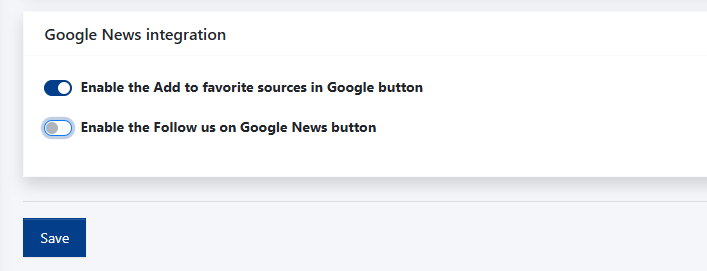
Turning it on is a single step: flip the toggle, click Save. This button needs no ID — it goes live the moment you save.
"Follow us on Google News"
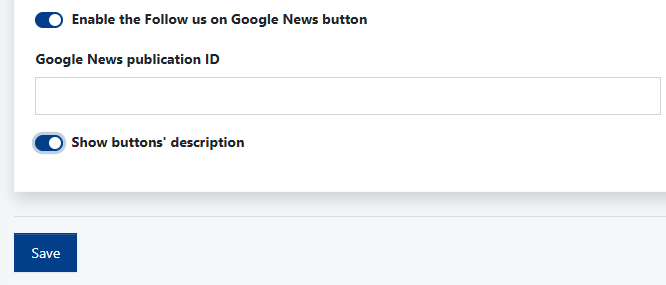
A signed-in reader follows your publication in Google News with one click, and your stories land in their personalized feed more often. There's one extra requirement here: the button needs your Google News publication ID. You'll find it in Google Publisher Center. If your title doesn't have a publication in Google News yet, register first — only then do you get the unique ID, which you paste into the "Google News publication ID" field and save.
Turning it on, step by step
- Go to Settings > Google Services.
- Under "Google News integration," flip the toggle for the button you want.
- For "Follow us on Google News," paste the publication ID from Publisher Center.
- Optionally, enable "Show buttons' description."
- Click Save.
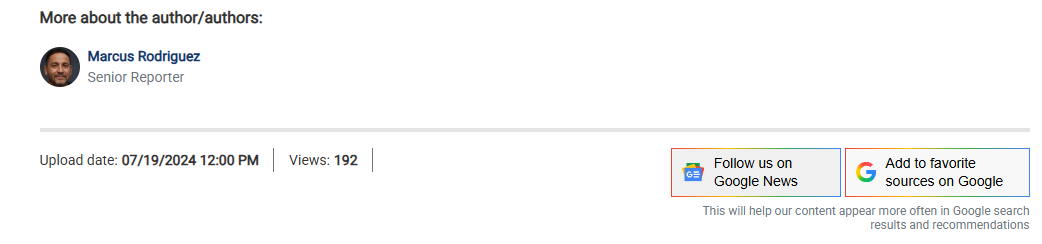
The buttons appear in the bottom-right corner of the article, below the author and publication date.
The "Show buttons' description" option
Switch it on and a short note shows up under the buttons, telling the reader why to click — for example, that it helps your content appear more often in Google search results and recommendations. It's a small thing that lowers the barrier: few people click something they don't understand.
Common questions
Do I need Publisher Center for both buttons?
No. "Add to favorite sources on Google" works without any ID. Publisher Center and a publication ID are needed only for "Follow us on Google News."
Does this guarantee more traffic?
No. It's a reader-driven signal and one input among many, not a position switch. But the more people add you as a source and follow you, the more often Google reaches for your content.
Can I enable just one button?
Yes. Each toggle works on its own.
How do I remove a button?
Flip the toggle off and save — it disappears from your articles.
The easiest place to start is "Add to favorite sources on Google": one click, one save, nothing else. Save the Google News follow button for the moment you have your Publisher Center publication ID on hand.