polski
 español

 Jakub Krawczak
Important: you can create the key with any Google account, such as a company account. It doesn't have to be the account that owns the YouTube channel.
Step 1. Create a Google Cloud project
- Go to console.cloud.google.com and sign in with your Google account.
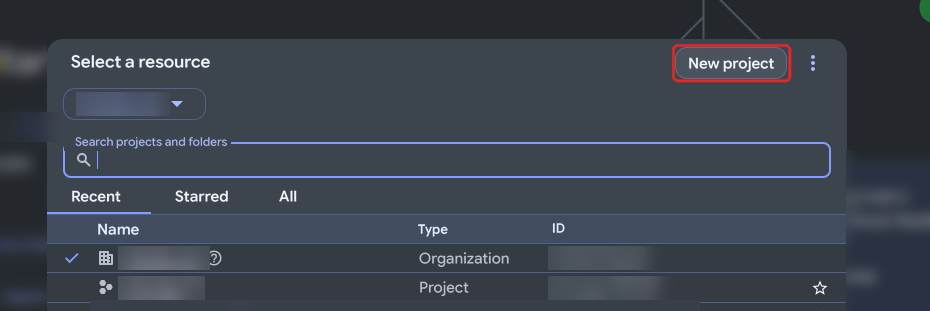
In the top bar, click the project list and select [New project].
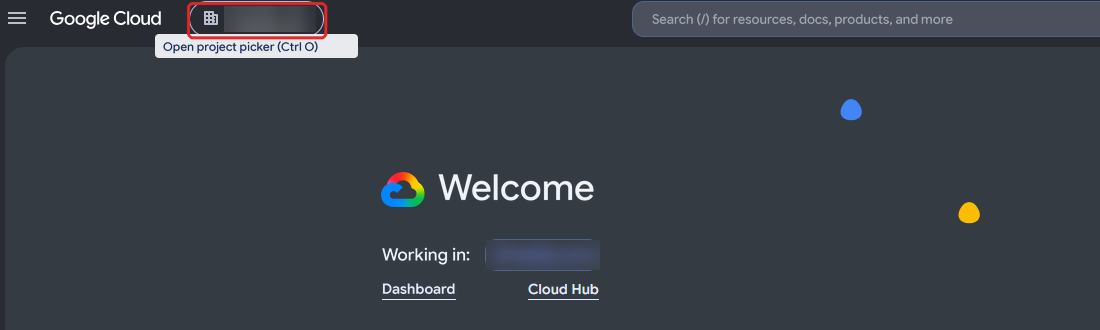
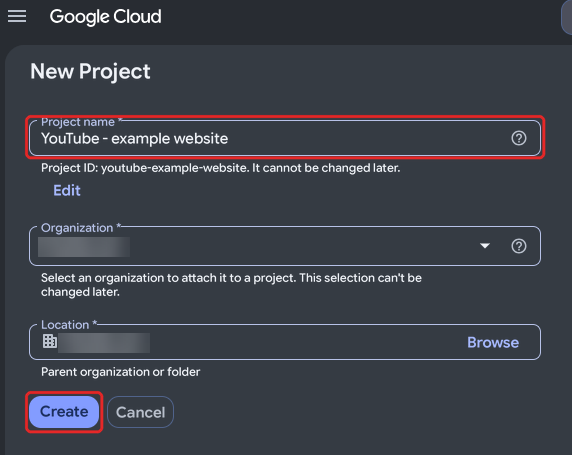
Enter a name, e.g. “YouTube – my website”, and click [Create].
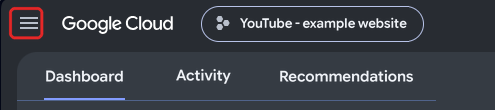
Make sure the new project is selected in the top bar.

Step 2. Enable YouTube Data API v3
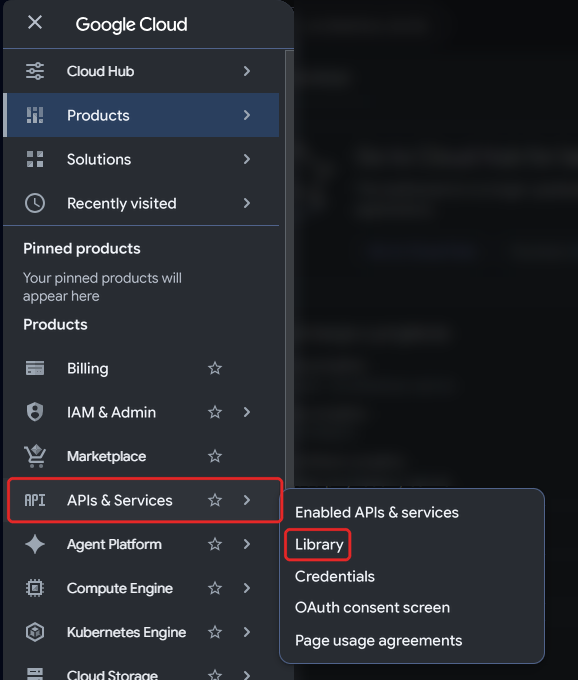
In the left menu, go to [APIs & Services] → [Library].
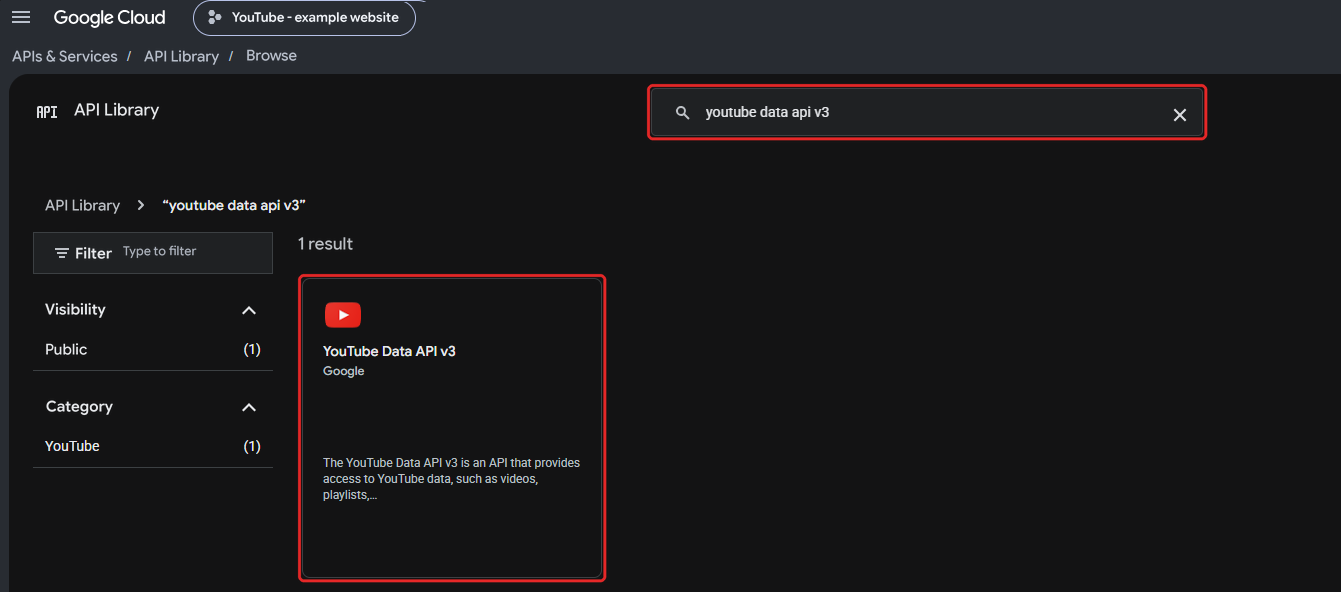
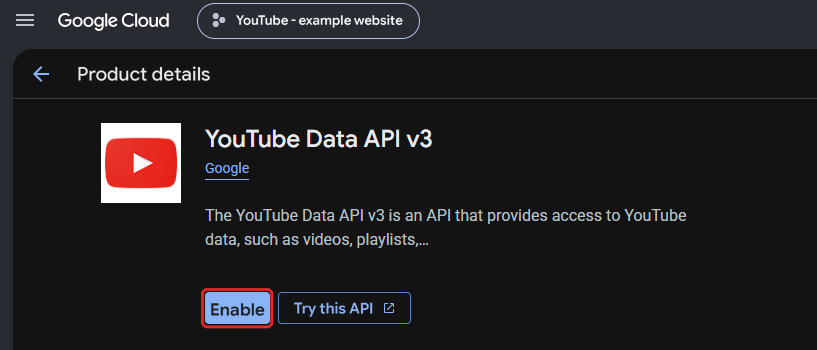
Search for YouTube Data API v3, open it and click [Enable].
Step 3. Generate the API key
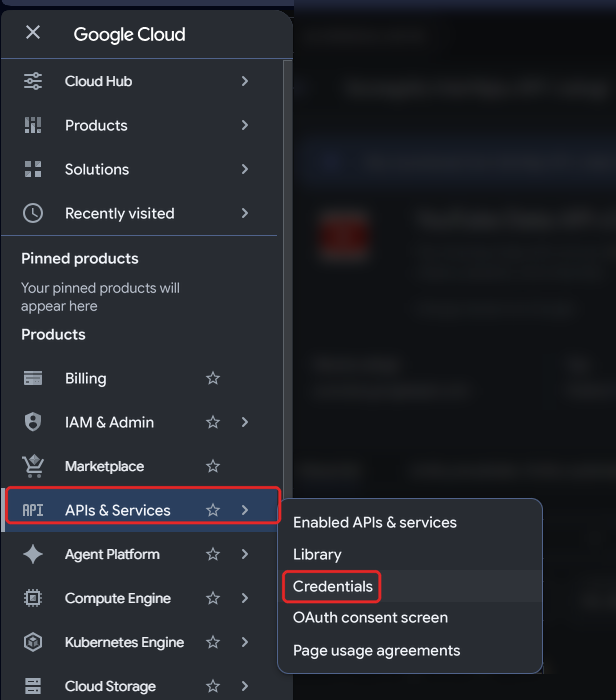
Go to [APIs & Services] → [Credentials].
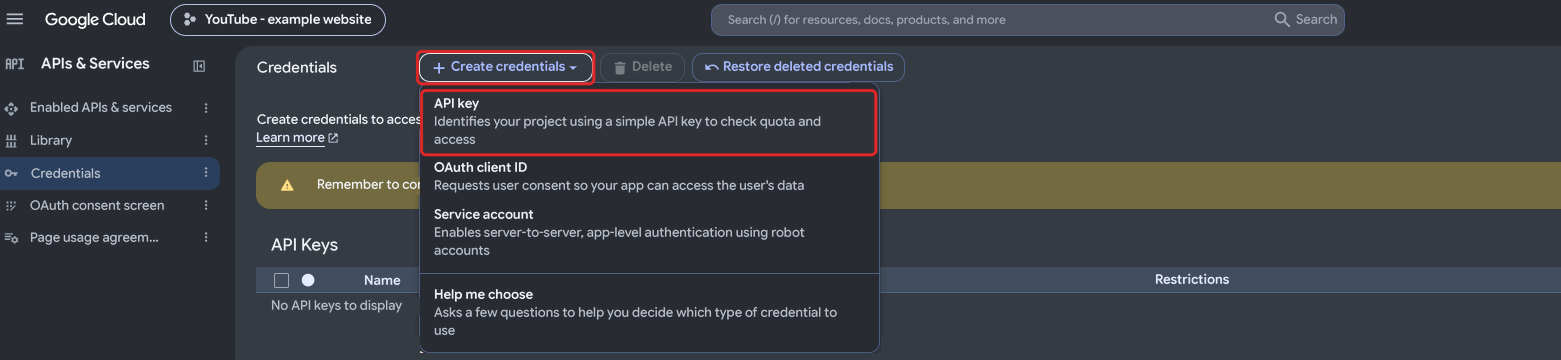
Click [Create credentials] → [API key].
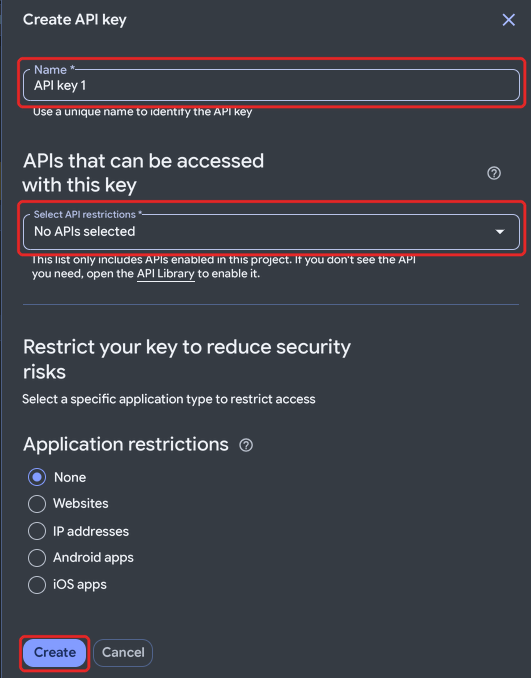
- Copy the generated key.
Important: Do not share your key with third parties or paste it into unsecured locations, AI conversations, etc.
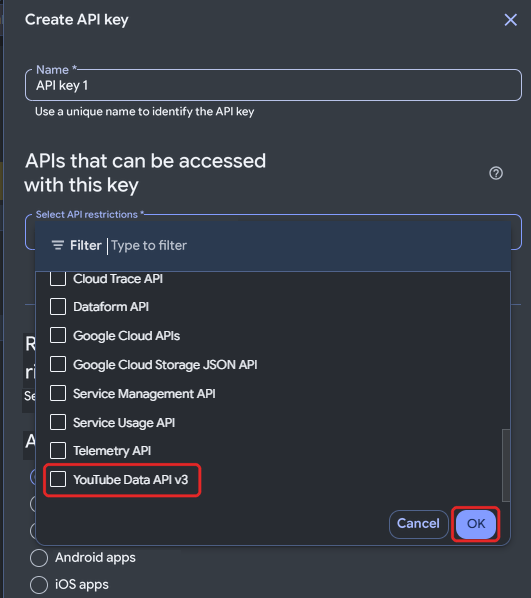
Tip: for security, click [Edit API key] and under [API restrictions] select only YouTube Data API v3. Then click [Save].
Step 4. Paste the key into the CMS4media panel
In the admin panel, click [Settings] in the left menu.
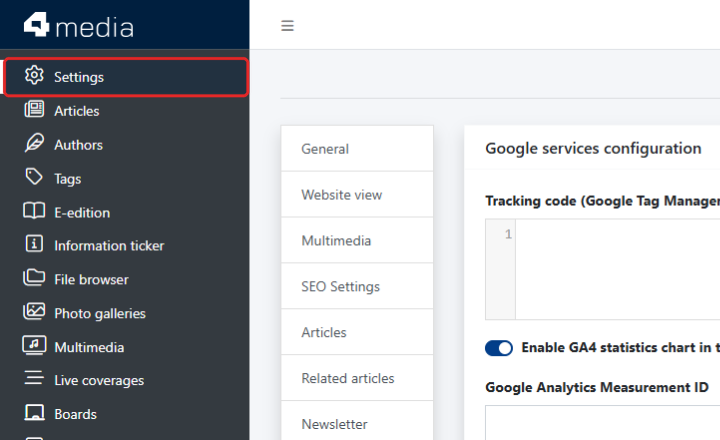
[Settings] module in the Admin Panel From the list of tabs, select [Google Services].
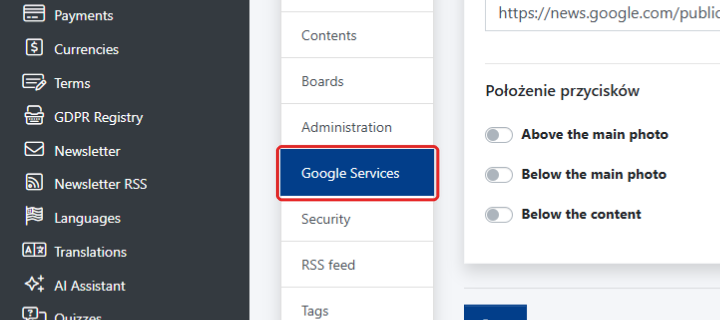
The [Google Services] tab In the [YouTube integration] section, paste the key into the [YouTube API key] field.
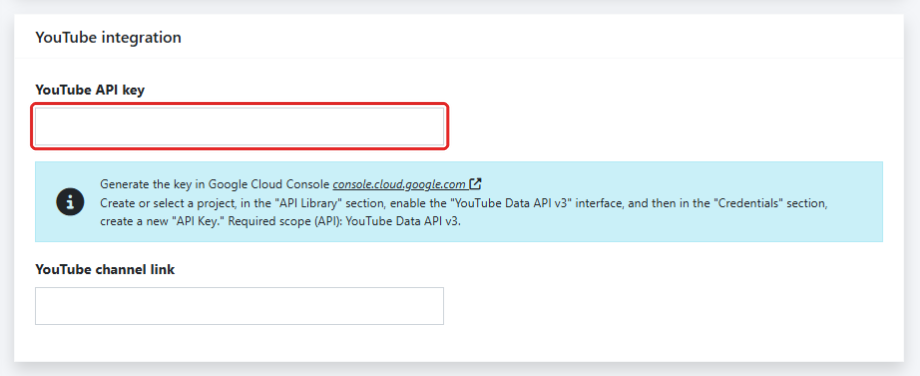
The [YouTube API key] field Enter your channel's address in the [YouTube channel link] field.
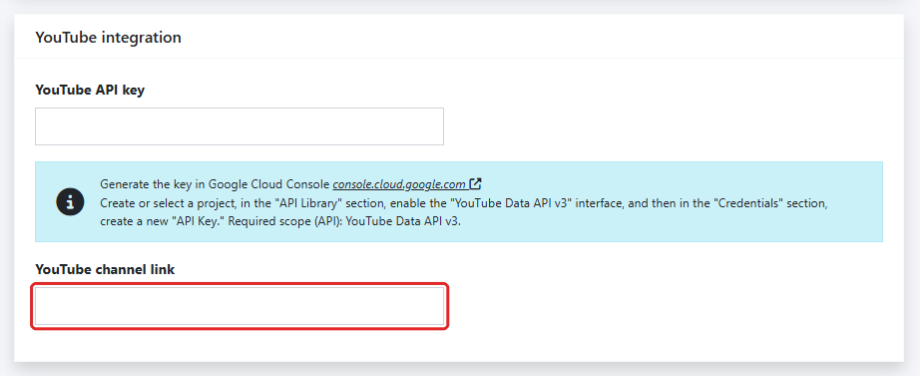
The [YouTube channel] link field At the bottom of the page, click [Save].
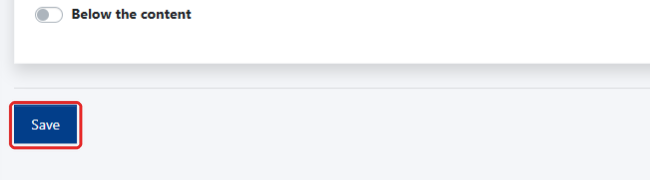
The [Save] button
Good to know
- Does it cost anything? No. YouTube Data API is free within Google's daily quota and doesn't require a payment card.
- Does the key give access to my channel? No. The key only reads public YouTube data.
- Some videos are missing. The widget shows public videos only. Private and unlisted videos won't appear.
You can read more about API keys in Google's help center.
Step 5. Add the [YouTube Channel] widget to the page
Your API key and channel link are saved. Now place the widget on a portal template, e.g. the homepage.
Important: choose the [YouTube channel] widget. Don’t confuse it with the [YouTube] widget, which shows only one specific video set by its URL.
In the left-hand menu, click [Page builder].
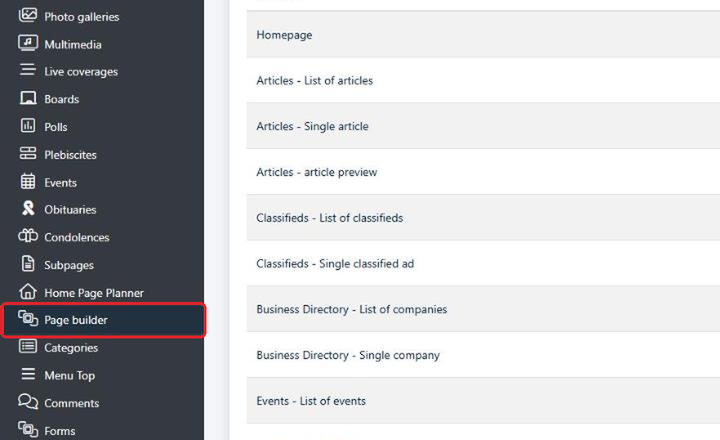
[Page builder] module in the admin panel menu In the list of templates, find the page where the widget should appear (e.g. Homepage) and click the edit button on the right.

Editing the [Homepage] template In the chosen row and column, click [+ Add item].

[+ Add item] button in an empty column In the [Add item] window, type “YouTube” in the search box and click the [YouTube channel] tile.
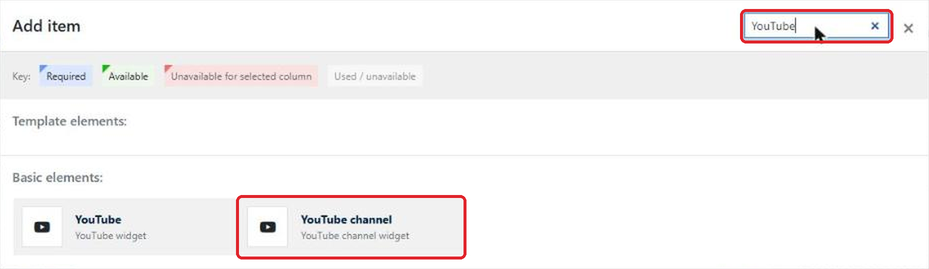
[YouTube channel] widget in the [Add item] window Check the widget settings. The [YouTube.com channel address] field is filled in with the link saved in Settings. You can change it if the widget should show a different channel.
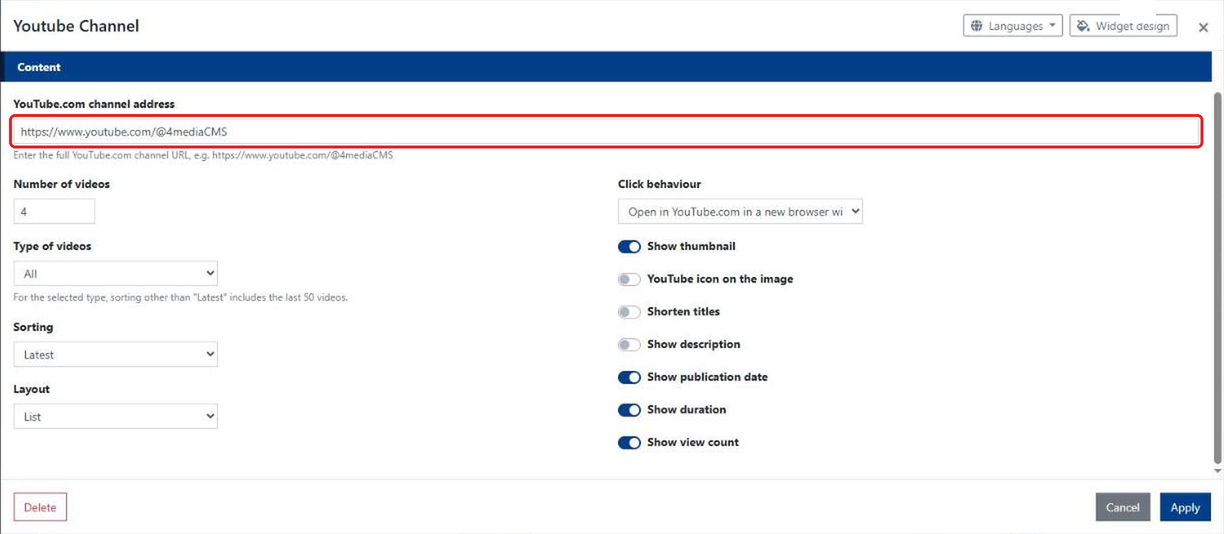
[YouTube channel] widget settings The widget is customised in a similar way to the article widget. You can set the number of videos, how they are displayed, and which details are shown or hidden.
Once you have chosen the right settings, click the [Apply] button.

[Apply] button - The widget will appear in the selected column of the template. Remember to save the changes to the whole template by clicking the [Save] button at the very bottom of the template editing page.
YouTube channel widget settings
- Number of videos – how many videos the widget shows.
- Type of videos – All, Regular videos, Shorts or Live streams. For the selected type, sorting other than “Latest” includes the last 50 videos.
- Sorting – Latest, Most popular, Top rated or Alphabetically by title.
- Layout – List or Grid.
- Click behaviour – Open in YouTube.com in a new browser window, Play in a pop-up window or Play immediately.
- Display toggles – Show thumbnail, YouTube icon on the image, Shorten titles, Show description, Show publication date, Show duration and Show view count.
- Show header – displays a header above the widget.
Tip: the green phone and monitor icons next to the widget mean it is visible on mobile devices and on large screens. Click an icon to hide the widget on that type of device.

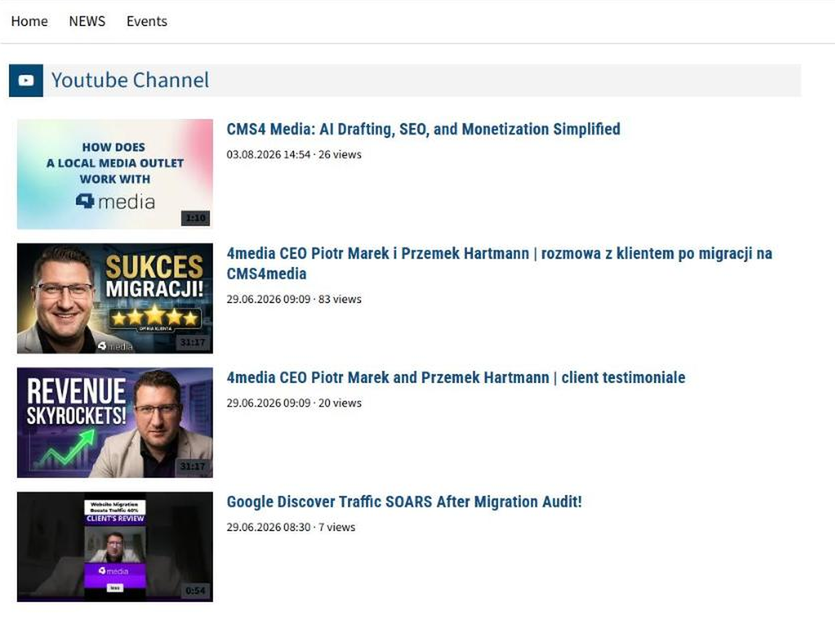
View of the widget in the published version, visible to readers