polski
 español

 Monika Borowiec
General Information
Artificial Intelligence (AI) is a tool based on probability. Our integration with OpenAI's models includes multiple models for various applications, including search models, which have access to the internet and can retrieve information about current events. However, all artificial intelligence models can make mistakes.
We have individually programmed every field for an article, event, or any other module that the AI can generate for you. This ensures that the generated information is detailed and well-suited to the nature of each specific field.
Regardless, we recommend that all content generated by AI be reviewed by a human before publication.
The most important elements of your work with the tool are the prompts and providing appropriate introductory content. In the relevant sections of these instructions, we explain exactly what this means for specific modules.
If you encounter any errors or technical problems while testing our tool, please report them by email to [email protected], including a description of how we can replicate the problematic situation.
Important: A single generation error that does not repeat on subsequent attempts is not necessarily a system error. Artificial intelligence can make mistakes and occasionally return incorrect answers, even to seemingly simple questions.
Configuration
The 4media AI Assistant configuration is located in the ⚙️ Settings tab, at the very bottom, under the Integrations section, and then AI Assistant, at the URL: yourportal/tipadmin/settings/tipai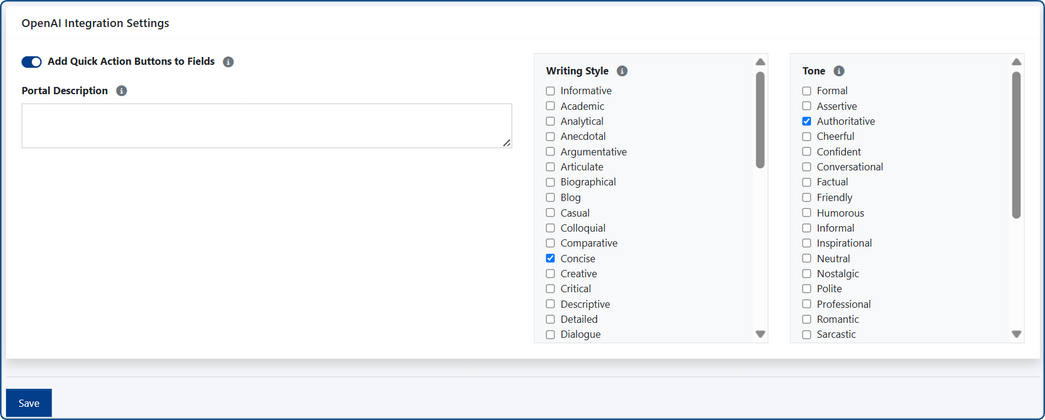
In the settings, you should fill out the Portal Description in detail – this allows the language model to tailor the generated content to your portal's subject matter.
On the right side, you will find the Styles and Tones, which inform the language model on how to adapt its writing. These settings only apply if a specific type of content does not have separate Styles and Tones defined in the AI Assistant Messages settings (as explained later in the instructions). For example, if no specific Styles and Tones are defined for an article's introduction, the model will use the global settings shown above.
We recommend leaving these settings unchanged, unless you have a reason to change the model's manner of expression in all cases that are not specifically defined in the separate AI Assistant Messages settings.
Message Settings
The Message Settings – which are the Styles and Tones for specific modules – are located at the very bottom of the side menu in the admin panel, under the ✨ AI Assistant tab.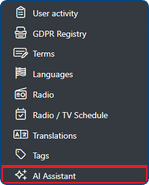
The 4media AI Assistant settings allow you to customize the Style and Tone that the language model will use when generating a specific element of an entry.
For example: we might want the language model to be detailed when generating the article's content and maintain a serious, journalistic character. At the same time, we want the model to be concise, persuasive, and creative when writing the SEO title.
For your convenience, we have pre-selected Styles and Tones for all available fields that, based on our experience, have proven to be the most effective. We recommend reviewing and testing them yourself before you make any changes.
Quick Actions of fields
Quick Actions are the blue buttons located next to selected fields in the Articles, Events, and Obituaries modules, as well as the SEO fields of other modules. They allow you to instantly fill a field with content that the Assistant suggests based on the other, previously completed text fields.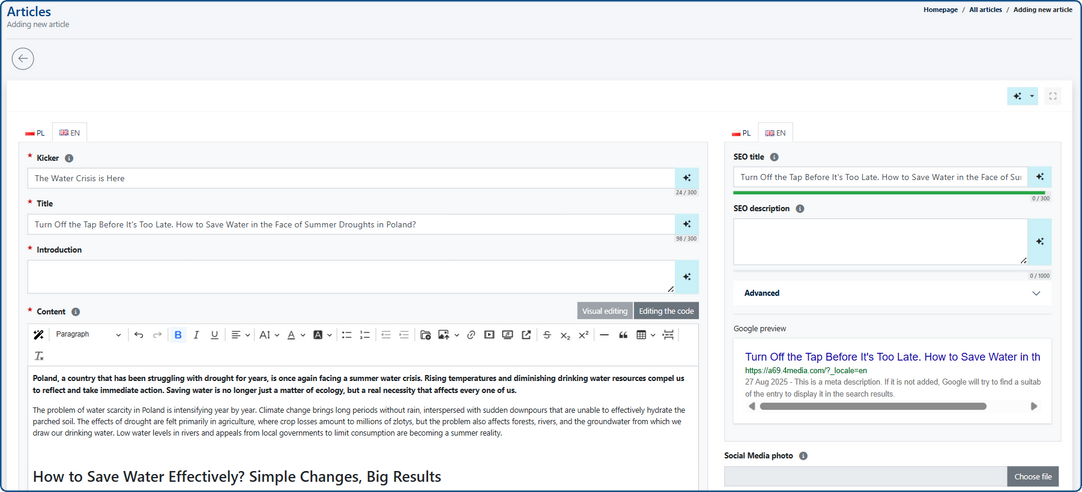
Let's assume you have already written the article's content, entered the kicker, and filled in the title and SEO title. If you then click the Quick Action buttons next to two fields, Introduction and SEO Description, the AI model will fill these two missing fields based on what you have already written.\
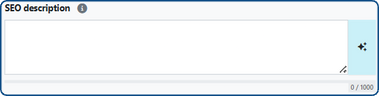 | 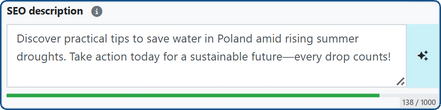 |
The key to the quality of the SEO Description suggested by the AI is generating it based on a well-written article content.
The situation is analogous for all other fields where a Quick Action button is available. Important: if you plan to use the Quick Action on the "content" field, you must first fill out as many of the other text fields as possible in detail.
Image to content
In the top-right corner of the Articles, Events, and Obituaries modules, you will find a generation button.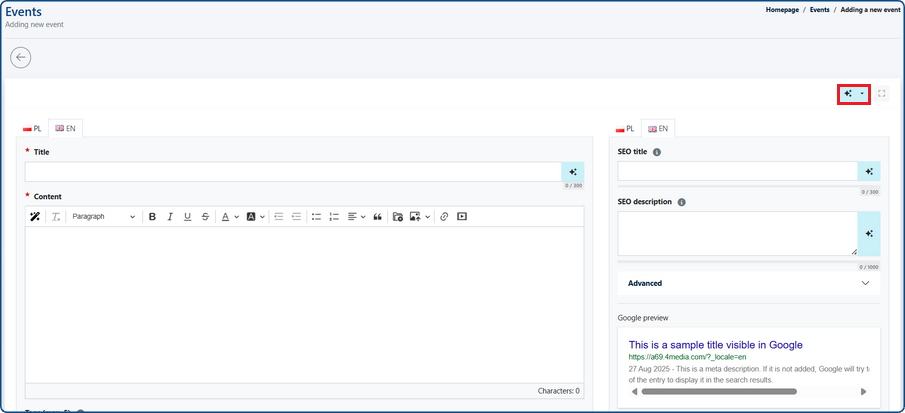
This button opens a menu with three options: Generate from your own prompt, Generate from an Image, and Generate from an Image in the File Library. Here, we will focus on the last two options.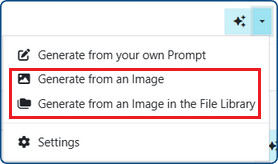
After selecting the Generate from an Image option, you will be redirected to your system's file explorer window. There, you select the appropriate image. For an article, this could be a local council announcement or a screenshot from another website; for events, it could be a scan of a promotional poster; and for obituaries, a scan of a death notice or a screenshot of a family announcement.
If the uploaded image is legible and appropriate for the module you are in, then all text fields where the 4media AI Assistant button is visible will be populated based on the image's content (mainly the text it contains). Additionally, the uploaded image will become the main photo for the entry you are working on.
If you select an image from the File Library, the process is analogous.
Description to content
If you select the Generate from your own prompt option from the menu described above, you will see a text field to enter a prompt for the language model, as well as an Add URL option, which allows the 4media AI Assistant to access content it can use as a reference.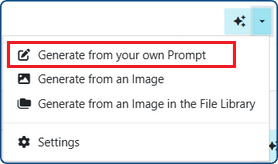
The "Enter your own prompt" field is the aforementioned place for your prompt – that is, an instruction for the language model that is as detailed and careful as possible, based on which your entry will be prepared.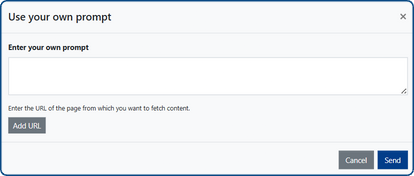
Here is an example of a well-written prompt: "Write an article about the launch of the nationwide water conservation campaign proposed by the Ministry of Climate and Environment. Describe what the campaign involves, when it takes place, and list the best ways to save water. Do not write about the policies of other EU countries."
This is an example of a prompt that may be insufficient: "write about that new environmental campaign".
If you add a link to the prompt, it is especially important to review the content before publication and to provide any necessary sources and citations in accordance with copyright law.